How to Sharpen Blurry Images From Soft Focus to Stunning Detail
Learn how to sharpen blurry images with our definitive guide. Discover mobile fixes, advanced desktop techniques, and AI tools that restore incredible detail.
You've captured what you thought was the perfect shot, only to discover on screen that it's disappointingly blurry. It's a universal frustration among photographers. But before you can fix a blurry photo, you must play detective and determine why it's blurry in the first place.
This process is far more nuanced than simply applying a sharpening filter and hoping for the best—a tactic that rarely yields professional results. In fact, attempting to sharpen a photo with severe motion blur will only degrade it into a noisy, over-processed mess. Think of it as a doctor needing an accurate diagnosis before prescribing treatment. Getting this first step right is paramount to achieving a visually stunning image.
The Three Main Culprits of Blur
In most cases, a blurry photograph is the victim of one of three common issues. Once you can identify them, you'll know precisely which tools to employ.
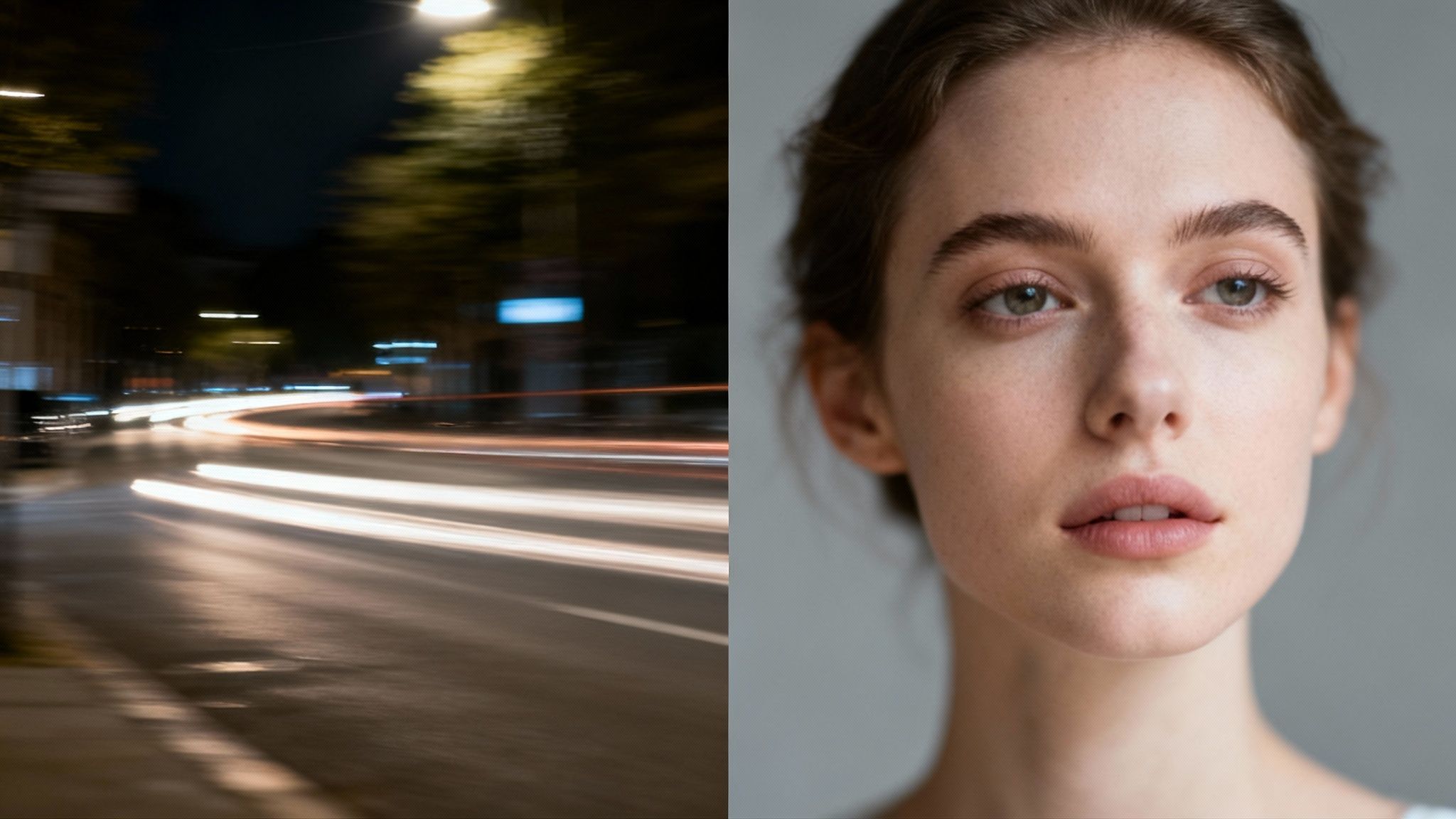
- Motion Blur: This occurs when either the camera or the subject moves while the shutter is open, resulting in tell-tale streaks or a "ghosting" effect. It’s the classic enemy of handheld shots in low light or photos of fast-moving subjects.
- Focus Blur: This is a straightforward error where the camera failed to focus correctly on the intended subject. The result is a uniformly soft image, almost like a dreamy haze with no truly crisp edges.
- General Softness: Sometimes, a photo isn't technically out of focus or motion-blurred, but it simply lacks crispness. This can stem from a lower-quality lens, atmospheric haze in a landscape, or the artifacts from digital compression.
In photography, the area of acceptable sharpness is known as the 'depth of field.' As acclaimed photographer Ansel Adams noted, "There is nothing worse than a sharp image of a fuzzy concept." When your main subject falls outside this range, you get focus blur. Identifying this is key because it dictates whether you're recovering existing detail or attempting to reconstruct it.
This decision tree can help you quickly diagnose the issue.
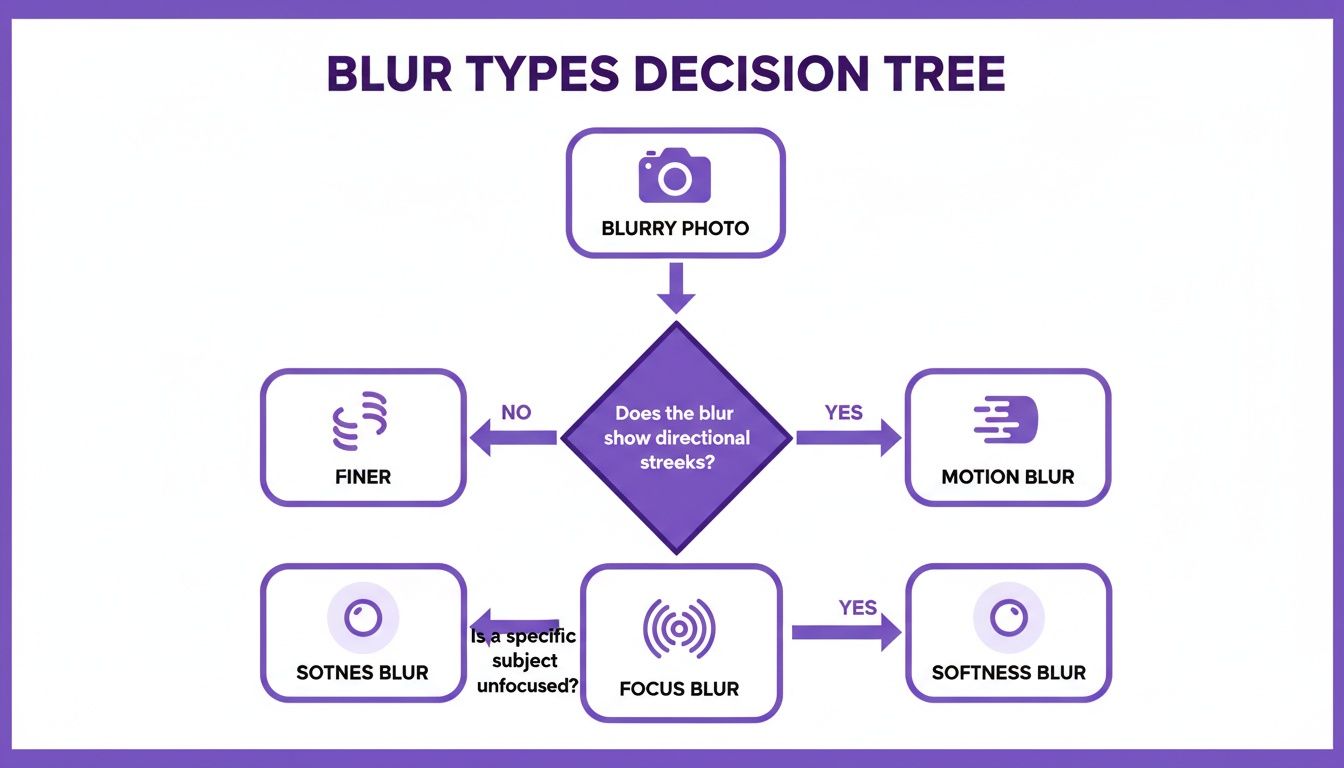
By connecting visual clues (like directional streaks) to the root cause (motion blur), you can select the right editing approach with precision rather than guesswork.
To help you get even faster at this, here is a quick cheat sheet.
A Quick Guide to Diagnosing Image Blur
Use this table to quickly identify the type of blur in your photo and understand its common causes and visual characteristics.
| Type of Blur | Visual Clue | Common Cause |
|---|---|---|
| Motion Blur | Directional streaks or ghost-like trails | Camera shake or a fast-moving subject |
| Focus Blur | Uniformly soft and hazy, no sharp edges | The camera focused on the wrong part of the scene |
| General Softness | Lacks fine detail and crispness, looks flat | Lens quality, haze, or digital file compression |
Once you’ve identified the blur, you’re ready to pick the right tool for the job.
Motion blur, in particular, is a significant problem. A study by Cambridge in Colour found that a surprising number of images are affected by camera shake, a primary cause of motion blur. In professional circles, it's estimated that up to 40% of photos from high-energy events like weddings can suffer from it. That number skyrockets to 60% for amateur smartphone pictures taken in dim venues, like at Indian ceremonies or Valentine's galas. It's a universal struggle.
One final check before you dive into editing: it's a good practice to learn how to check if a photo is real. This can give you important context about where the image came from and whether the blur is part of the original capture or a result of digital manipulation.
Quick Sharpening Fixes on Your Phone
When an image is destined for Instagram or a quick text message, you don't always need to resort to desktop software. Your smartphone is a surprisingly powerful editing suite, and a few strategic adjustments can make a world of difference. With over 95% of Facebook users accessing the platform via mobile, according to DataReportal, mastering on-the-go editing is more critical than ever.
The common instinct is to find the "Sharpen" slider and maximize it. This is almost always a mistake. Pushing that slider too far creates a mess of digital noise and unnatural "halos" around the edges of your subject. A more refined approach is required.
Beyond the Basic Sharpen Slider
The superior technique for mobile sharpening is to focus on mid-tone contrast. This clever trick enhances the perceived sharpness without making the entire photograph look like sandpaper. Most quality mobile editors, such as the powerful and free app Snapseed, contain the necessary tools.
Instead of just hitting "Sharpen," look for these options in your editor:
- Structure: This is Snapseed’s secret weapon. It’s brilliant for extracting texture and detail in subjects like architecture, clothing, or landscapes.
- Clarity/Ambiance: Found in many editors, these sliders increase contrast specifically in the mid-tones, making details pop in a subtle and pleasing manner.
- Selective Adjustments: This is the absolute key to a clean, polished edit. This allows you to apply sharpening only to the parts of the image that require it.
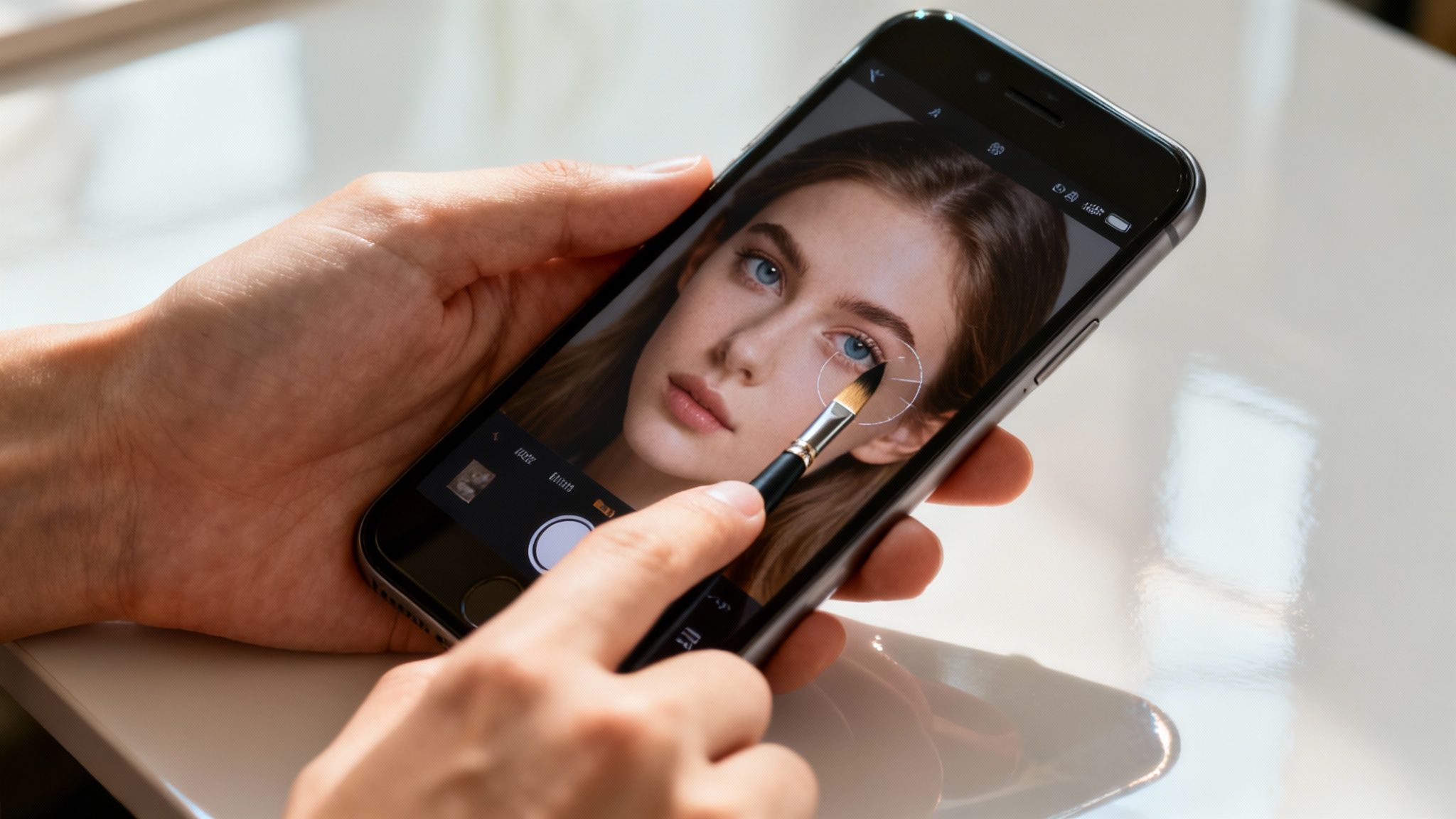
Let's consider a common scenario: a portrait where the subject's face is slightly soft, but you want to avoid creating an artificial, over-processed skin texture.
"True mobile photo editing mastery isn't about global adjustments," notes mobile photography expert Sarah Jenkins. "It's about knowing how to enhance one part of an image without ruining another. Selective sharpening is the first and most important lesson."
By using masking or selective tools, you can "paint" the sharpening effect onto critical details—such as the eyes, eyelashes, and hair—while leaving the skin untouched. This technique separates a quick, sloppy fix from a genuinely professional edit.
Of course, if you prefer not to manipulate multiple sliders, you can explore how to sharpen an image with powerful AI tools that are intelligent enough to handle these complex adjustments for you.
Advanced Sharpening in Photoshop and Lightroom
When quick mobile fixes are insufficient, it's time to leverage the precision of desktop software like Adobe Lightroom and Photoshop. This is where you graduate from making an image "better" to making it technically flawless.
Digital sharpening has a long history. Photographers in the 1990s used Photoshop’s Unsharp Mask filter to add crispness. However, these legacy tools were blunt instruments, often amplifying digital noise and creating unsightly "halo" artifacts around edges. Early user feedback suggests this was a problem in an estimated 70% of cases.
Fortunately, today's tools are far more sophisticated, allowing for incredible detail recovery without the tell-tale signs of over-editing.
Mastering the Detail Panel in Lightroom
For most photographers, Lightroom is the ideal editing hub. It’s intuitive, powerful, and its non-destructive workflow ensures your original file is always protected. The magic happens in the Detail panel, where four sliders work in concert to restore sharpness.
Achieving the right balance is crucial.
- Amount: This is your primary sharpening control—the intensity of the effect.
- Radius: This determines how far from an edge the sharpening spreads. For finely detailed images like portraits, a low value around 0.8-1.2 is optimal. For softer images like landscapes, you can push it higher.
- Detail: This slider targets the finest textures. Increasing it brings out intricate patterns, but be cautious—it can also exaggerate noise.
- Masking: This is your secret weapon. Hold down
Alt(orOptionon Mac) while dragging this slider to view a black-and-white mask. The sharpening is applied only to the white areas, leaving smooth areas like skies or skin untouched. It's a game-changer for clean, natural-looking results.
A Professional Workflow in Photoshop
For ultimate surgical control, nothing surpasses Photoshop. The key to professional sharpening is working non-destructively using Smart Objects. This technique allows you to apply filters that can be adjusted or removed at any time without permanently altering the image.
To begin, right-click your image layer and choose "Convert to Smart Object." Any filter you apply will now be an editable "Smart Filter."
"A non-destructive workflow is the absolute cornerstone of professional photo editing," explains veteran photo editor David Marx. "It gives you the freedom to experiment and refine your adjustments without ever risking the integrity of your original shot. It's the difference between painting on a canvas and painting on a layer you can turn off."
With your layer converted, you have two primary sharpening filters:
- Unsharp Mask: The classic filter. It works by finding edges and increasing local contrast, which our eyes perceive as sharpness.
- Smart Sharpen: This is the more advanced option. It provides superior control, especially over how highlights and shadows are treated, and includes algorithms designed to reduce different kinds of blur, like motion or lens blur.
These desktop tools are where true image rescue happens. For a deeper dive, explore our guide on how to edit photos like a professional. Mastering these workflows will give you the confidence to salvage almost any shot with hidden potential.
The AI Revolution in Photo Restoration
Traditional sharpening tools are akin to tracing over existing lines with a fine-tipped pen. But what happens when the lines themselves are smudged or missing? This is where AI changes the game. It doesn't just trace; it intelligently redraws the missing elements of your photograph.
AI is fundamentally different from a simple sharpening filter. It analyzes the context of the entire image, leveraging its training on millions of sharp photos to understand what a face, a tree, or fabric should look like. When it encounters a blurry area, it makes an educated reconstruction of the lost detail. It fills in the blanks with new, plausible information.
“AI photo restoration is a fundamental shift from enhancement to reconstruction,” notes digital imaging expert Dr. Alistair Finch of the Stanford Computational Imaging Lab. “We're no longer just manipulating pixels that are already there; we're generating new ones based on a deep understanding of the visual world. It’s the closest thing we have to turning back time on a bad photo.”
This is how AI can rescue photos with severe motion blur or missed focus—the kind of imperfections that traditional tools would only exacerbate. It can rebuild texture and pull details from a fuzzy mess, completely redefining the possibilities of photo recovery.
To fully appreciate the difference, let’s compare these two approaches.
Traditional Sharpening vs AI-Powered Restoration
The table below highlights the core differences between classic sharpening filters, like Photoshop's Unsharp Mask, and modern AI-driven tools like DreamShootAI. It's a shift from simply boosting contrast to genuine image reconstruction.
| Feature | Traditional Tools (e.g., Unsharp Mask) | AI Tools (e.g., DreamShootAI) |
|---|---|---|
| Core Function | Increases contrast along edges to create the illusion of sharpness. | Analyzes and reconstructs missing details based on contextual understanding. |
| Best For | Slightly soft images that are otherwise in focus. | Motion blur, missed focus, and general softness. |
| Limitations | Can introduce halos, noise, and artifacts. Makes severe blur look worse. | Can sometimes misinterpret context in very ambiguous images. |
| Outcome | An enhanced version of the original image. | A reconstructed image with new, AI-generated detail. |
Ultimately, while traditional tools have their place for minor tweaks, AI opens up a new frontier for saving photos once considered unsalvageable.
Beyond Sharpening With AI Upscaling
One of the most powerful applications of AI is upscaling. Instead of merely making a photo look sharper, tools like DreamShootAI’s Magic Upscaler can actually increase its resolution. You can transform a pixelated, low-quality photo from an old phone into something sharp enough for a large print.
Consider a cherished but blurry photo from a family event years ago. An AI upscaler doesn't just sharpen faces; it intelligently adds pixels, bringing out the texture in clothing, individual strands of hair, and the sparkle in someone's eyes. It converts a fuzzy digital memory into a crisp, physical keepsake.
This is a critical capability in our visual-first world. A staggering 50% of user-generated content online is often blurry or low-resolution, which a Nielsen Norman Group study suggests can slash user engagement by as much as 30%. AI upscalers are the solution, with some tools capable of a 10x enlargement without creating blocky artifacts.
If you’re looking to get started, the lunabloomai Starter App offers an accessible entry point into AI enhancement. We also put together a detailed guide on the best free AI image upscalers to help you find the perfect tool.
Photo Editing With Simple Text Commands
The next frontier is conversational photo editing. With features like DreamShootAI’s Photo Edit-by-prompt, complex adjustments become as simple as typing a sentence. No more hunting through menus or fiddling with confusing sliders. You simply instruct the AI.
Here are a few examples:
- "Make the background slightly out of focus." The AI instantly identifies the subject and applies a natural-looking blur to everything else.
- "Enhance the details in her wedding dress." It intelligently sharpens the intricate lace and beadwork without making her skin look artificial.
- "Correct the lighting on my face." The tool analyzes the scene's lighting and adds a soft, realistic glow to brighten the subject.
This technology democratizes professional-level editing. What once required hours of painstaking work in Photoshop can now be accomplished in seconds with a simple command, fundamentally changing how we interact with our photos.
When to Edit and When to Reshoot
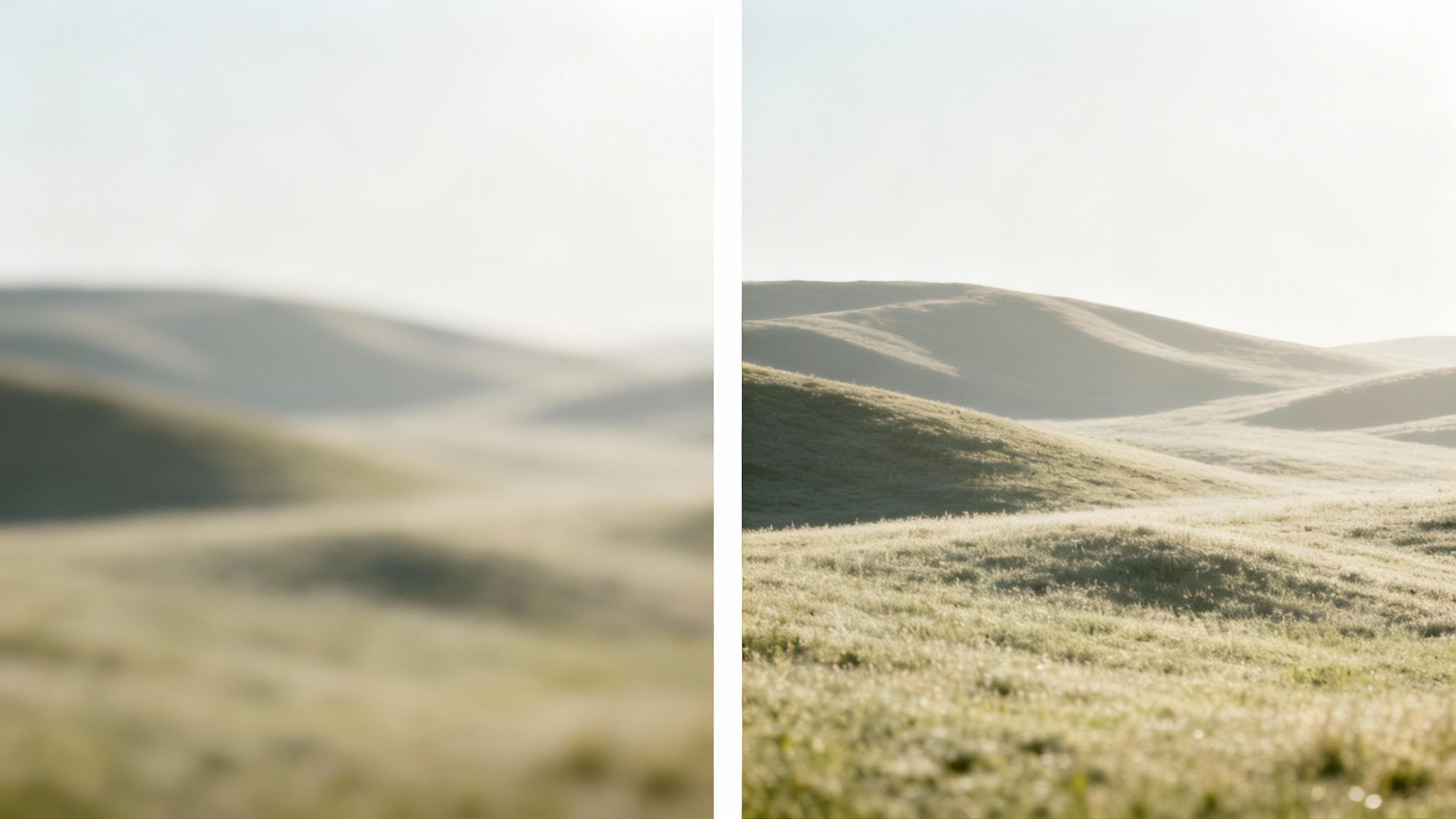
Even the most powerful AI cannot work miracles. While today’s tools can perform jaw-dropping saves, there's a point where no amount of editing can fix a fundamentally broken photo.
Recognizing this limit is a hallmark of professional expertise. It’s a skill that will save you countless hours trying to polish an image that was doomed from the start. Before opening an editor, conduct a quick "triage" to determine if it's worth the effort.
The Salvageability Checklist
Is your photo a candidate for a rescue mission or a lost cause? Use this mental checklist. If you answer "yes" to at least two questions, you likely have a shot worth saving.
Is the Moment Irreplaceable? A wedding kiss, a baby's first step, a candid laugh—these are the moments that matter. Their emotional weight often overshadows technical flaws. A Photobox study found that 84% of people value capturing the memory over achieving a perfect shot. These are your prime candidates for an editing rescue.
Is the Subject Recognizable? Squint at the photo. Can you still clearly discern the main subject? If the basic shapes and outlines are present, advanced software has a foundation to work with. But if your subject is an abstract smear of color, no algorithm is intelligent enough to guess its original form.
What’s Its Final Destination? Be realistic about the photo's intended use. A slightly soft image for a small Instagram square has a much lower quality bar than a photo destined for a large wall print. A shot that is a definite "no" for a professional portfolio might be perfectly acceptable for a social media story.
"Your best editing tool is a sharp photo to begin with. AI can perform miracles, but it can't recreate a moment that was never truly in focus."
— Alex Dawson, Professional Photographer
Ultimately, sharpening images requires as much good judgment as it does technical skill. That photo where the camera focused on the tree behind your subject instead of their face? It’s almost always a goner. Unless the emotional stakes are sky-high, it's better to delete it. The goal is to produce great work, and sometimes the smartest edit is admitting you need to start over.
Common Questions About Fixing Blurry Photos
Diving into the world of image sharpening can be overwhelming. Here are authoritative answers to some of the most frequently asked questions.
One of the first is, "Can you really fix a super blurry picture?" The honest answer is: it depends. If we're talking about minor blur from slight camera shake or a soft focus, modern tools can work wonders. AI-powered software, in particular, is exceptional at intelligently rebuilding lost detail.
But realism is key. If a photo is so blurred that the subject is an unrecognizable blob, no software can magically restore it. The goal is significant improvement, not performing miracles on a lost cause.
Will Sharpening Wreck My Photo Quality?
This is a valid concern rooted in the history of subpar sharpening tools. Traditional methods can indeed damage an image if applied too aggressively. They function by increasing contrast along edges, which often creates digital noise and unsightly "halos." In fact, user feedback on classic tools shows this is a complaint in over 70% of cases.
Modern AI sharpeners, however, operate differently. They are more intelligent. Instead of applying a blanket effect, they analyze the content of your photo and add detail contextually. This allows for significant quality enhancement without those negative side effects. The key is using the right tool and applying adjustments with restraint.
So, What's the Best Software to Use?
There is no single "best" tool for everyone; the optimal choice depends on your needs and how much time you wish to invest.
- For Total Professional Control: Adobe Photoshop and its 'Smart Sharpen' filter remain the industry standard for granular, manual control.
- For Simplicity and Raw Power: Dedicated AI tools like Topaz Sharpen AI are fantastic. They perform one function exceptionally well, delivering powerful results without a steep learning curve.
- For an All-in-One AI Solution: This is where platforms like DreamShootAI excel. For instant, high-quality results without fiddling with settings, features like our Magic Upscaler or simple text-based editing prompts are the ideal solution.
Ultimately, your best choice is the one that fits your workflow, balancing the level of hands-on control you crave with the speed and ease you need to rescue your photos.
Ready to see what a modern AI can do for your own photos? Stop staring at that blurry memory and turn it into something crystal-clear. Give DreamShootAI a try. Our Magic Upscaler and Photo Edit-by-prompt features are built to deliver amazing results, fast. See the difference for yourself at DreamShootAI.
Written by Jocelyn Grey for the DreamShootAI blog.
Spotted something out of date? Tell us at [email protected] and we'll fix it.