How to Remove an Object From a Picture Flawlessly
Learn how to remove an object from a picture with AI and manual techniques. This guide offers expert tips for perfect, professional-level photo edits.
To remove an object from a picture, you have two main paths: you can go the manual route with tools like Photoshop’s Clone Stamp for meticulous control, or you can lean on AI-powered features like Content-Aware Fill for a quick, almost automatic fix. Today's software and apps give you a whole spectrum of options, from one-click magic wands to detailed, prompt-based editing.
From Manual Fixes to AI Magic
We’ve all been there. You nail the perfect shot, only to find a tourist wandering in the background, a distracting power line cutting across the sky, or a random piece of trash on the ground. Not too long ago, fixing these problems was a serious chore, something left to professionals who had hours to burn on a single image.
For anyone who edited photos back then, you'll remember the painstaking process of using tools that demanded serious skill and a whole lot of patience. It felt more like digital surgery than creative work. You were meticulously painting over imperfections, pixel by pixel, trying to match textures and lighting by hand. One wrong move, and the whole thing looked fake. It was effective, sure, but it was a massive hurdle for anyone who wasn't a pro.
The Old Way vs. The New Way
Historically, object removal was a manual grind. You'd fire up Photoshop—which launched its famous clone stamp tool way back in 1990—and get to work. Professional retouchers could easily spend 30-60 minutes per image, carefully blending pixels to make a distraction disappear.
Fast forward to today, and AI has completely flipped the script. According to recent industry analysis, AI-assisted editing isn't just a small improvement; it boosts workflow efficiency by an average of 45% and can slash production time by up to 68% for creators. For couples using DreamShootAI, this means turning casual selfies into stunning lehenga or sherwani photoshoots without ever setting foot in a studio. They're saving 70-80% on editing fees that used to run $50-$100 per photo. You can find more details in our report on AI photo editing statistics.
"The shift from manual cloning to generative AI doesn't just fix photos; it opens up creative possibilities we never had time for before," observes digital imaging expert Sofia Chen. "We're automating the tedious work, which frees up artists to focus on storytelling and creativity."
The New Era of Instant Results
This guide is all about that journey—from the tedious, time-consuming manual edits to the almost instantaneous power of modern AI. We'll walk you through everything, including the rise of prompt-based editing, which lets literally anyone get flawless results with just a few typed words.
What used to be a technical nightmare is now an accessible creative task. Instead of wrestling with complicated software, you can just tell it what to do. It’s a huge shift that lets you focus on your creative vision instead of getting bogged down in the how-to.
Choosing the Right Object Removal Tool
Not every photo edit is the same, so why would you use the same tool for every job? Deciding between a quick AI fix and a more deliberate, manual approach really comes down to what you're trying to achieve with your image. There’s no single "best" method that works for every situation.
So, what’s the goal? Are you just trying to clean up a vacation photo for your Instagram story before anyone notices that random beach umbrella? A one-click AI tool is your best friend here—it’s fast and convenient.
But what if you're editing a high-resolution wedding portrait or a professional headshot where every pixel is under scrutiny? That's when you need the surgical precision that only manual tools can offer.
Weighing Speed Against Precision
Ultimately, it's a trade-off: speed versus precision. AI tools are built for pure efficiency, zapping an object and filling in the space in seconds. They are fantastic for getting rid of simple, isolated things against a pretty plain background—think a lone person on a beach or a piece of trash on the sidewalk.
The trouble starts when the background gets busy. Intricate patterns, varied textures, or overlapping elements can trip up an AI, leaving you with a blurry, unnatural-looking patch. This is where tools like the Clone Stamp or Healing Brush in software like Photoshop or GIMP really shine. They give you the power to sample specific textures and colors, putting you in complete control of the final look.
As award-winning landscape photographer Trevor Sherwin notes, his goal is to stay true to the scene he originally captured. He says, "I will remove the occasional distracting temporary object such as cranes in a cityscape or a bird in the wrong place etc but this is on an image by image basis." It's all about making a deliberate choice based on what the photo needs.
This simple decision tree can help you visualize when to go for manual control versus AI automation.
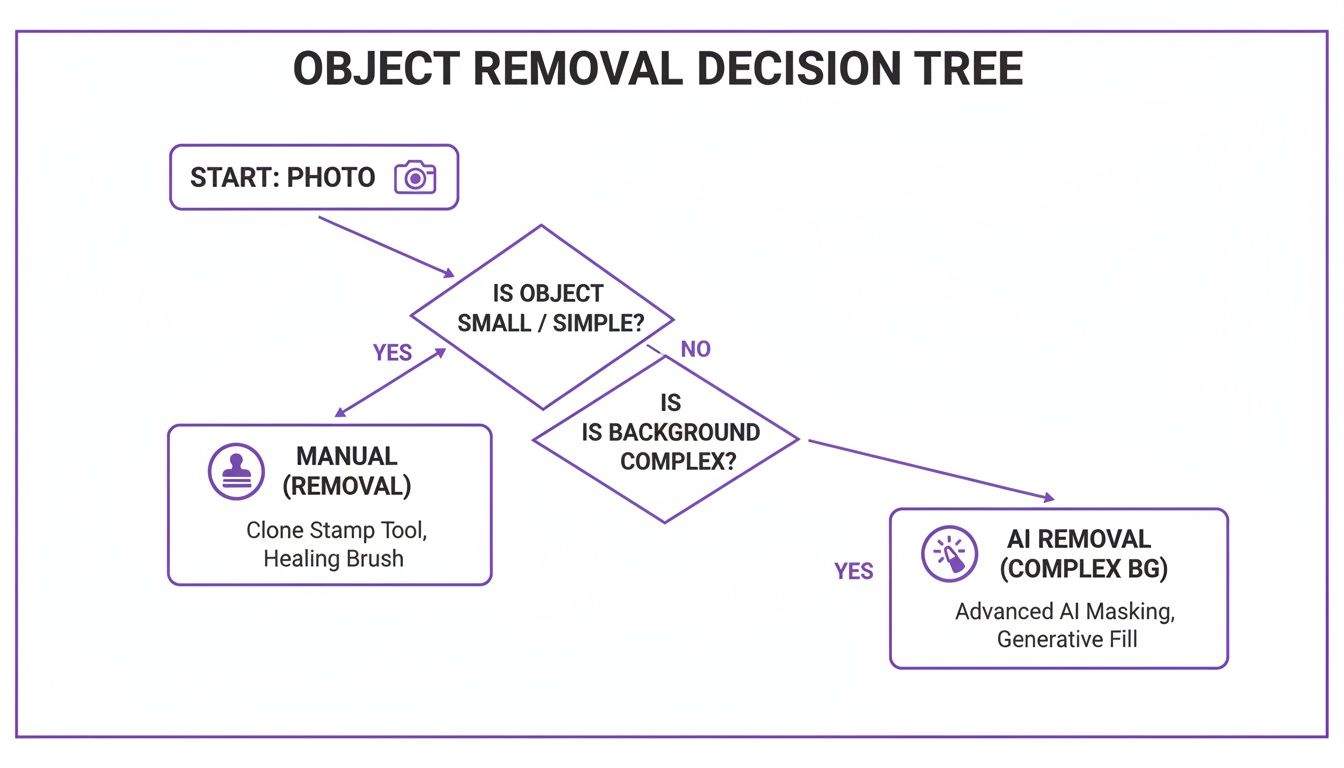
The key takeaway is pretty clear: the complexity of your background and the importance of the final image are the two biggest factors in picking your tool.
Comparison of Object Removal Techniques
To make the choice even clearer, let's break down the most common methods. This table compares the go-to techniques to help you decide which one fits your specific editing task.
| Method | Best For | Speed | Learning Curve | Precision Level |
|---|---|---|---|---|
| AI Removal Tools | Simple objects, clean backgrounds, quick social media edits | Fastest | Very Low | Low to Medium |
| Healing Brush | Minor blemishes, spots, and small imperfections on textured surfaces | Fast | Low | High |
| Clone Stamp | Complex backgrounds, replicating specific patterns or textures | Slower | Medium | Very High |
| Content-Aware Fill | Larger objects against backgrounds with clear, repeatable patterns | Fast | Low | Medium to High |
Each tool has its place in a professional's toolkit. For quick fixes, AI is unbeatable. For detailed, high-stakes work, nothing replaces the control of manual tools like the Clone Stamp.
Understanding the Economic Impact
The push for better and faster editing tools isn't just a trend; it's a massive economic force. The AI Image Editor Market, valued at $88.7 billion in 2025, is projected to explode to $229.6 billion by 2035, according to a recent analysis by Visiongain.
This boom is driven by the demand for seamless "inpainting" tools that can make unwanted objects vanish. For businesses, this translates to serious savings. Traditional object removal by a professional might run you $20-$50 per image, but AI can slash that cost to mere pennies. In fact, a Gartner report predicts that AI will lead to 30% cost reductions in creative production by 2028. You can dive deeper into these trends in AI image statistics to see just how big this shift is.
Getting Flawless Results With AI and Prompts
Not long ago, removing an object from a photo was a painstaking process reserved for seasoned pros. Today, modern AI tools have turned it into a simple conversation. Instead of meticulously tracing pixels, you can now just tell the software what you want gone. Mastering prompt-based editing is your secret weapon for creating perfect images, every single time.
The trick is to think beyond generic commands. The more specific your instructions, the better the AI understands your intent, and the cleaner the final result will be.
This shift is part of a much bigger wave. The generative AI market, which stood at $53.7 billion in 2025, is projected to explode to an incredible $988.4 billion by 2035, according to data from Statista. Photo editing is a massive piece of that pie. Think about it: a single wedding photo that once took a retoucher 45 minutes to perfect can now be done in under 5 seconds. That's a monumental leap in efficiency, and it's why so many creators are jumping on board.
Crafting the Perfect Prompt
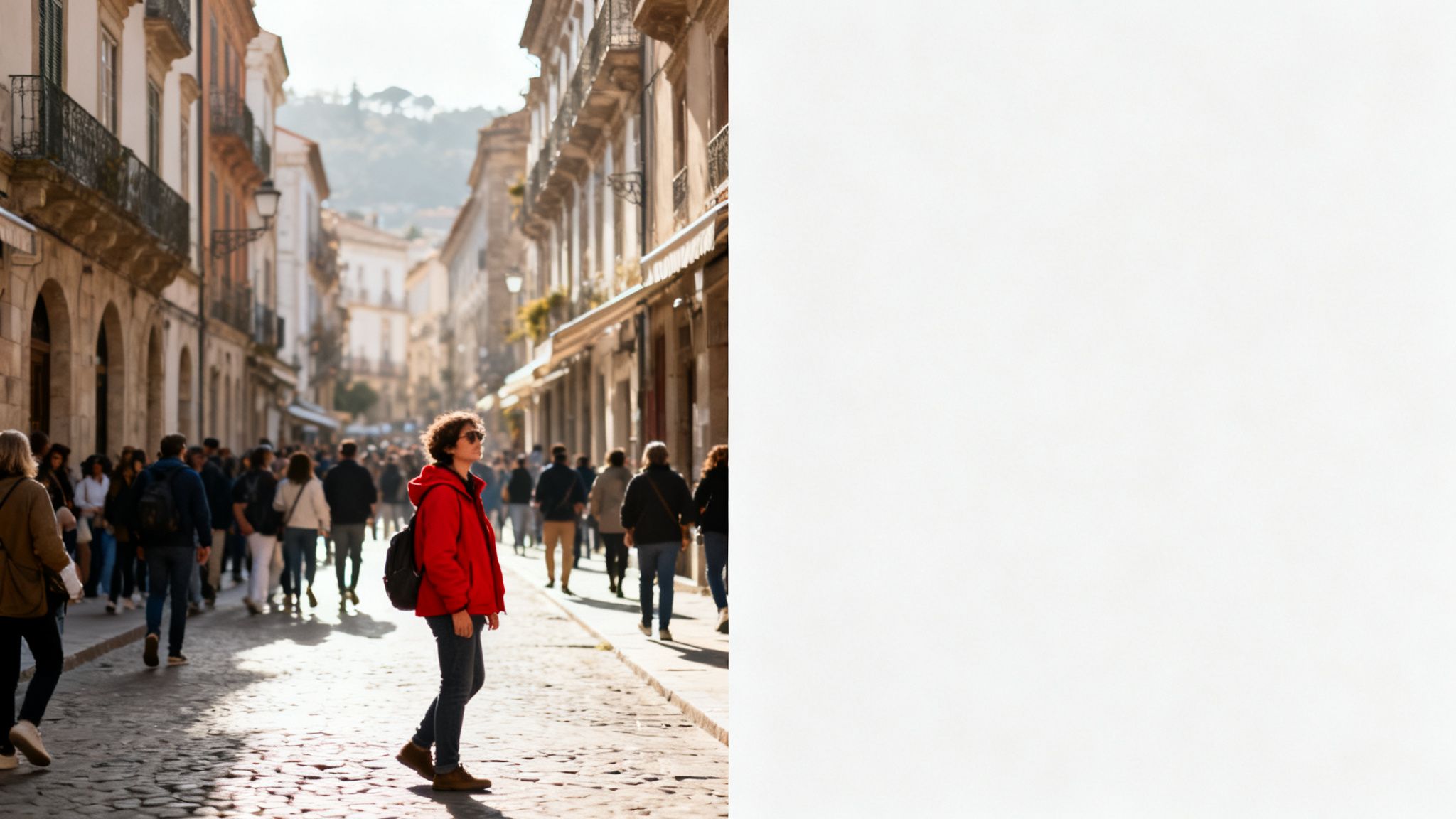
Think of a prompt as a direct order to your digital assistant. Vague instructions get you vague results. For example, telling an AI to "remove person" in a crowded street photo is a recipe for disaster. The AI might get confused, remove the wrong subject, or leave behind an unnatural, blurry patch where the person used to be.
A much better approach is to get specific. Try something like, "remove the tourist in the red jacket and sunglasses." This gives the AI clear, distinct details to lock onto, resulting in a far more accurate and seamless edit.
"The quality of an AI edit is directly proportional to the quality of the prompt," states AI artist and educator, David Lee. "Specificity is the language of generative AI. You have to guide it with detail to get a masterpiece in return."
This same principle applies no matter what you're working on. Whether you're cleaning up a busy background in a travel shot or getting rid of distracting reflections from a product photo, precision is everything.
Real-World Prompt Formulas
Let’s break down some practical formulas you can adapt for your own work. The goal is always to describe the object with as much detail as you can, including what it looks like and where it is in the frame.
- For People: "Remove the man in the blue shirt standing on the far left."
- For Objects: "Erase the white plastic bag on the grass in the bottom right corner."
- For Distractions: "Delete the power lines crossing the top of the sky."
These detailed instructions empower the AI to isolate and replace the unwanted element without messing up the rest of your image. The more descriptive you are upfront, the less cleanup work you'll have to do later. You can dive deeper into more advanced techniques in our guide to crafting effective AI photo editing prompts.
For anyone in e-commerce or fashion, this technology goes even further. AI tools can transform a simple flat-lay product shot into a professional on-model presentation using a product to model AI. It's a powerful example of just how versatile modern editing AI has become. By mastering a few simple prompting rules, you can produce professional-quality edits in a tiny fraction of the time.
Getting Your Hands Dirty: Mastering Manual Object Removal
While AI tools are incredibly fast, sometimes you need the precision and control that only comes from a hands-on approach. For those critical images—the money shots from a wedding or a polished corporate headshot—manual removal techniques give you the power to create a truly flawless, undetectable edit. Think of it as the difference between a quick sketch and a detailed painting. When you know how to wield these classic tools, no challenge is too complex.
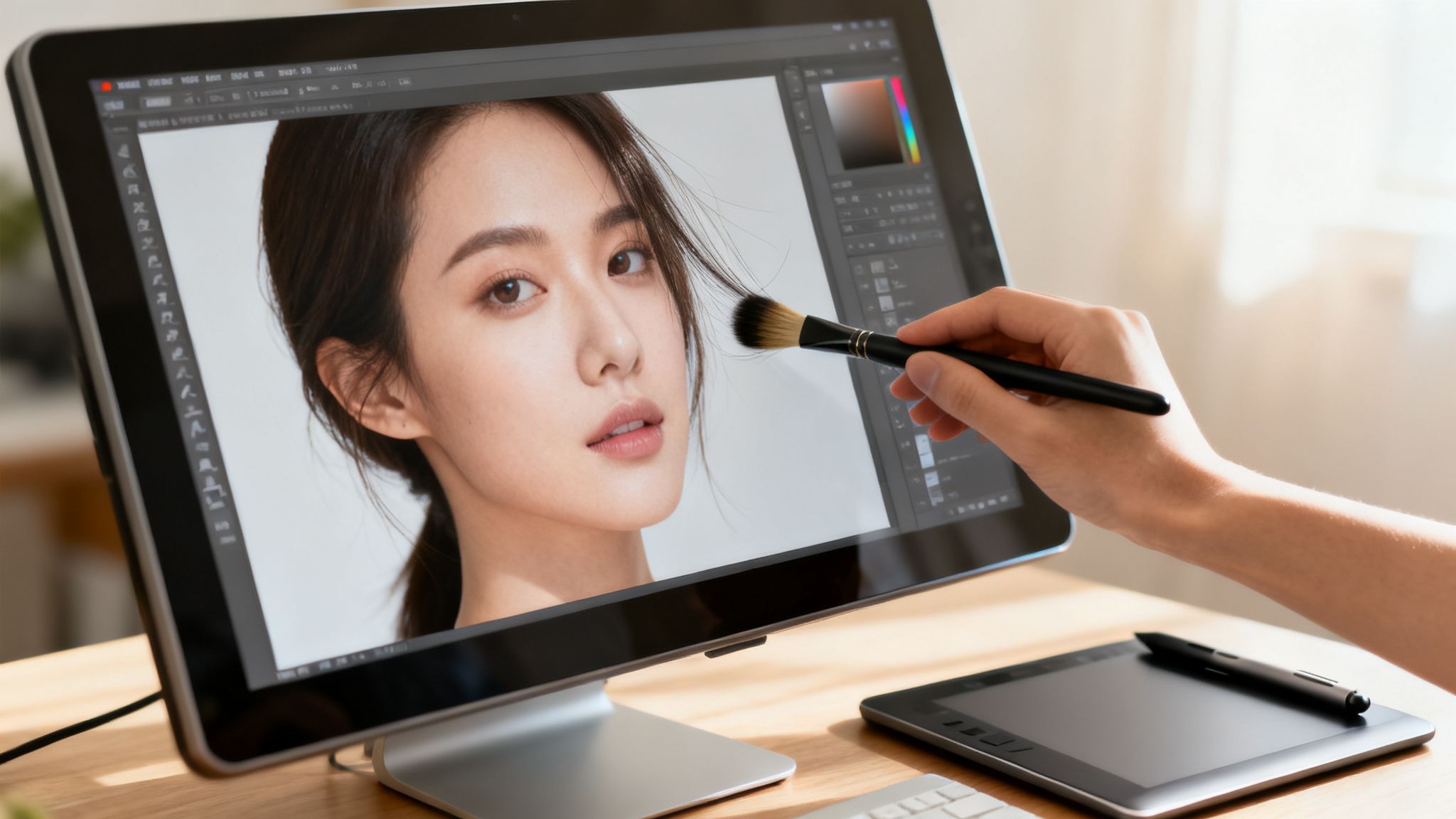
This isn't just about erasing things; it's about thoughtfully reconstructing a scene, pixel by pixel. The demand for this level of detailed work is stronger than ever. The global photo editing software market is expected to jump from $957.9 million in 2022 to over $1.6 billion by 2030, according to a report by Verified Market Research, proving that these foundational skills are still incredibly valuable.
The Clone Stamp: Your Go-To for Exact Copies
The Clone Stamp tool is your best friend when you need to replicate a texture or pattern with absolute precision. It works by copying pixels from a source area you choose and then "painting" them over the object you want to erase. This is the perfect tool for backgrounds with repeating patterns like a brick wall, a textured fabric, or even dense leaves on a tree.
Imagine a stunning portrait where a small, distracting logo is visible on a patterned shirt. A healing tool might smudge the pattern, but the Clone Stamp lets you meticulously paint over that logo using the fabric's own texture. The result? A completely invisible fix.
Here's how to get the best results:
- Never Edit the Original: Always create a new, blank layer above your image to do your cloning. This keeps your original photo safe and lets you easily erase any mistakes without starting over.
- Soften Your Brush: Use a soft-edged brush. This helps blend your edits into the surrounding area much more naturally. You'll want to constantly adjust the brush size and hardness to match the specific spot you're working on.
- Keep Resampling: To avoid a fake, repetitive look, get in the habit of constantly selecting new source points (Alt-click on PC, Option-click on Mac) as you paint.
"For me, the goal is always to stay true to the scene I captured," emphasizes photographer Trevor Sherwin. While he edits his photos, he imposes limits, such as not substituting a sky or removing permanent objects, but will remove "the occasional distracting temporary object such as cranes in a cityscape."
The Healing Brush: The Smarter Way to Blend
While the Clone Stamp is great for direct copies, the Healing Brush is a bit more intelligent. It samples the texture from your source point but then cleverly blends the color and brightness with the area you're painting over. This makes it absolutely perfect for removing small blemishes, stray hairs, or sensor dust from smoother areas like skin or a clear blue sky.
For instance, when you're retouching a headshot, the Healing Brush can make a small pimple vanish by sampling nearby clear skin. The tool keeps the natural skin texture but matches the lighting and tone of the surrounding area, creating a flawless result that the Clone Stamp would likely struggle with.
Content-Aware Fill: The Heavy Lifter for Big Jobs
When you're dealing with larger, more complicated objects, Content-Aware Fill is a game-changer. Instead of you having to manually sample pixels, you just draw a selection around the object you want gone, and the software analyzes the surrounding area to intelligently fill in the gap. This tool works wonders when removing something from a background with a predictable but non-uniform pattern, like a field of grass, a sandy beach, or a textured wall.
It's the perfect middle ground between full manual control and the speed of automation. If you want to dive deeper into how this powerful feature works, check out our guide on what is Content-Aware Fill.
Applying the Finishing Touches for a Perfect Edit
Alright, you've zapped that distracting object out of your photo. High-five! But hold on, we're not quite done yet. This is where the real magic happens. Removing an object is only half the battle; making it look like it was never there in the first place is what separates a decent fix from a truly professional edit.
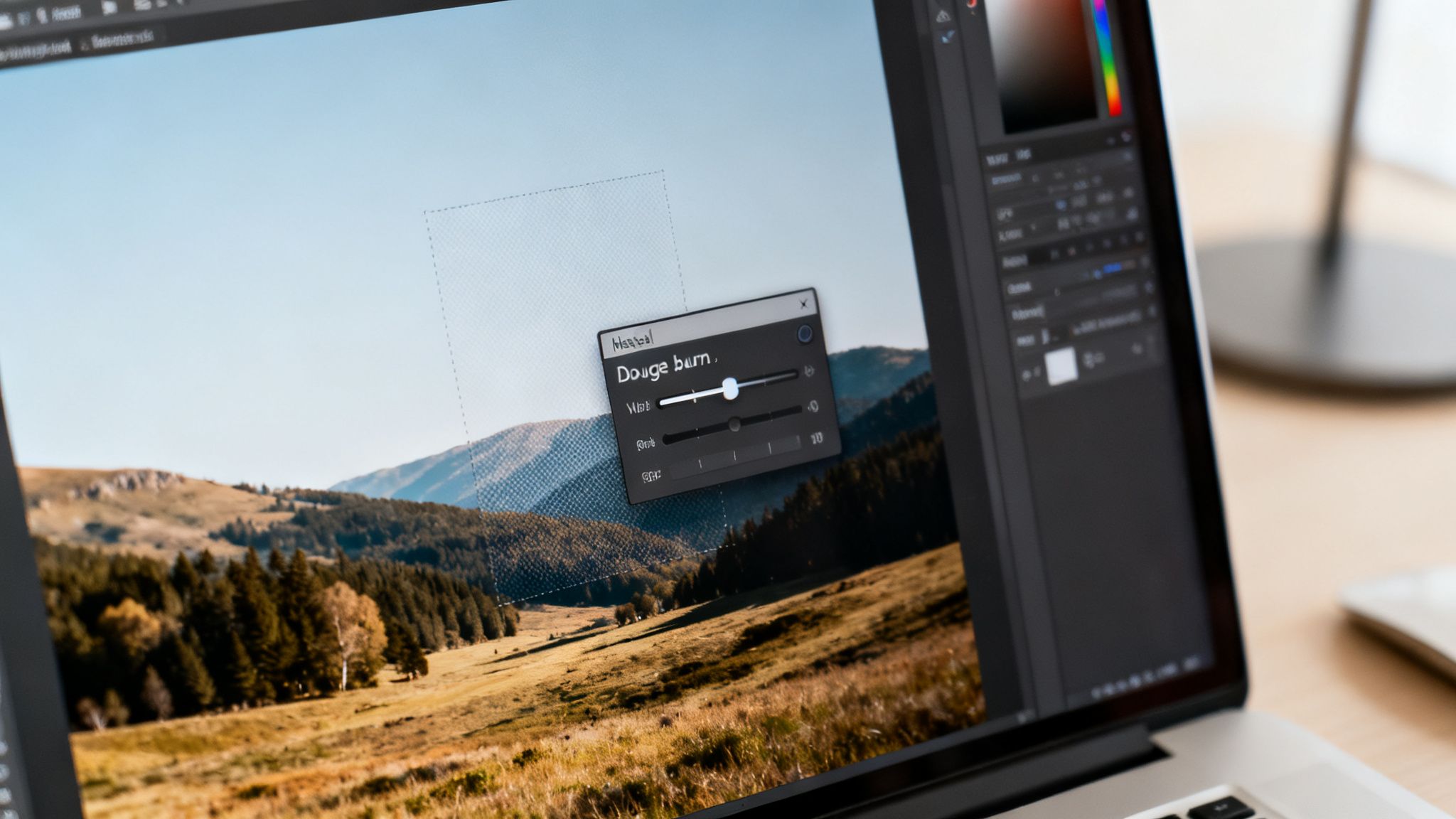
The biggest giveaways of a rushed job are almost always the subtle things—a patch of background that’s just a little too soft, a texture that doesn't quite line up, or light and shadow that feel... off. It's no surprise that a recent Wyzowl survey found that 82% of consumers are more likely to trust brands with authentic, high-quality images. Getting these final details right isn't just for perfectionists; it's crucial.
Reconstructing Light and Shadow
When you removed that object, you also removed its shadow and any light it was reflecting. Now, you have to put that light back in a believable way. This is where the classic dodge and burn techniques are your best friends.
Think of it as digitally painting with light. The dodge tool lets you selectively lighten areas, while the burn tool darkens them. I always create a new, blank layer, fill it with neutral gray, and set its blend mode to "Overlay." This lets you paint in your highlights and shadows non-destructively, gently sculpting the light to perfectly match the rest of the scene.
"I will use a radial filter and selectively lighten areas to really make them pop in the image," explains photographer Trevor Sherwin. This is a brilliant way to guide the viewer’s eye and restore a natural sense of depth after an edit.
Matching Texture and Grain
One of the most common mistakes I see is leaving a smooth, blurry spot where the object used to be. This happens when editing tools average out the pixels, completely wiping out the natural texture of the photo. The fix? You need to reintroduce that texture.
A super simple and effective method is to add a fine layer of photographic grain over the entire image. This helps to unify the edited patch with the rest of the photo, making any tiny inconsistencies practically disappear.
- First, create a new layer and fill it with 50% gray.
- Then, head to Filter > Noise > Add Noise. Add just a small amount, making sure it's monochromatic and Gaussian.
- Change this layer’s blending mode to "Soft Light" or "Overlay", then dial back the opacity until the effect is barely there. It's all about subtlety!
Sometimes, the best final touch isn't about removal at all, but about clever enhancement. For example, learning how to expertly blur backgrounds in photos can do wonders for hiding minor imperfections while drawing more attention to your subject. And if you're tackling bigger editing projects, you might find our guide on how to remove the background from a photo useful too. Mastering these final steps is what makes your edits truly seamless.
Common Questions About Object Removal
Even with the best tools in your arsenal, you're going to run into questions when trying to get an object out of a picture. It happens to everyone, whether you're a seasoned pro trying to nail a complex edit or just getting started. Let’s tackle some of the most common things that come up.
A big one is always about the best free software. For a full-blown desktop experience, GIMP is the undisputed champion. It gives you professional-grade tools like the Clone Stamp and Healing Brush without the monthly subscription. If you're on the go and just need a quick fix on your phone, Snapseed's "Healing" tool is shockingly good for simple cleanups.
Can AI Handle Removing Objects From Video?
The short answer is yes, and the technology is getting better at a wild pace. The process is often called video inpainting, and it’s way more complicated than editing a single photo. The software has to regenerate the background perfectly across hundreds, sometimes thousands, of frames without creating weird flickers or artifacts.
What used to be reserved for high-end VFX studios is now becoming something regular creators can use. The market for AI creative tools is blowing up, with Adobe research showing AI can boost production efficiency by a massive 45%. It won't be long before seamless object removal is a standard feature in the video apps we use every day.
How Do I Fix That Blurry Spot After a Fill?
Ah, the dreaded blurry patch. We’ve all been there. You use a Content-Aware Fill, and it leaves behind a soft, out-of-focus mess. It usually means the tool grabbed a sample from a smooth, textureless area (like a clear sky) when it needed something with more detail. The first thing to do is simple: undo, make your selection a little tighter and more precise, and try again.
If the blur is still there, it's time for a manual touch-up. Here’s how I handle it:
- Pop a new, empty layer on top so you're not editing your original image.
- Grab the Clone Stamp tool and drop its opacity way down to around 20-30%.
- Alt-click (or Option-click on Mac) to sample a sharp, textured area right next to the blurry spot.
- Now, gently paint over the blur. This layering approach slowly builds the texture back in, creating a blend that looks a million times more natural than one heavy-handed fix.
AI vs. Manual: Which One Should I Use?
Honestly, the best method really just depends on the photo you're working on.
AI is unbeatable for speed. It's perfect for quickly cleaning up images for social media or when you have a simple, uncomplicated background. A recent survey from Getty Images found that 68% of creative professionals have brought AI tools into their workflow specifically to automate these kinds of tasks.
But when you need absolute precision, manual tools are still king. For high-resolution commercial work or tricky scenes with intricate patterns, you need the control that only a human hand can offer. The new pro workflow is often a hybrid approach: start with an AI tool to do the initial heavy lifting, then switch to the Clone Stamp or Healing Brush to finesse the details and nail that perfect, seamless finish.
Ready to create stunning, professional-quality photos without the expensive equipment? With DreamShootAI, you can turn your simple selfies into breathtaking photoshoots. Use our advanced AI to edit your pictures with simple prompts, generate themed images, and even create dynamic AI videos. Start your creative journey today at https://dreamshootai.com.
Written by Jocelyn Grey for the DreamShootAI blog.
Spotted something out of date? Tell us at [email protected] and we'll fix it.