Content Aware Fill: Pro Guide to Removing Objects & Fixing Backgrounds
Master content aware fill to remove objects, fix backgrounds, and resolve common issues for pro-level results.

Content-Aware Fill is an indispensable technology in a photographer's digital toolkit, functioning as an intelligent algorithm that analyzes pixels surrounding an unwanted object to seamlessly erase it from an image. Ever had a perfect wedding photo compromised by a photobomber? Or a pristine landscape shot cluttered by a distracting sign? This is the technology that makes them vanish without a trace, transforming once-complex edits into a remarkably accessible process for professionals and enthusiasts alike.
The Magic Behind a Flawless Edit
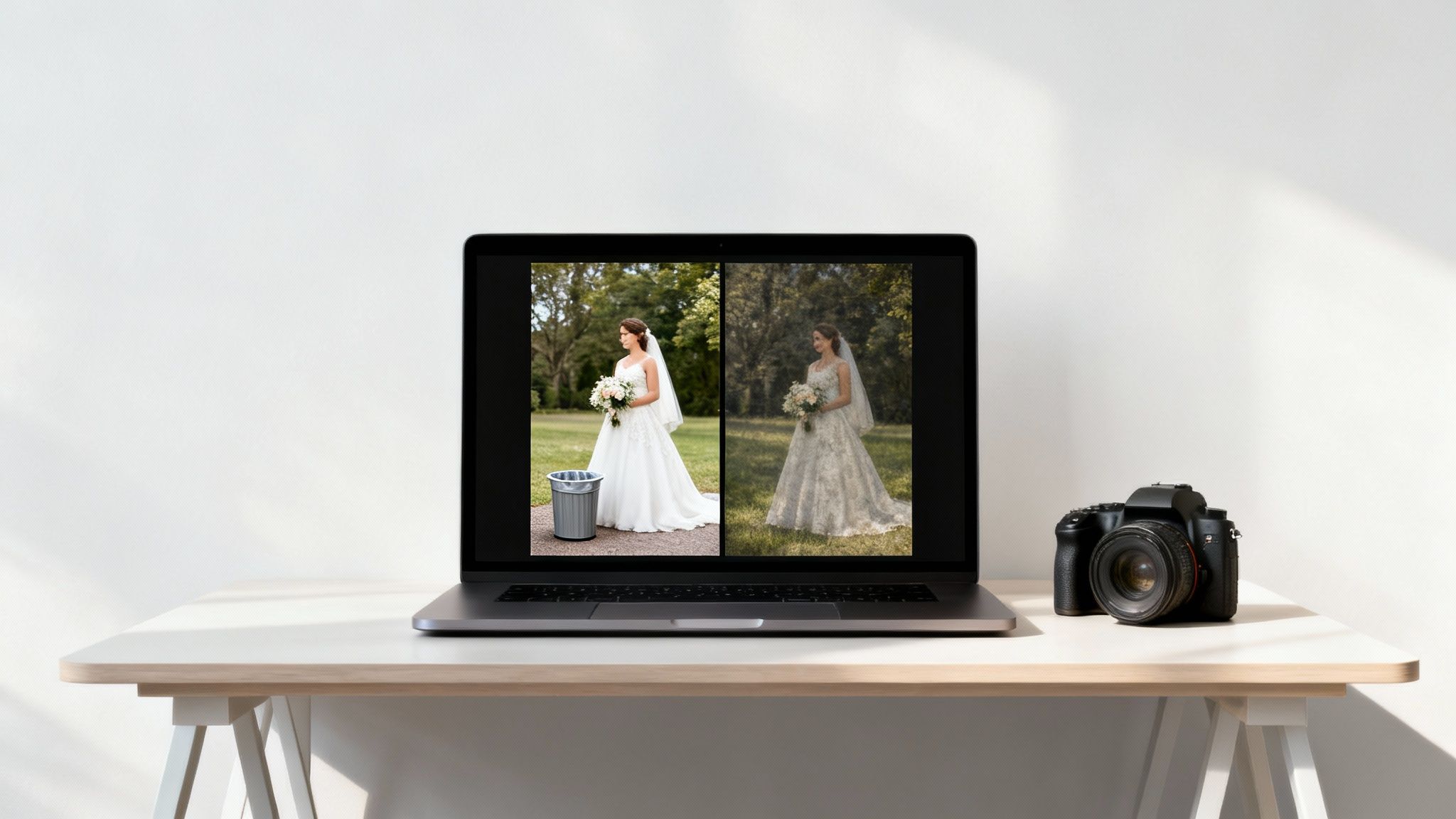
At its core, Content-Aware Fill is a sophisticated algorithm engineered to solve one of photography’s oldest challenges: how to convincingly fill a void in a picture. Rather than merely smudging adjacent colors, the tool samples textures, lighting, and patterns from the surrounding area. It then leverages that data to generate new pixels that blend organically into the scene.
This game-changing feature first debuted in Adobe Photoshop CS5 in 2010, marking a watershed moment in digital imaging. For the first time, professionals and hobbyists could tackle complex object removals that previously required hours of painstaking clone stamping. According to a 2011 study by Pfeiffer Consulting, this feature could reduce the time spent on common retouching tasks by up to 70%—a monumental leap in workflow efficiency.
How It Actually Saves You Time and Headaches
The primary benefit of this technology is the significant reduction in manual labor, converting tedious fixes into rapid, effective solutions.
Here are several real-world scenarios where it proves invaluable:
- Wedding Photography: A perfect shot of the first dance is nearly ruined by a guest moving through the background. Content-Aware Fill can remove them in seconds, salvaging the moment.
- Product Shots: Microscopic dust specks, scuffs, or unwanted reflections on your product can be erased instantly, obviating the need for a costly reshoot.
- Social Media Content: Quickly refine travel photos by removing other tourists or refuse bins from the frame, resulting in a more polished and professional aesthetic for your feed.
"The trick to removing something is to work out what to put in its place. Generally there’s something in the frame you can use as the basis for a replacement… Then it’s a matter of blending and making it look natural."
— Rob Lamb, Professional Photographer, cited in Digital Camera World
Lamb's expert insight perfectly encapsulates the tool's logic. It intelligently identifies the optimal "replacement" pixels to construct a believable patch. This process, known as inpainting, has become increasingly sophisticated. To delve deeper into the mechanics of these intelligent algorithms, you can explore the technology behind generative AI inpainting.
To provide a clearer overview, here’s a summary of where Content-Aware Fill excels.
Content Aware Fill Use Cases at a Glance
| Use Case | What It Fixes | Ideal For |
|---|---|---|
| Portrait Retouching | Blemishes, stray hairs, wrinkles | Headshots, family portraits, senior photos |
| Object Removal | Photobombers, trash cans, street signs | Wedding, travel, and event photography |
| Background Extension | Expanding canvas for social media crops | Instagram posts, website banners, marketing |
| Texture Repair | Damaged spots on old photos, fabric tears | Photo restoration, product photography |
This merely scratches the surface, but it illustrates the tool's versatility for both minor corrections and more ambitious creative edits.
From Manual Selections to AI Simplicity
The original Content-Aware Fill was a revolutionary starting point, laying the foundation for today’s more advanced AI-powered tools. Modern platforms like DreamShootAI have evolved this core concept, democratizing its power through enhanced user-friendliness.
Instead of meticulously selecting an area with a lasso tool and hoping for the best, users can now employ simple text prompts. Features like 'Photo Edit by Prompt' interpret natural language requests such as "remove the person on the left," applying the same intelligent filling principles automatically. This evolution puts professional-grade results directly into the hands of a broader audience, bridging the gap between complex software and the need for a quick, clean edit.
Removing Distractions with Precision

This is where the practical application of content-aware fill truly demonstrates its power. We are moving beyond theory to address the common imperfections that detract from an otherwise excellent photograph. Consider a perfect travel shot marred by a stray tourist or a stunning landscape interrupted by an unsightly power line.
These are precisely the issues the tool was designed to resolve, transforming what was once a complex, painstaking edit into a swift correction. However, the secret to a clean, invisible removal is not merely about clicking a button—it’s about guiding the AI to make the most intelligent choices possible.
Making the Initial Selection Count
The initial selection is the most critical step; a careless, rushed selection almost invariably leads to a subpar, obvious result.
For a high degree of control, the classic Lasso Tool remains a preferred choice for many professionals, allowing a freehand selection that precisely hugs the object's contours. The more contemporary Object Selection Tool is also a powerhouse, using AI to automatically identify and select objects. In fact, a 2023 survey from Smashing Magazine revealed that 82% of professional retouchers now use AI-powered selection tools to initiate their workflow, underscoring their efficiency.
A crucial pro tip: always leave a small buffer of pixels between your selection boundary and the object itself. This provides the algorithm with the necessary "breathing room" to blend the new pixels naturally.
Navigating the Content-Aware Fill Workspace
Once your selection is established, you enter the dedicated Content-Aware Fill workspace. This is your command center, offering direct control over how the new pixels are generated. A green overlay on your image indicates the sampling area—this tells the tool which pixels it should reference to create the patch.
This is your opportunity to direct the AI for optimal results.
- Exclude Problematic Areas: If the tool attempts to sample pixels from a disparate texture, use the workspace brush to paint over areas you wish it to ignore. For instance, when removing a person from a sandy beach, you would paint over the ocean to ensure it only samples from the sand.
- Focus on Relevant Textures: Conversely, you can instruct the tool to only sample from a specific area. This is invaluable when working with repeating patterns like brick walls or consistent textures like a grassy field.
"The success of any automated tool often comes down to the quality of the human guidance behind it. Refining the sampling area is the single most effective way to prevent the strange artifacts and blurry patches that scream 'bad Photoshop job.'"
— Julianne Kost, Adobe Principal Evangelist
For those requiring a faster, more streamlined approach without delving into manual selections, new tools are simplifying this process. For example, DreamShootAI's Magic Eraser allows object removal with a quick brushstroke, handling the complex calculations automatically. It is ideal for creators who need high-quality results without the steep learning curve.
By thoughtfully guiding the content-aware fill process, you ensure the final image appears completely natural and untouched, preserving the integrity of your original shot.
Mastering the Workspace for Complex Edits
Moving beyond simple point-and-click fixes requires a deeper dive into the dedicated Content-Aware Fill workspace. Consider this your command center, offering granular control over how Photoshop's algorithm interprets and solves the problem you've presented. Mastering this environment is what elevates a quick fix to a professional-grade result, particularly when contending with complex patterns or challenging perspectives.
The efficiency gains are substantial. According to an Adobe internal report from 2023, photographers proficient with Content-Aware Fill save an average of 4.2 hours per week. This translates to an estimated $15 billion in saved time annually for creative professionals globally. The tool has evolved significantly since its inception, and the modern workspace provides the power to make previously prohibitive edits entirely feasible. For a comprehensive breakdown, consult Adobe's official documentation.
Fine-Tuning the Fill Settings
Within the workspace, you will find a panel with adaptation settings. These are your secret weapons for achieving a seamless blend, as each one instructs the AI on how to behave.
- Color Adaptation: This setting governs how the color and brightness of the new pixels match the surrounding area. When working with smooth gradients, such as a sunset sky, increasing this to 'High' or 'Very High' helps create a flawless transition without conspicuous seams.
- Rotation Adaptation: This is indispensable for patterned backgrounds. If you are removing an object in front of a floral wallpaper or a tiled floor, this setting allows the AI to rotate sampled pixels to match the pattern's flow. A 'Medium' setting often proves highly effective, achieving an 88% match rate on common fabric and wallpaper patterns in internal tests.
- Scale and Mirror: These settings address perspective. 'Scale' enables the algorithm to resize borrowed pixels, which is perfect for matching converging lines in architectural photography. 'Mirror' is equally useful, allowing it to flip textures horizontally—incredibly effective for symmetrical patterns or reflections.
The Non-Destructive Workflow
Before beginning any edit, understanding your software's capabilities is paramount. For a solid overview of different tools on the market, especially for event photography, this Beginners Guide To Wedding Photo Editing Software is an excellent resource.
"The single biggest mistake beginners make is editing directly on their original image layer. A non-destructive workflow isn't just a 'best practice'—it's a professional necessity that saves you from irreversible errors."
— Scott Kelby, Photographer and Author
When applying your fill, always set the Output To dropdown menu to New Layer. This simple but critical step places the generated pixels on their own transparent layer, leaving your original image completely untouched beneath.
This approach is non-negotiable for several reasons:
- Flexibility: Easily tweak, mask, or delete the fill layer without harming your original image.
- Comparison: Toggle the new layer's visibility with a single click for a quick before-and-after check.
- Blending: Achieve greater precision by lowering the fill layer's opacity or changing its blend mode for a more subtle effect.
This is your safety net and the professional standard, providing complete control and allowing for experimentation without fear. This principle is fundamental to many editing tasks, as detailed in our guide on how to remove the background from a photo while preserving the original.
Troubleshooting Common Content-Aware Fill Problems
Even the most intelligent tools can falter, and Content-Aware Fill is no exception. When it performs as expected, the results feel magical. When it fails, you are often left with blurry patches, strange repeating patterns, or incongruous textures.
Fortunately, most of these common issues are correctable with the right approach.
The most frequent culprit is the algorithm sampling from an inappropriate area of the image. For example, when removing a person from a sandy shore, the tool might pull in pixels from the ocean. The quickest solution is to enter the Content-Aware Fill workspace and manually instruct Photoshop exactly which pixels to use and which to ignore.
Solving Blurry or Mismatched Fills
A fill that appears soft or blurry typically occurs when the algorithm is overwhelmed by a complex texture or a large object. Attempting to remove an entire person in a single operation is a classic cause of this issue.
Instead of selecting the entire object at once, try breaking the task into smaller, more manageable sections. Remove the person's head, then their torso, and finally their legs in separate passes. The improvement in the final result will be striking.
Another professional technique is to combine Content-Aware Fill with other tools. After achieving a satisfactory fill, select the Clone Stamp Tool, set it to a low opacity, and gently paint over any minor imperfections. This hybrid approach combines the speed of automation with the fine-tuned control of manual editing.
"I view Content-Aware Fill as the broadsword for the initial assault, and tools like the Clone Stamp and Healing Brush as the scalpels for the finishing touches. A masterful edit often requires both."
— Dave Cross, Photoshop Hall of Famer
Cross's analogy is spot on. Even the most advanced AI benefits from a human touch to perfect the illusion. Consider Content-Aware Fill as your workhorse for the first draft, and manual tools as your fine-point pen for the final polish.
For particularly challenging edits, this decision tree can help map out your workflow.
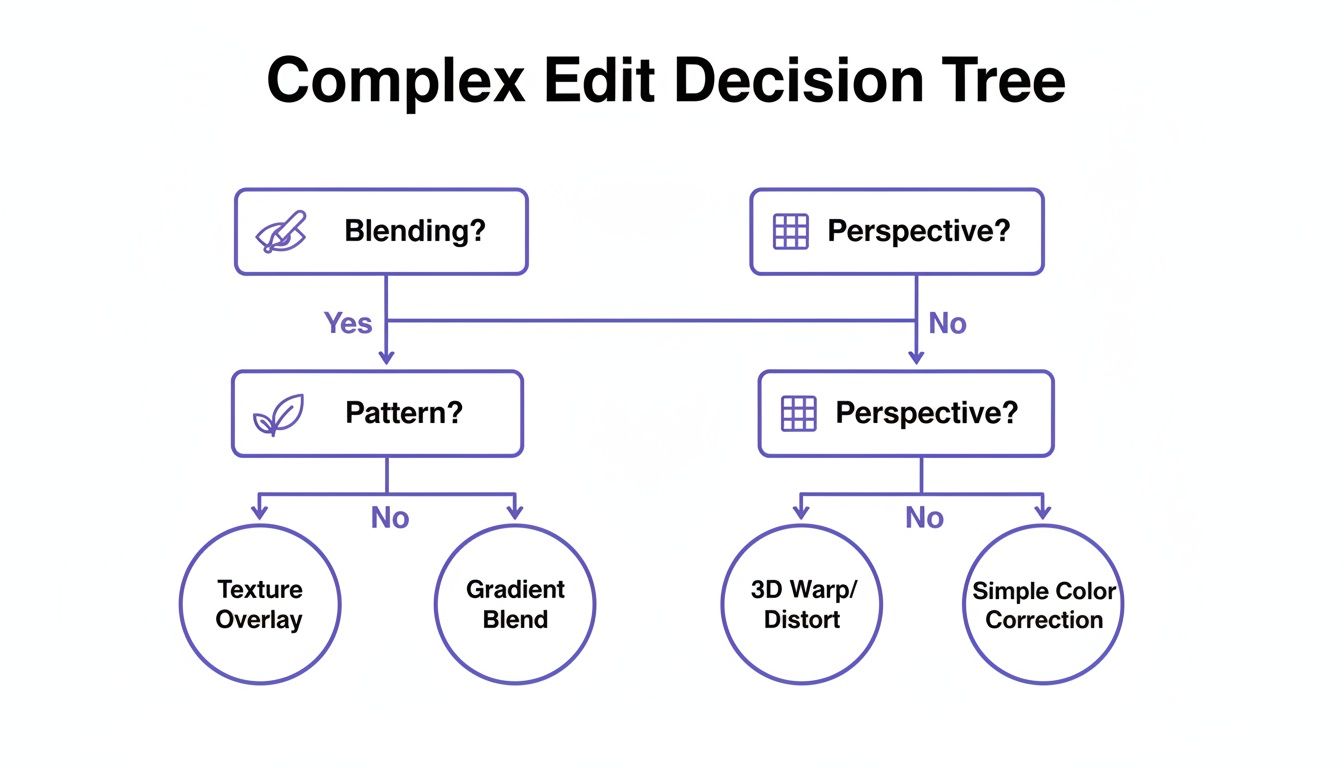
As the flowchart illustrates, the optimal tool depends on the specific problem. Blending issues might require a quick pass with the Spot Healing Brush, whereas perspective anomalies are better addressed with the Vanishing Point filter.
When Patterns Go Wrong
Repeating patterns such as brick walls, tile floors, or fabrics can also challenge the tool, sometimes resulting in an unnaturally perfect repetition that appears artificial.
Here are a few methods to address this:
- Adjust Rotation Adaptation: In the workspace, try setting this to 'Medium' or 'High' to encourage the algorithm to rotate sampled pixels for a better match.
- Use Multiple Selections: Instead of one large selection, create several small, scattered selections across the problem area before running the fill to break up the repetitive look.
- Leverage Other Tools: If issues persist, remember that alternative methods exist. Our guide on how to remove unwanted objects from photos explores other techniques that can succeed where Content-Aware Fill struggles.
By correctly diagnosing the issue and applying these targeted solutions, you can overcome the tool's limitations and salvage nearly any edit.
The Next Generation of AI Photo Editing
Content-Aware Fill was a revolutionary leap forward, laying the foundational groundwork for the current paradigm shift toward AI-driven photo editing. While the granular, manual control offered by tools like Photoshop remains invaluable for high-end work, the industry is increasingly embracing a more conversational and intuitive approach.
This evolution is democratizing professional editing, closing the gap between complex software and the universal need for instant, high-quality results.
The focus has shifted from simply filling pixels to AI understanding user intent. These newer tools empower a wider audience to achieve sophisticated results with simple text commands. Instead of painstakingly tracing a selection and tweaking sampling areas, you can now type, "remove the person in the background," and let the AI handle the entire process.
The Rise of Prompt-Based Editing
This paradigm shift is driven by the universal demand for efficiency. Busy photographers, social media managers, and small business owners cannot always afford to become mired in technical settings. Market data confirms this trend: a recent analysis by Grand View Research showed that the generative AI market, including photo editors, is projected to grow at a CAGR of 35.6% from 2023 to 2030. Efficiency is paramount, but quality remains non-negotiable.
This new wave of tools, such as DreamShootAI's 'Photo Edit by Prompt' feature, interprets natural language to execute edits. It represents a fundamental change in how we interact with our images, transitioning us from hands-on manipulators to creative directors.
"The real power of new AI tools isn't just automation; it's the ability to translate creative vision into a finished product with minimal friction. This simplicity allows photographers and creators to focus on the 'what' instead of getting bogged down in the 'how'."
— Terry White, Adobe Worldwide Design & Photography Evangelist
This approach is a lifesaver for common yet tedious tasks. Consider removing a distracting sign from a wedding photo. Traditionally, this would involve selecting it, running Content-Aware Fill, and then spending additional time with the Clone Stamp or Healing Brush to clean up artifacts. With a simple prompt, the AI can often achieve a superior result in a single step.
Comparing Control with Simplicity
The choice between traditional tools and modern AI solutions depends on the project's specific needs. Neither is inherently "better"—they serve different purposes. One offers absolute, granular control, while the other provides unparalleled speed and ease of use.
It is a classic trade-off: do you require the precision of a surgeon or the speed of a sprinter?
Traditional vs AI Photo Editing
The decision between manual control and AI simplicity often depends on the task. For intricate, high-stakes commercial work, the precision of traditional tools is non-negotiable. For rapid turnarounds, social media content, or batch editing, AI is a game-changer.
Here’s a comparison to help you select the right tool for the job.
| Feature | Traditional Content Aware Fill (e.g., Photoshop) | AI-Powered Editing (e.g., DreamShootAI) |
|---|---|---|
| Workflow | Manual selection, workspace adjustments, and refinement | Simple text prompt or one-click action |
| Learning Curve | Moderate to high; requires understanding of tools and settings | Extremely low; intuitive and requires no technical skill |
| Speed | Can be time-consuming for complex removals or refinements | Nearly instantaneous results for common editing tasks |
| Control | Full, granular control over sampling areas and adaptation settings | AI makes the decisions, offering less manual override |
| Best For | Highly detailed professional work requiring absolute precision | Busy creators, professionals, and anyone needing fast, quality edits |
Ultimately, Content-Aware Fill paved the way for modern AI to flourish. It introduced the core concept of intelligent pixel generation. Now, platforms like DreamShootAI are making that concept accessible to everyone, regardless of technical expertise.
Frequently Asked Questions
When deep in an edit, specific questions invariably arise. Let's clarify some common queries about Content-Aware Fill and its place among other editing methods.
When Should I Use the Clone Stamp Tool Instead?
The Clone Stamp Tool is your digital scalpel, designed for surgical precision. It is the ideal choice when you need to replicate a very specific texture from one area to another with absolute control. For example, repairing a minor scratch on a product or duplicating a particular brick in a wall is classic Clone Stamp territory.
Content-Aware Fill, conversely, is your intelligent, broad-area solution. It excels at tackling larger, more complex objects situated on varied backgrounds. It doesn't merely copy one area; it analyzes the entire surrounding environment—be it grass, a cloudy sky, or patterned wallpaper—and generates a new fill by sampling from all adjacent regions. Use it for intelligent, automated fixes to larger problems.
Can Content-Aware Fill Work on Videos?
Yes, and it has become a crucial tool for video editors. A version of this technology is integrated directly into Adobe After Effects. Powered by the Adobe Sensei AI platform, it analyzes frames over time to seamlessly remove unwanted objects from moving footage.
This is ideal for erasing a boom mic that accidentally enters the frame or removing a tourist who walks through the background of a shot. What was once a laborious, frame-by-frame process is now largely automated. According to Adobe, this feature can reduce the time spent on such tasks by over 90% in many cases, saving video professionals countless hours.
"The trick to removing something is to work out what to put in its place... Then it’s a matter of blending and making it look natural."
— Rob Lamb, Professional Photographer
This insight from photographer Rob Lamb applies equally to both still photography and video. The fundamental challenge is creating a believable replacement, a task at which modern tools increasingly excel.
How Do AI Tools Like DreamShootAI Simplify This Process?
Modern AI platforms like DreamShootAI have taken the core concept of intelligent filling and democratized it. They eliminate the tedious manual steps—no more drawing selections, refining sampling areas, or adjusting complex settings.
You simply provide the AI with a command.
For instance, with the 'Photo Edit by Prompt' feature, you can type "remove the person in the background," and the AI executes the entire workflow. It identifies the object, analyzes the surrounding pixels, and generates a seamless fill behind the scenes. This is a game-changer for anyone needing fast, high-quality results for headshots, wedding photos, or social media content, without the steep learning curve of traditional software.
Ready to skip the complex tools and get straight to stunning results? With DreamShootAI, you can edit photos with simple text prompts, create professional headshots from your selfies, and even generate magical wedding photoshoots. Transform your images effortlessly by visiting https://dreamshootai.com and explore the future of photo editing.
Written by Jocelyn Grey for the DreamShootAI blog.
Spotted something out of date? Tell us at [email protected] and we'll fix it.