Remove Unwanted Objects From Photos Like a Pro
Discover how to remove unwanted objects from photos with expert techniques. This guide covers AI tools, manual editing, and pro tips for flawless images.

Removing unwanted objects from a photograph has become remarkably efficient. Whether utilizing a simple AI tool on a smartphone or leveraging powerful desktop software, the process is fundamentally about isolating an unwanted element and allowing intelligent algorithms to reconstruct the background. In a matter of clicks, a cluttered image is transformed into a clean, professional composition.
Why Object Removal Can Transform Your Photos
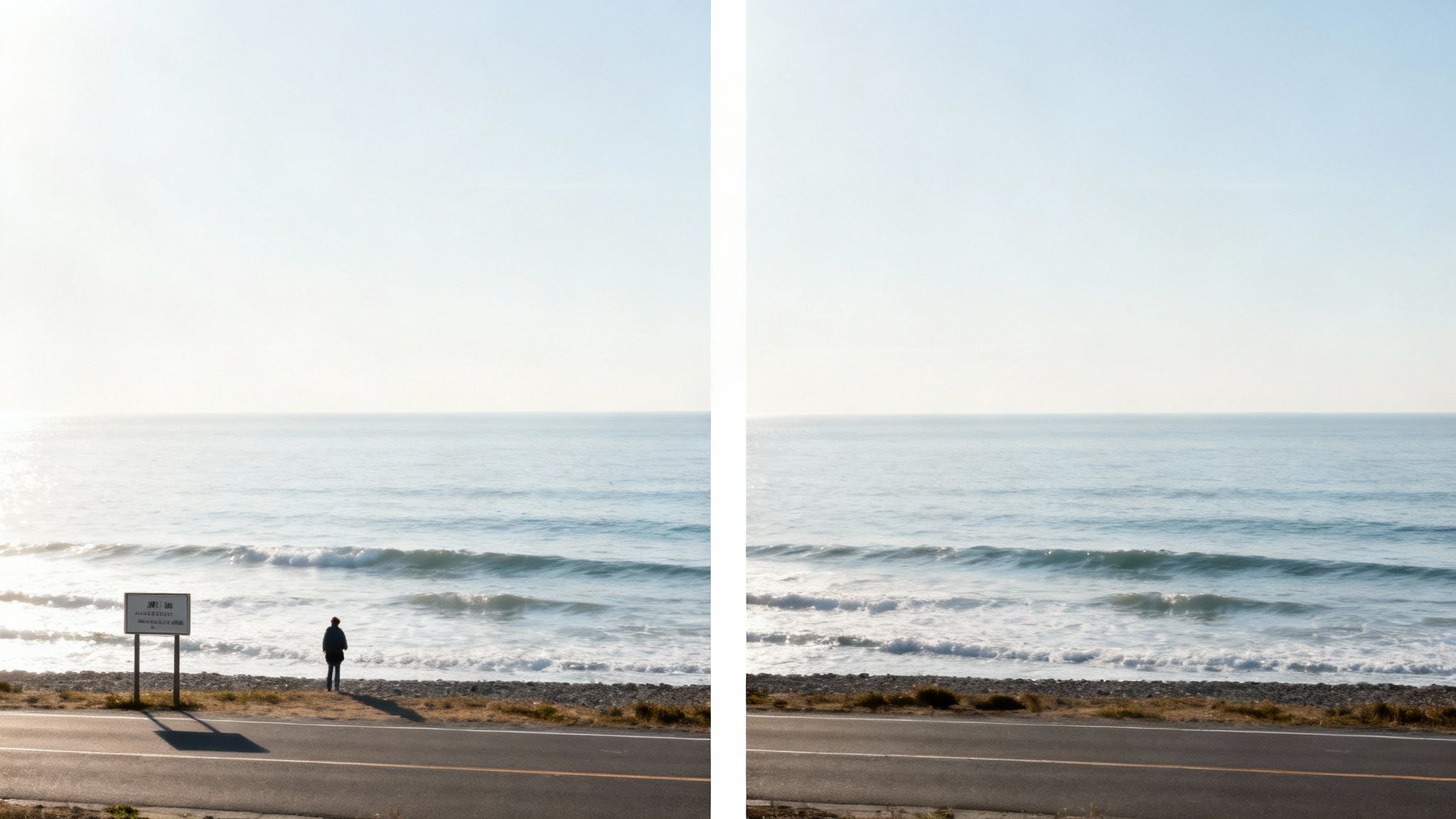
Have you ever captured what you believed was a perfect landscape, only to discover a distracting power line or an oblivious tourist photobombing your masterpiece? It's a common frustration among photographers. This is precisely where the skill to remove unwanted objects becomes a creative superpower.
This is not merely about correcting errors; it's about asserting creative control over your narrative, aligning the final image with your original vision. As Alex Tsepko, CEO of Skylum, stated to Forbes, "Photography is no longer just about capturing a moment, but about creating an ideal version of that moment." By erasing distractions—a misplaced trash can on a picturesque street or an accidental photobomber in a cherished family portrait—you direct the viewer's focus, strengthening the composition and amplifying the image's emotional impact.
The Growing Demand for Clean Edits
The demand for immaculate visual content has accelerated innovation in photo editing technology. The global photo editing software market, currently valued at USD 2.37 billion, is projected to reach USD 3.29 billion by 2029, a growth driven by creators seeking powerful, accessible tools. You can explore the full report for a deeper analysis of these market dynamics.
The engine of this transformation is artificial intelligence and machine learning. These technologies have automated tasks that once required painstaking manual effort, democratizing professional-level editing for everyone. A 2023 survey revealed that over 60% of professional photographers now use AI-powered editing software in their workflow, citing speed and efficiency as primary benefits.
If you're exploring the capabilities of AI in imaging, you might also find value in our guide on how to run an entire AI photoshoot.
An Expert Perspective on Editing
Ultimately, the most successful edits are those that go unnoticed. The objective is to produce a final image that feels authentic and natural, immersing the viewer in the moment without a hint of digital alteration.
"A clean edit is an invisible one. The goal is to make the viewer feel the intended emotion without ever knowing something was removed."
- Sarah Williams, Digital Imaging Specialist
This is the foundational principle of expert object removal. In this guide, we will examine everything from one-click AI solutions to the precise, manual techniques employed by professionals, equipping you with the skills to perfect any photograph.
Getting Your Image Ready for a Flawless Edit
Before engaging any editing tool, a few preparatory steps can mean the difference between a seamless removal and an obvious, clumsy alteration. Rushing this stage is a novice error that invariably leads to unnatural-looking results.
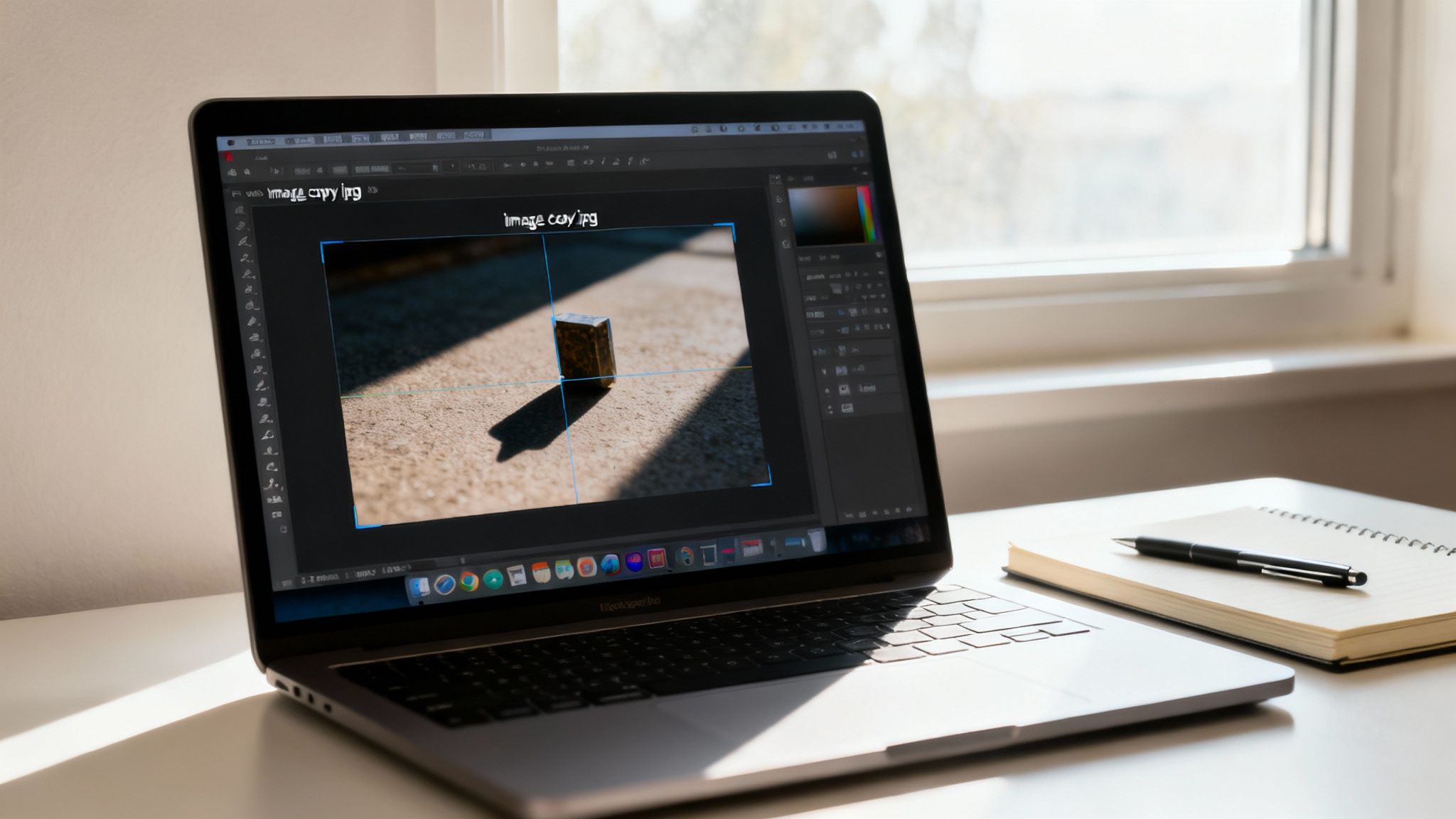
The cardinal rule of photo editing is to always work on a duplicate file. Never edit your original image. This non-destructive workflow is your safety net, the fundamental practice that distinguishes professionals from amateurs.
Once you have a copy, conduct a thorough analysis. Zoom in and meticulously examine the object you intend to remove, paying close attention to its interaction with the surrounding environment.
How Complex is the Background?
The success of your edit is contingent upon the complexity of the background behind the unwanted object. A simple, uniform background like a clear sky is relatively easy to handle. A detailed, intricate background presents a significant challenge.
Evaluate the following:
- Textures: Are you dealing with complex surfaces like brick, fabric, or dense foliage?
- Gradients: Are there smooth transitions of color, such as in a sunset, that require careful blending?
- Patterns: Does the background have a repeating pattern that can be cloned, or is it random and chaotic?
As a professional retoucher once stated, "90% of a great object removal is decided before you even pick a tool." This initial assessment informs your strategy and tool selection.
Don't Forget the Shadows and Highlights
An object within a photograph is never isolated; it casts shadows and reflects light. Removing the object without addressing these interactions will immediately signal an artificial edit. Before beginning, identify every shadow the object casts and any highlights or reflections it creates on adjacent surfaces.
A huge part of photo manipulation is keeping it real. The human eye is incredibly good at spotting weird-looking light and shadows, which makes getting this part right absolutely critical for a believable edit.
These elements must be recreated or blended once the object is gone. For example, removing a person standing on grass requires not only filling the space with grass texture but also realistically recreating the ambient lighting and removing their shadow to match the scene.
After the object removal, processing the image through our online photo enhancer can be an effective final step. It helps restore sharpness and clarity to the edited area, further integrating the change for a seamless final result.
Using AI to Magically Erase Things From Your Photos
Artificial intelligence has fundamentally disrupted traditional photo editing workflows. Processes that once demanded hours of meticulous work in Photoshop can now be accomplished in seconds. This is particularly true for removing distracting elements from an otherwise ideal image.
The use cases are ubiquitous: a pristine wedding photo marred by a background bystander, or a real estate listing image cluttered by personal items. With AI, these are no longer critical flaws but minor, momentary fixes. In fact, Adobe reports that users of its Firefly generative AI have created over 3 billion images, with "Generative Fill"—its object removal and addition tool—being one of the most popular features.
The process is remarkably intuitive. Most modern tools require the user to simply paint over the object designated for removal. The AI then analyzes the surrounding pixels and intelligently generates a fill that seamlessly replaces the unwanted element.
Getting the Most Out of an AI Eraser
While these AI tools are highly sophisticated, user input can significantly influence the quality of the result. The key lies in the selection process. Rather than a tight, precise outline, a more generous selection often yields better outcomes.
By making your selection slightly larger than the object, you provide the AI with more contextual data from the surrounding area. This additional information helps the algorithm generate a more natural-looking fill by better matching textures, lighting, and color gradients.
Key tips for a flawless AI edit:
- Be Generous With Your Selection: Ensure your brush stroke overlaps the object's edges to prevent artifacts or hard lines where the new background meets the old.
- Start with Simple Backgrounds: AI excels at removing objects from less complex backdrops like skies, walls, or fields. It can struggle with highly intricate patterns.
- Zoom In for the Details: For smaller objects, zooming in allows for a more accurate selection without requiring surgical precision.
The Tech Behind the Magic
The rapid advancement of these tools is driven by significant market forces. The North American photo editing software market, which accounts for over 40% of global revenue, continues to expand, fueled by massive investment in generative AI. You can read more about these market trends on Cognitive Market Research.
"The democratization of AI is reshaping the creator economy. Complex editing tasks that were once the domain of specialists are now accessible to everyone, empowering a new wave of visual storytelling."
- Dr. Anima Anandkumar, Director of ML Research, NVIDIA
If you’re specifically looking at how AI can be used for commercial shots, checking out some AI product photography guides can give you some great ideas on enhancing images.
Ready to try it yourself? Our Magic Eraser tool provides a perfect entry point. It's an intuitive way to clean up your images and witness the technology firsthand. You can learn more about our Magic Eraser and try it for free. While AI is exceptional for rapid fixes, understanding its limitations is key to knowing when a more hands-on, manual approach is necessary for achieving a perfect result.
Mastering Manual Edits for Ultimate Control
https://www.youtube.com/embed/mAijWkUomak
While AI tools offer incredible speed, they can falter with complex backgrounds, fine details, or when absolute perfection is required. In these scenarios, manual editing tools provide the ultimate control, allowing the editor to function as a digital artist.
Consider AI a broad-stroke solution and manual tools your fine-tipped instruments. For high-stakes images, such as a flagship product shot or a pivotal wedding photograph, the pixel-level precision of manual editing is non-negotiable. It represents the difference between a passable fix and an edit that is entirely imperceptible.
The Clone Stamp Versus The Healing Brush
Central to manual object removal are two indispensable tools found in professional editors like Adobe Photoshop and Affinity Photo: the Clone Stamp and the Healing Brush. Though they appear similar, their functions are distinct.
- The Clone Stamp is a direct pixel-copying tool. It duplicates pixels exactly from a source area to a target area. This makes it ideal for replicating hard edges, intricate details, and consistent patterns, such as repairing a section of a brick wall or extending a clean architectural line.
- The Healing Brush is more intelligent. It also copies from a source area, but it blends the texture, lighting, and shading of the sampled pixels with the target area. This is the preferred tool for skin retouching or removing an element from a non-uniform surface like sand or grass, where a seamless blend is critical.
Understanding this functional difference is fundamental. A misplaced clone can create obvious, repeating patterns, while a poorly applied healing brush can result in a blurry, unnatural patch.
This flowchart outlines a decision-making process for choosing between AI and manual tools, predicated on background complexity.
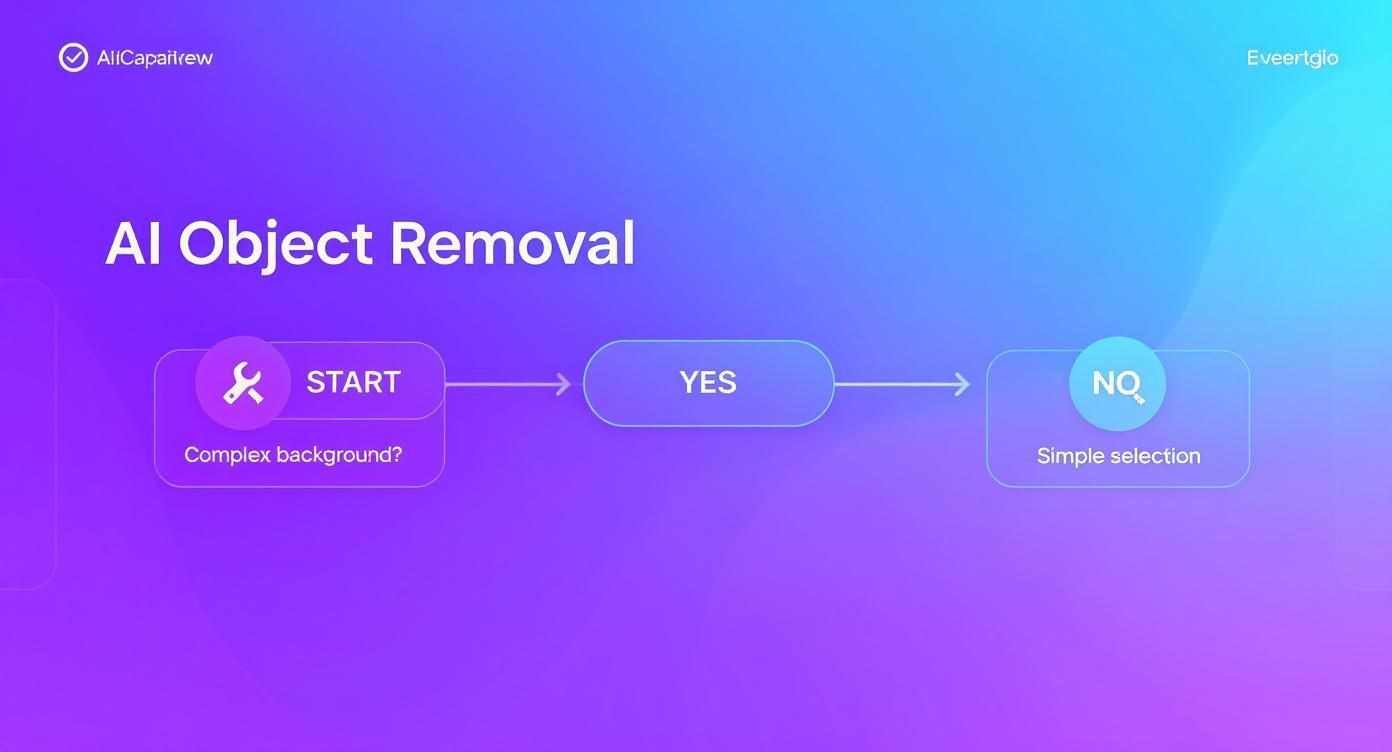
As illustrated, the initial consideration is always the background. Scenes with intricate details almost invariably benefit from the precision of manual tools.
Pro-Level Techniques for Invisible Edits
To elevate your manual work, adopt a non-destructive workflow. Always perform cloning and healing on a new, separate layer above your base image. This provides a safety net, allowing you to erase mistakes or adjust the intensity of your edits without permanently altering the original photo.
Brush settings are also crucial. A common error is using a brush with 100% hardness, which creates harsh, visible edges. It is generally better to start with a softer brush and adjust the hardness as required.
Seamlessly removing unwanted objects from complex backgrounds is a hallmark of professional retouching. Tools that offer this precision, whether AI-driven like Generative Remove or classic like the Clone Stamp, are essential for preserving image integrity.
– Adobe Inc.
Another critical technique is to constantly re-sample your source point. Continuously pulling pixels from the same spot creates a detectable repeating pattern. Instead, frequently select new source points from areas adjacent to your target. This practice ensures that texture and lighting remain varied and natural, making the edit truly disappear.
Choosing Your Object Removal Method
Still uncertain which method to employ? This table provides a quick comparison to guide your decision based on your specific needs.
| Feature | AI-Powered Tools (e.g., Generative Fill) | Manual Tools (e.g., Clone Stamp) |
|---|---|---|
| Best For | Quick fixes, simple backgrounds, creative additions | High-stakes images, complex backgrounds, precise details |
| Speed | Extremely fast, often single-click results | Slower, requires meticulous work and attention to detail |
| Control | Limited control over the final outcome | Complete, pixel-level control over every adjustment |
| Learning Curve | Very low, minimal technical skill required | Higher, requires practice to master the tools and techniques |
| Common Use Cases | Removing tourists from travel photos, cleaning up simple product shots | Professional retouching, architectural photography, fine art |
Ultimately, a hybrid approach is often the most effective professional workflow. Use an AI tool for the initial, broad removal, then switch to the Clone Stamp and Healing Brush to refine the details for a perfect, seamless result.
That Pesky Tourist? Let’s Make Them Disappear With Image Stacking
Capturing a clean photograph of a famous landmark, free of crowds, is a significant challenge in travel photography. A professional technique that bypasses tedious cloning is Image Stacking. This method is exceptionally effective for removing any moving objects—tourists, vehicles, or other transient elements—from a static scene.
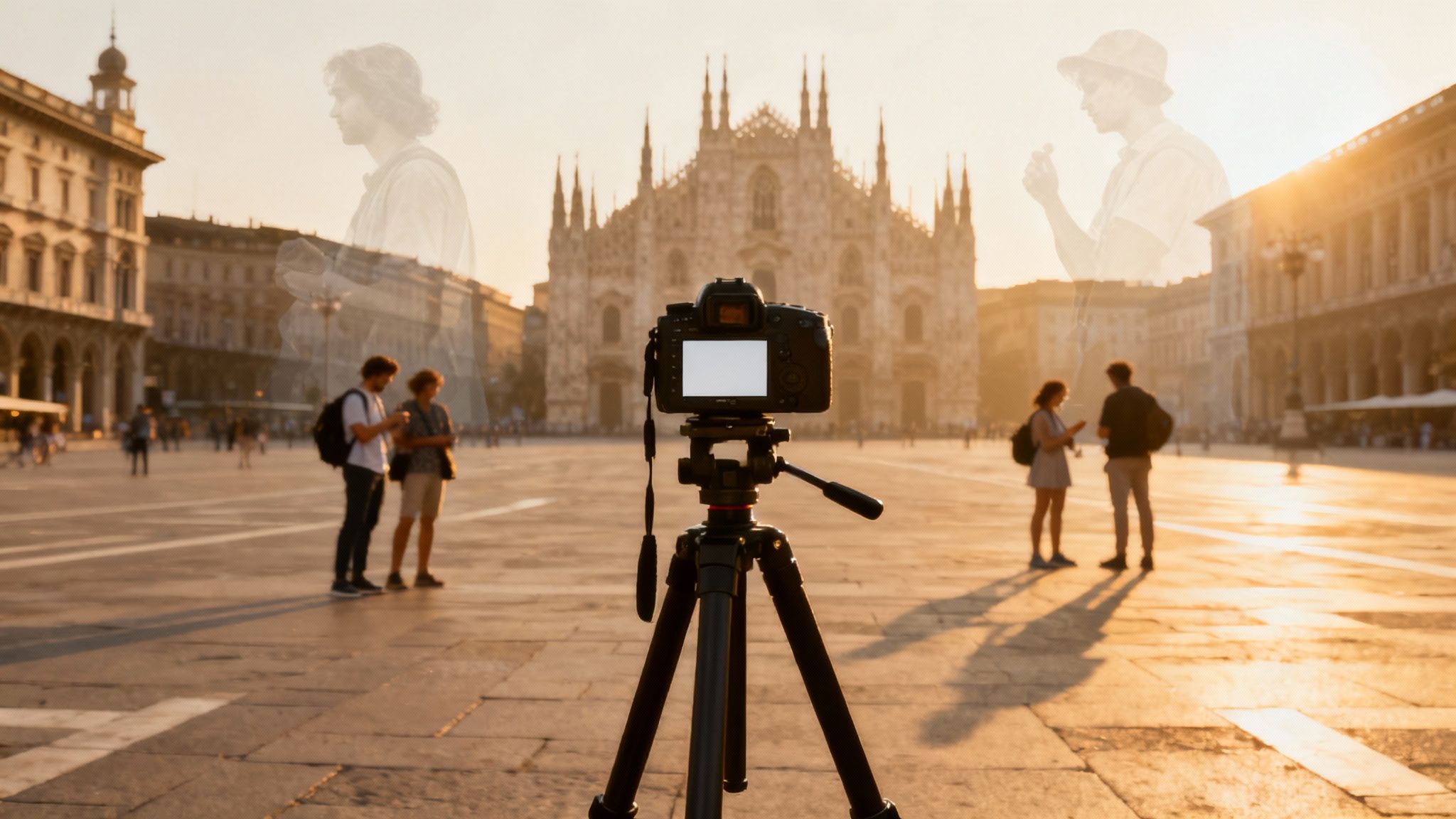
The concept is straightforward. Using a sturdy tripod to ensure the camera remains absolutely still, you capture a series of photographs over several minutes. As people move through the frame, each photo captures them in a different position, while the background remains constant. A 2022 study in the Journal of Visual Communication and Image Representation found that median stacking with as few as 10-15 frames can effectively remove over 95% of transient objects in a busy scene.
How Stacking Magically Clears the Scene
The process culminates in post-production. Using software that supports image stacking, such as Adobe Photoshop or Affinity Photo, you load all the images as layers in a single file. The software then applies a statistical algorithm to analyze them.
By selecting a stack mode like "Median," the program examines each pixel's value across all the layers. It identifies what remains constant (the static background) and retains it. Anything that moved between frames is identified as a statistical anomaly and is effectively rendered invisible in the final composite image.
This powerful algorithm reconstructs a single, clean shot that would be extraordinarily difficult to achieve manually. For those interested in the underlying mathematics, you can explore the science behind these statistical removal techniques.
Practical Tips for a Perfect Stack
To ensure optimal results, methodical fieldwork is essential.
Follow these best practices:
- Tripod and a Remote are Must-Haves: Camera stability is paramount. The camera cannot move even a millimeter between shots, or the images will not align. Use a remote shutter release or the camera's self-timer to prevent any camera shake.
- Shoot More Than You Think You Need: The more frames you provide the algorithm, the better its ability to create a clean composite. A minimum of 15-20 photos is a solid starting point, though highly trafficked locations may require more.
- Lock in Your Settings: Use full manual mode. Aperture, shutter speed, ISO, and white balance must remain constant across all shots to prevent variations in exposure or color that could disrupt the stacking process.
- Be Patient and Strategic: Observe the scene and shoot strategically, waiting for gaps to appear in different areas. The goal is to ensure every portion of the background is unobstructed in at least a few frames.
"Seamlessly removing unwanted objects from complex backgrounds is a hallmark of professional retouching. Tools that offer this precision... are essential for preserving image integrity."
– Adobe Inc.
While more involved than a simple AI edit, image stacking offers architectural and landscape photographers a superior method for achieving pristine, unblemished images in even the most chaotic environments.
The Final Touches That Make Your Edit Invisible
Removing an unwanted object is only the first step. The true artistry lies in the final polishing—the subtle adjustments that make the edit completely imperceptible to the human eye. This is what distinguishes an amateur fix from a professional, invisible result.
Common giveaways of a poor edit include blurry patches, mismatched lighting, or repetitive textures that betray the use of a clone stamp. The first step in post-editing is to critically examine the image, zooming in and out to identify any imperfections.
Restoring Natural Texture and Grain
One of the most significant errors is leaving an edited area looking unnaturally smooth. Every digital photograph possesses a natural texture, whether film grain or sensor noise. When an object is removed, the newly generated patch often lacks this characteristic texture.
A critical final step is to reintroduce a subtle layer of digital noise or grain specifically to the edited area. This reintegrates the patch with the rest of the image, ensuring textural consistency across the entire frame. This minute detail is often the key to a believable edit.
According to digital imaging experts at Adobe, preserving image integrity is paramount. Seamlessly removing unwanted objects from complex backgrounds is a hallmark of professional retouching, requiring tools that maintain the photo's original depth and detail.
Harmonizing Color and Light
With the texture matched, the next focus is color and lighting. The patched area must blend flawlessly with its surroundings. Even a minor discrepancy in brightness or color temperature can compromise the entire edit.
Utilize your software’s local adjustment tools—such as curves, levels, or brightness/contrast sliders—to make precise modifications. These changes should be confined to the edited region, with the goal of making the new section indistinguishable from adjacent pixels.
- Brightness/Contrast: Match the highlights and shadows of the surrounding area.
- Color Balance: Correct any subtle shifts in hue, saturation, or temperature.
- Sharpness: Ensure the edited area is not softer or sharper than the rest of the image.
When working with AI tools, effective communication is key. Learning to use specific prompt key words to make images less fake looking can yield superior results from the outset. By mastering these finishing touches, you can elevate your photo editing skills, ensuring your alterations are truly invisible.
Ready to transform your own photos with the power of AI? With DreamShootAI, you can go beyond simple edits and create stunning, professional-quality photoshoots from your selfies. Whether you need polished headshots, romantic couple portraits, or unique social media content, our AI studio makes it fast, affordable, and easy. Start creating with DreamShootAI today!
Written by Jocelyn Grey for the DreamShootAI blog.
Spotted something out of date? Tell us at [email protected] and we'll fix it.