Remove People From Photos Online A Practical Guide
Learn how to expertly remove people from photos online. This guide covers AI and manual methods with pro tips for flawless, professional-looking results.

We’ve all been there. You capture a stunning travel photo, only to find a tourist has wandered right into the perfect shot. Or you take a beautiful family portrait, and a random stranger photobombs you in the background. It's frustrating, but fixing it no longer requires expensive software or professional editing skills.
Now, anyone can get a clean, distraction-free image with just a few clicks. The need to remove people from photos online is more common than ever, whether you're perfecting a travel memory, cleaning up a product shot for your online store, or just making sure the focus of a portrait is right where it should be.
This growing demand has completely reshaped the photo editing world.
A New Era of Photo editing
The market for tools that remove image backgrounds and unwanted objects is booming. Valued at USD 1.38 billion in 2024, it’s expected to climb to a staggering USD 2.38 billion by 2032, according to a report by Custom Market Insights. This incredible growth is fueled by the visual demands of social media and e-commerce, where a perfect image can make all the difference.
This shift has made powerful editing accessible to everyone, changing the game for amateurs and pros alike. As professional photographer and educator Glyn Dewis puts it, tasks that used to take him half an hour of careful cloning can now be done in thirty seconds.
"AI handles the grunt work so I can focus on the vision. It's like having an incredibly fast, never-complaining assistant who's amazing at the boring bits and then steps aside when the real creative decisions need to be made."
That's the real magic here. Technology is automating the tedious work, freeing you up to focus on the creative side of things. Of course, the best edits start with a great photo. Brushing up on 10 essential lighting techniques for photography can help you capture better images right from the start.
In this guide, we'll walk through the best ways to get the job done, from quick AI fixes to more hands-on manual edits. You can also learn more about the technology behind these incredible tools in our breakdown of the best AI photo editor online.
Choosing Your Tool: AI vs. Manual Editing
Deciding between an automated AI tool and a manual editor can be the difference between a five-second fix and a frustrating hour of pixel-pushing. Honestly, the right choice completely depends on your photo and what you're trying to achieve. Think of it as choosing between a power washer and a fine-detail brush—both clean things up, but for very different jobs.
If you need speed, AI is your best friend. Hands down. When you just need to quickly remove people from photos online for a social media post or a casual memory book, nothing beats it. That random photobomber in your perfect beach photo or a stranger wandering into the background of a city shot can often be zapped away with a single click. The AI just looks at the surrounding pixels and generates a believable fill in seconds.
To make it even simpler, here's a little decision tree I use to figure out which path to take for any given photo.
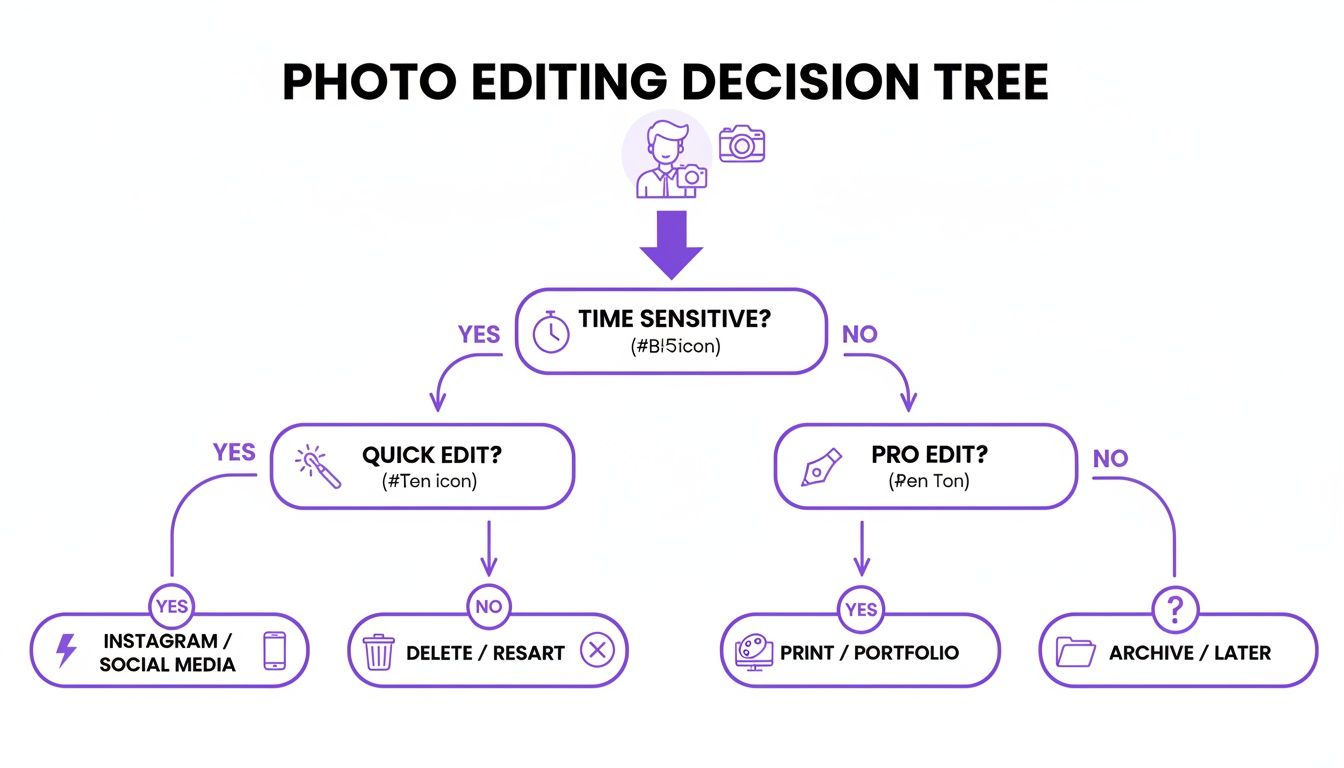
This flowchart basically boils it down for you: go with AI for quick, simple fixes, but switch to manual editing for professional, high-stakes images where every last pixel has to be perfect.
When Precision Becomes Non-Negotiable
But here's the catch: AI can really struggle with complex scenes. When subjects are overlapping—like trying to remove just one person from a group hug—or they share intricate shadows, a manual approach is the only way to go. This is where tools like the Clone Stamp or Healing Brush in editors like Photopea give you the meticulous control you need to rebuild tricky textures, like patterned clothing or detailed architecture, that an AI might just smudge into a blurry mess.
For any kind of professional work, whether it’s for a client's website or your own portfolio, manual editing is non-negotiable. A tiny, weird-looking artifact from an AI tool can ruin an otherwise perfect shot. As a graphic design lead, I'm constantly weighing the cost of an AI subscription against the time it takes to do things by hand. The conclusion is always the same.
"AI is fantastic for batch processing and simple removals, saving us hundreds of hours. But for a hero image on a client's homepage? I'll always trust a human hand for that final, flawless 10%. The control is worth the time."
To give you a clearer picture, here’s a quick rundown of how these two types of tools stack up against each other.
AI vs. Manual Photo Editing Tool Comparison
Deciding which tool is right for you often comes down to a simple trade-off between speed and control. This table breaks down the key differences to help you choose wisely based on your specific project.
| Feature | AI-Powered Tools (e.g., DreamShootAI, Fotor) | Manual Online Editors (e.g., Photopea, Pixlr E) |
|---|---|---|
| Speed & Ease | Extremely fast. Often a one-click process that takes seconds. Very beginner-friendly. | Slower and more involved. Requires learning tools like the Clone Stamp and Healing Brush. |
| Precision | Lower. Can struggle with complex backgrounds, overlapping subjects, or fine details. | Pixel-perfect control. Allows for meticulous adjustments and rebuilding of textures. |
| Best For | Quick social media edits, removing strangers from backgrounds, simple photobomber removal. | Professional photography, complex object removal, high-resolution commercial images. |
| Learning Curve | Minimal. Most tools are intuitive and require no prior editing experience. | Steeper. Understanding layers, masks, and manual tools takes practice and patience. |
| Cost | Often subscription-based or uses a credit system for a set number of edits. | Many powerful options are free or offer a free version with ads (e.g., Photopea). |
| Potential Issues | Can create artifacts, smudges, or unnatural-looking fills in complex areas. | Human error is the main limitation; can be very time-consuming for large projects. |
Ultimately, both have their place in a modern workflow. AI is perfect for knocking out the quick and easy jobs, while manual editors are the go-to for anything that requires a true artist's touch.
The Economic Impact on Content Creation
The financial argument for using AI is powerful, especially for businesses churning out a high volume of content. A 2023 study from Allied Market Research projects the global market for AI-powered background removal software will reach $500 million by 2025. It's no surprise that cloud-based solutions are leading the charge, holding a massive 65% of the market simply because they're so easy to access.
This isn't just a trend; it's creating huge savings. According to Forbes, one clothing brand slashed its monthly editing costs from $8,000 to just $1,200 by bringing AI into their workflow. Even better, their turnaround time dropped from ten days to just two.
This kind of efficiency has made professional-looking content accessible to everyone, not just big companies. If you're looking for more ways to speed up your work, exploring the best AI content creation tools can open up a lot of possibilities beyond just photo editing.
In the end, your choice boils down to that simple trade-off: do you need speed and convenience, or do you need absolute control and perfection?
How to Use AI Photo Editors for Instant Results
AI-powered editors have completely changed the game for how we remove people from photos online. What used to be a painstaking job with manual tools can now, more often than not, be done in seconds. This isn't just about making things faster; it’s about giving professional-level editing power to everyone, no matter their tech skills.
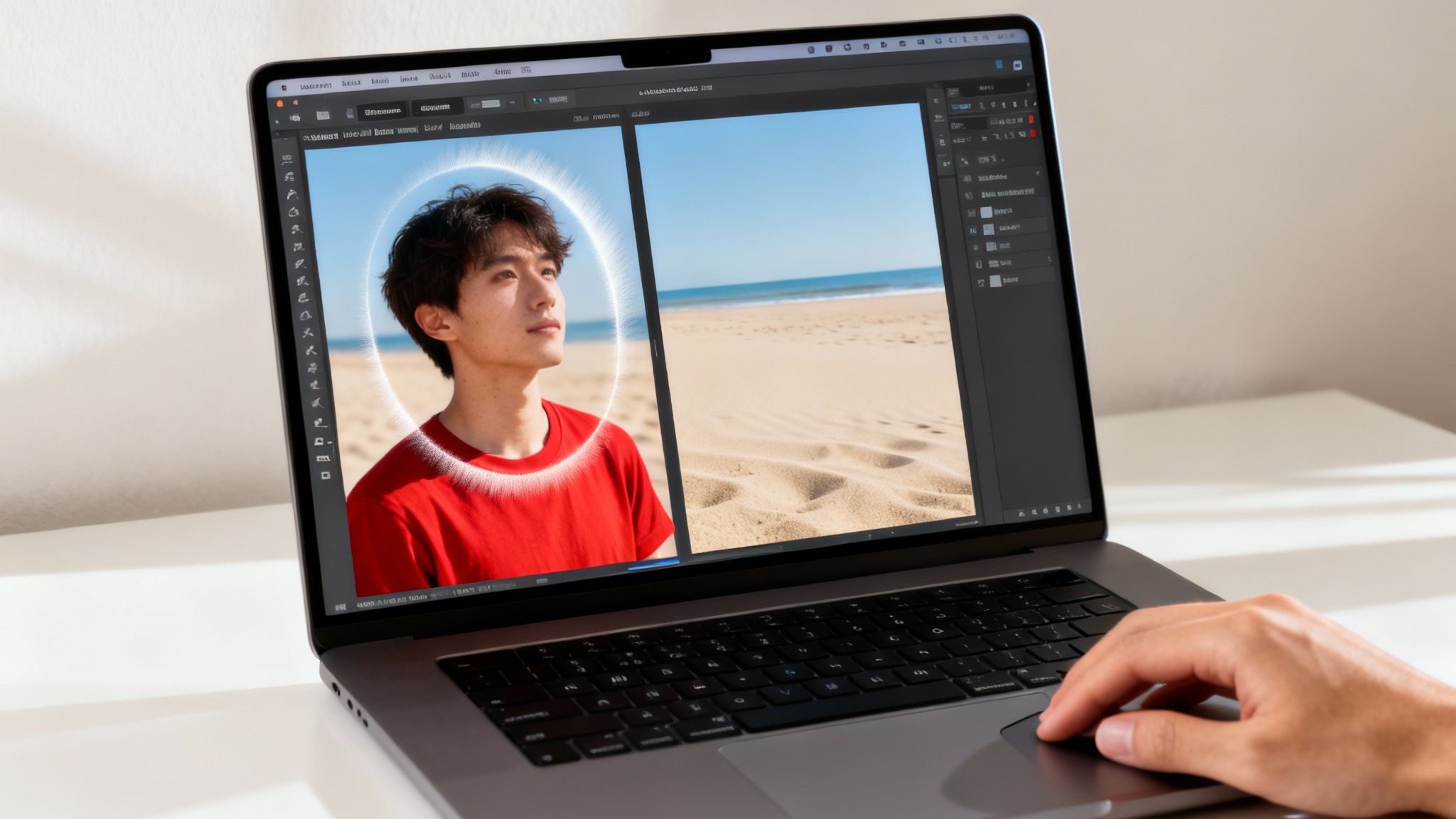
Let's walk through a classic scenario. You’ve snapped a gorgeous shot on your beach vacation, but a stranger wandering in the background is killing the vibe. With a modern AI tool, fixing it is unbelievably quick and easy.
The process is usually just a few simple moves:
- Upload Your Image: Just drag and drop your photo right into the editor in your browser.
- Highlight the Unwanted Person: Grab the brush tool and paint over the person you want gone. You don't have to be super precise—a rough outline is typically all the AI needs to get the message.
- Let the AI Work: Hit the "Remove" or "Erase" button. The AI instantly analyzes the surrounding pixels—the sand, the water, the sky—and cleverly generates a new background to fill in the space where the person was.
This basic workflow handles a huge number of situations. In fact, a survey by YouGov found that 73% of social media users admit to editing their photos before posting, and tools that give this kind of instant gratification are a big reason why. It’s a total game-changer.
Going Deeper with Prompt-Based Editing
While the brush tool is great for zapping objects directly, the real control comes from prompt-based editing. Instead of just highlighting something, you can use simple text commands to guide the AI with more detail. This is where you really start to direct the edit like a pro.
For example, instead of just painting over a photobomber, you could type a prompt like:
- "Remove the person in the red shirt from the background."
- "Erase the man standing near the lifeguard tower."
- "Make the beach empty."
This approach is especially powerful when you're dealing with several unwanted things at once or when you need to give the AI more context. It's less about pointing and more about instructing. As the tech gets smarter, this conversational style of editing is becoming the new normal. To see this in action, you can try an advanced magic eraser photo editor that uses these exact principles for clean, efficient removal.
Refining the Results for a Flawless Finish
AI is impressive, but it doesn't always nail it on the first try. Sometimes, it might leave behind a faint smudge, a blurry spot, or a weird artifact where the person used to be. This is where a little refinement makes all the difference.
Don’t just take the first result as final. Zoom right in on the edited area and give it a close look. As renowned photographer Glyn Dewis emphasizes, human artistry remains irreplaceable.
"The magic happens in the choices we make. The colour grade that shifts the whole mood. The decision to keep a little texture in the skin because real people aren't porcelain. The way we balance light and shadow to tell the story we want to tell. That's where our style lives. That's the part AI can't do because it doesn't have taste, intuition, or a point of view."
– Glyn Dewis, Professional Photographer & Educator
If you spot imperfections, most tools let you re-apply the brush or run the removal process again on that specific spot. A second or third pass on a smaller, more targeted area can usually clean up any lingering issues, leaving you with an edit that looks completely natural.
Mastering Manual Removal with Online Tools
AI is fantastic for quick fixes, but there are times when you need absolute, pixel-perfect control. What happens when an automated tool leaves behind a blurry patch or smudges a critical detail in the background? That's when you roll up your sleeves and take charge.
This is where you, the artist, step in to remove people from photos online with real precision. And the best part? You don’t need to shell out for expensive software to do it.
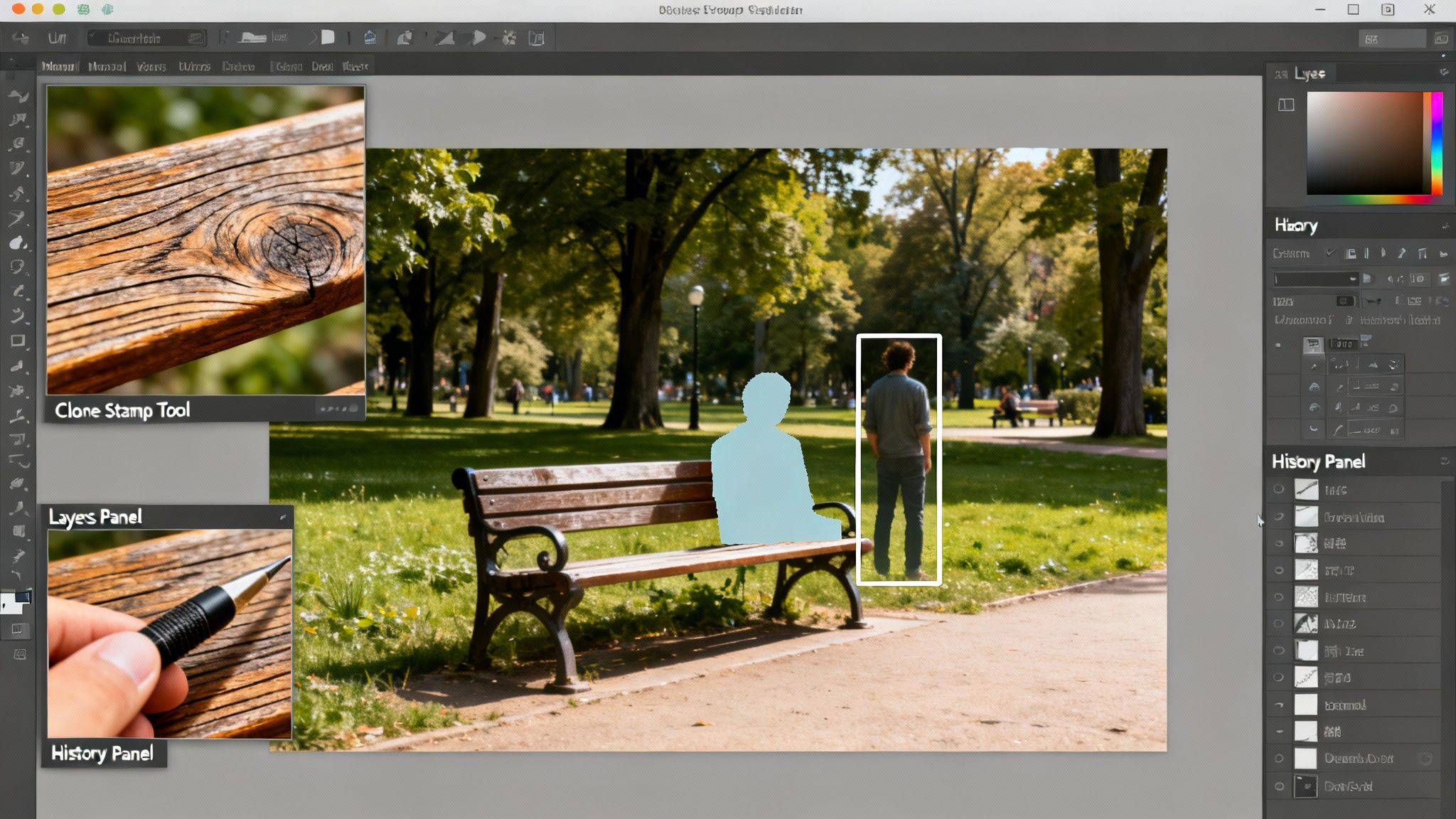
Powerful, free online editors like Photopea put professional-grade tools right in your browser. For this kind of detailed work, we'll focus on two workhorse features: a Content-Aware Fill equivalent and the classic Clone Stamp Tool. Used together, these two can tackle even the most challenging removal jobs.
The demand for these skills is real. Research from The Insight Partners projects the market for online image background remover tools to grow at a CAGR of 13.5% between 2025 and 2031. While modern tools can slash editing time by 90% and AI dominates 80% of the market, that remaining 20% is where manual precision truly shines.
Tackling a Complex Scenario
Let's imagine you have a photo of someone sitting on a park bench. It's not a simple shot. The background has tricky textures like wood grain, overlapping tree branches, and mixed lighting. An AI might get confused here, but a manual approach lets you break the problem down into manageable pieces.
Your first move is to make a careful selection. Using the Lasso or Pen tool, trace a clean outline around the person you want to remove. A good tip is to leave a small, clean buffer around them rather than cutting too close—this preserves important background details you'll need in a moment.
"AI can smooth skin, relight faces, swap out skies. It can create a technically 'perfect' image in seconds. But here's the thing perfect isn't always interesting. Sometimes those ultra-polished images feel a bit lifeless."
– Glyn Dewis, Professional Photographer & Educator
Once your selection is active, it's time for the heavy lifting. In Photopea, you can go to Edit > Fill and choose Content-Aware. This feature intelligently samples pixels from around your selection to create a surprisingly good initial patch, handling the bulk of the removal in one shot.
The Art of Cloning and Rebuilding
Now for the finesse. The content-aware fill probably left some soft spots or repetitive patterns. This is where the Clone Stamp tool becomes your best friend. The secret to a natural-looking result is to constantly sample from multiple source points.
Here are a few pro tips for using the Clone Stamp effectively:
- Work on a New Layer: Always create a new, blank layer before you start cloning. This non-destructive workflow lets you erase mistakes without touching your original image. In the Clone Stamp settings, just make sure to set the
Sampleoption to "Current & Below." - Adjust Your Brush: Ditch the hard-edged brush. A soft brush with around 20-40% hardness creates a much smoother, more natural blend between the cloned area and the original pixels.
- Vary Your Source Points: This is the biggest mistake beginners make. Don't just sample from one spot. Constantly hold
Alt(orOptionon Mac) to select new source points from areas with similar texture and lighting. This is how you avoid that fake, repetitive look.
By carefully rebuilding textures like the wood grain on the bench or the leaves on a nearby bush, you create an edit that is truly invisible. This manual control is precisely why learning to remove unwanted objects from photos is such a valuable skill. It’s a methodical process, but the flawless results are absolutely worth the effort.
Pro Tips for Flawless, Natural-Looking Edits
Okay, so you’ve used an AI tool to zap a person out of your photo. That’s the easy part. Now comes the real magic—the subtle tweaks that separate a decent edit from an invisible one. The whole point is for no one to ever know you were there.
This is where you need to start thinking less like a tech user and more like an artist. The biggest giveaway of a clumsy removal? Unnatural light and shadows. If someone was standing on the grass, their body would cast a shadow. Remove the person, and you have to convincingly rebuild what the ground beneath them should have looked like. This often means carefully cloning nearby textures or using a healing brush to reconstruct highlights and shadows that just feel off.
"The magic happens in the choices we make... The way we balance light and shadow to tell the story we want to tell. That's where our style lives. That's the part AI can't do because it doesn't have taste, intuition, or a point of view."
– Glyn Dewis, Professional Photographer & Educator
Polishing Your AI-Generated Edits
As smart as AI is, it can sometimes get lazy. You'll see it leave behind little digital fingerprints. A common one is creating repetitive patterns—the algorithm copies a patch of grass or brick a little too perfectly, and your brain immediately flags it as fake. The fix is pretty simple: grab the Clone Stamp tool in your editor, turn the opacity way down, and gently paint over the repetitive area, sampling from different spots to break up the pattern.
Another classic mistake is leaving a hard edge around the area you've removed. It creates a "cut-out" look that screams edited. To avoid this, always feather your selections. When you're manually selecting something to remove, feathering the edge by just a few pixels creates a soft, gradual transition. It’s a tiny step that makes the final blend look completely seamless.
Preserving Every Pixel of Quality
All this careful work is for nothing if your final image is a blurry, pixelated mess. To keep everything looking sharp and professional, just follow a few simple rules of thumb:
- Start with High Resolution: Always, always work with the highest-quality version of the photo you have. Trying to edit a low-res image is like trying to build a house on a shaky foundation—it only makes the existing flaws worse.
- Work Non-Destructively: Get into the habit of editing on separate layers. Think of it as a safety net. If you mess up, you can just delete the layer and start over without ever damaging your original photo.
- Know Your Export Settings: Don't just blindly hit "Save." The right format depends on where the photo is going. For posting online, a high-quality JPEG is your best bet. If it’s destined for print, you’ll want a lossless format like TIFF or PNG to preserve every last detail. This ensures your perfect edit looks just as stunning on paper as it does on your screen.
Got Questions About Removing People from Photos?
Diving into photo editing can bring up a lot of questions. Whether you're stuck on a tricky removal or just curious about the rules, getting solid answers helps everything go smoother. Let's tackle some of the most common questions that pop up when you're trying to remove people from photos online.
Is It Actually Legal to Edit Someone Out of a Picture?
For your own personal photos, the answer is almost always yes. If you snapped the picture, you own the copyright and can pretty much do what you want with it. That means editing out strangers from that amazing vacation shot or removing an ex from a group photo is totally fine.
Things get a bit more complicated when you're talking about using the photo for commercial or public purposes. If your edit misrepresents a situation, defames someone, or violates their "right to publicity," you could find yourself in some hot water. Photography ethics expert Glyn Dewis cautions against misrepresentation.
"AI is not primarily a tool of deception; it is a profound creative liberation... The problem is not the tool that can generate a manipulated image; the problem is the person who chooses to present that manipulated image as an unvarnished, factual truth."
– Glyn Dewis, Photographer & Educator
What Kind of Photos Are Easiest to Edit?
Not all images are created equal in the editing suite. You'll have a much easier time getting a clean, flawless result if your source photo has a few key things going for it.
Look for pictures where:
- There's No Overlap: The person you want to remove isn't touching or partially blocking the main subject you want to keep.
- The Background is Simple: A clear sky, a plain wall, or a calm ocean is a dream for AI to reconstruct. It’s way easier than a busy city street or intricate patterns.
- The Lighting is Good: Even, consistent lighting without crazy, complex shadows makes the final blend look much more natural.
Why Are There Blurry Spots Where the Person Used to Be?
Ah, the dreaded blur patch. This is a classic issue, especially with one-click AI tools. That blurry spot, often called an "artifact," pops up when the AI gets confused by a complex background.
Imagine the person was standing in front of a detailed brick wall or a field of wildflowers. Instead of perfectly recreating every brick or petal, the AI might just average out the textures and colors, leaving you with a smudge. The fix? A little manual cleanup. Using a Clone Stamp or Healing Brush tool on a low opacity lets you paint over the blurry section, borrowing textures from nearby areas to create a seamless, believable result.
Ready to go beyond simple fixes and start creating truly incredible images? DreamShootAI gives you powerful, prompt-based editing that lets you perfect your photos in seconds. Generate professional headshots, create beautiful couple photoshoots, or just clean up your favorite memories with intuitive AI.
Written by Jocelyn Grey for the DreamShootAI blog.
Spotted something out of date? Tell us at [email protected] and we'll fix it.