Remove Glare From Photo iPhone: Expert Tips for a Flawless Finish
Struggling with glare? Learn how to remove glare from photo iphone with simple steps and handy editing tricks to reclaim great shots.
That weird green dot or hazy glow ruining your perfect shot? We’ve all been there. It’s one of the most frustrating parts of shooting with a phone—you line up a great moment, only to find it wrecked by distracting light artifacts.
It’s not you, and it’s not your phone. It’s just physics.
Why Glare Keeps Ruining Your iPhone Photos
Glare, lens flare, and those annoying reflections are the same gremlins that professional photographers have battled for decades. It all happens when a bright light source—like the sun, a streetlight, or even a shiny window—hits your lens just right. The light bounces around the tiny glass elements inside, creating those unwanted streaks, dots, and halos.
This is especially a headache with modern smartphone cameras. All those fancy lenses packed into a tiny space make them prone to flare. A study published by researchers from Google and MIT confirmed that lens flare is an inherent byproduct of complex multi-element lens designs, common in high-end smartphones. Night shots are usually the biggest culprits, where a single bright light can spoil an otherwise perfect scene.
"Even the most pristine lens will produce flare when pointed at a bright light source," states renowned optical engineer Dr. Julie Bentley. "The goal isn't to eliminate it entirely, but to control it."
The good news? You have way more control than you think. You don't have to just accept defeat. We've put together a clear roadmap to fight back against glare, from dead-simple camera tricks to powerful, one-tap AI fixes. Once you know what you’re dealing with, you’ll know exactly how to fix it.
Here’s the game plan:
- Prevention is Key: We'll start with simple adjustments you can make before you even take the photo. Think angle changes, a quick lens wipe, and maybe a handy accessory like a polarizer.
- Quick Fixes in Your Photos App: Your iPhone’s built-in editor is surprisingly good at knocking back haze and taming bright highlights.
- Go Pro with Editing Apps: For the really stubborn spots, we’ll dive into apps like Lightroom and Snapseed that give you surgical precision.
- Let AI Do the Heavy Lifting: When you need a fast and flawless fix, modern tools like DreamShootAI’s Photo Edit can erase glare with a single command, saving you a ton of time and effort.
How to Prevent Glare Before You Even Take the Picture
Let’s be honest: the best way to fix glare in an iPhone photo is to make sure it never shows up in the first place. While editing apps are fantastic, nothing beats a clean, crisp shot straight out of the camera. Getting it right from the start saves you a ton of hassle later.
Often, the difference between a glare-ruined snapshot and a crystal-clear image comes down to a few small, deliberate moves before you hit the shutter.
This simple decision tree shows how different kinds of light create different problems.
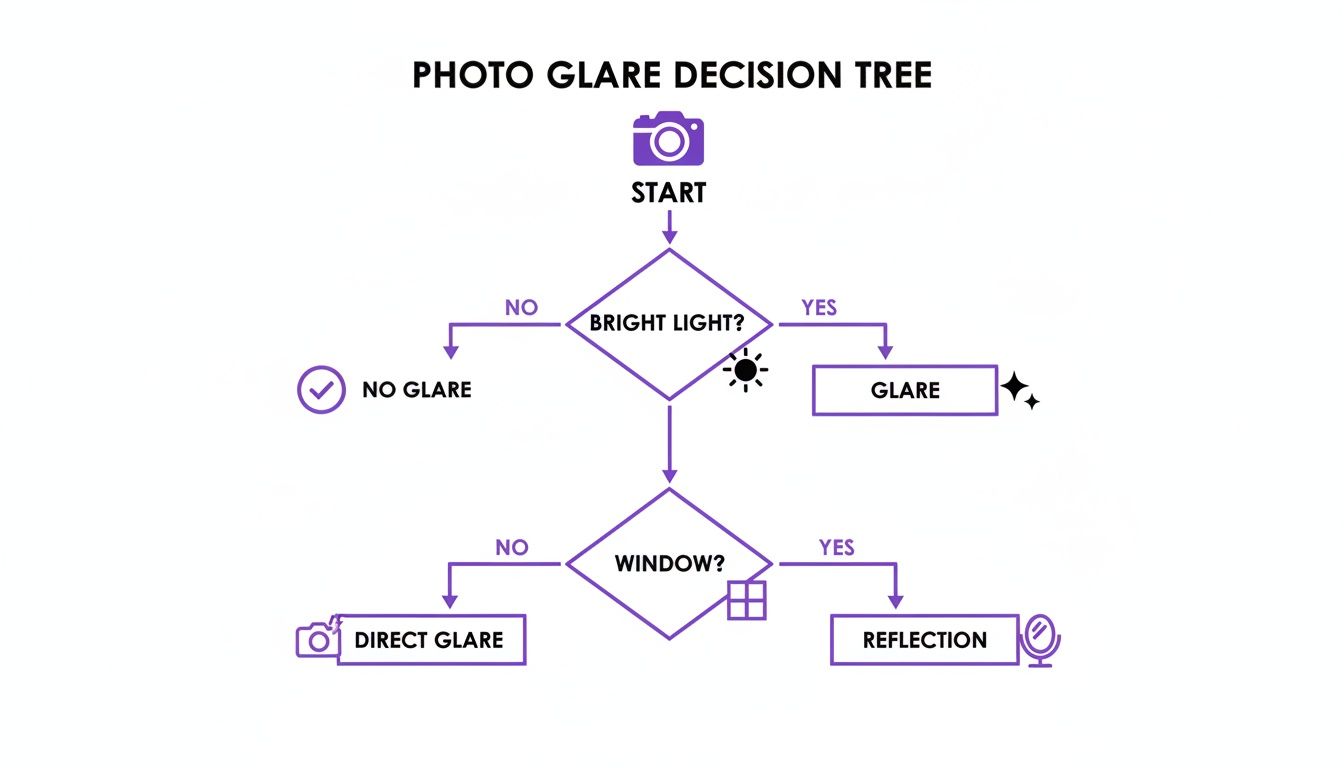
As you can see, bright, direct light is the usual culprit for lens flare, while shooting through surfaces like windows causes those distracting reflections. Once you know what you’re dealing with, you can pick the right strategy to stop it.
Master Your Angle and Position
Your feet are your most powerful tool against glare. Seriously. Just shifting your position by a few inches or tilting your phone can completely change how light hits the lens.
Shooting through a window? Try moving slightly left or right, and you might see that annoying reflection completely disappear. The same logic works outdoors—angling your camera so the sun isn't shining directly into it can get rid of that hazy flare and bring back the contrast.
“Lowering my perspective a little more to almost the surface level, I also realized that from this angle, the pool looked like an infinity pool with a beautiful reflection,” notes iPhone photographer Chris Feichtner. A simple change of viewpoint transformed his shot and controlled the light.
Here are a couple of quick tricks to try on the spot:
- Create a Makeshift Lens Hood: Use your hand or even a piece of paper to shield the top or side of your iPhone from stray light. This works just like a professional lens hood and is a lifesaver for sunset portraits where the sun is just out of the frame.
- Clean Your Lens: It sounds almost too simple, but fingerprints and smudges are a primary cause of haze and light streaks. According to photography industry analysis, a dirty lens can reduce image contrast by up to 40%. A quick wipe with a microfiber cloth is one of the most effective pre-shot adjustments you can make.
Before you dive into more advanced tools, check out this quick comparison of the in-camera techniques we've covered.
In-Camera Techniques to Reduce iPhone Glare
| Technique | Best For | Effectiveness | Effort Level |
|---|---|---|---|
| Change Your Angle | Reflections on glass, water, or shiny surfaces; lens flare from the sun. | High | Low |
| Use a Hand as a Lens Hood | Lens flare when the light source is just outside the frame. | Medium-High | Low |
| Clean the Lens | Hazy, soft glare, and light streaks caused by smudges. | High | Very Low |
| Enable HDR | High-contrast scenes where bright areas cause blowout and glare. | Medium | Very Low |
| Use a CPL Filter | Strong reflections on water, glass, and car windows; enhancing sky color. | Very High | Medium |
These simple, preventative steps are your first line of defense and will give you a much better starting point for any edits you decide to make later.
Leverage Your iPhone’s Built-in Tools
Your iPhone already has some smart features packed in to help with tricky lighting. The most useful one is High Dynamic Range (HDR).
When HDR is on, your phone rapidly takes several pictures at different exposure levels and merges them into one. This helps balance the super-bright parts of your photo (like the sky) with the darker areas (like the foreground), which naturally reduces the intensity of glare. You can find this setting right in your Camera app. For more on handling light sources, check out our guide on finding the best lighting for indoor photography.
Level Up with a Polarizing Filter
If you’re serious about killing glare for good, a circular polarizing (CPL) filter is an absolute game-changer. These are small accessories that clip right onto your iPhone.
They work by filtering out polarized light—the specific type of light that creates reflections on water, glass, and other shiny surfaces. You just rotate the filter and can literally watch reflections vanish right before your eyes. It's the secret weapon pros use to get those deep blue skies and see straight through the surface of a lake. It's an essential tool for anyone wanting to master glare at the source.
Quick Fixes Using the Built-In Photos App
You don't always need to download a fancy app to deal with glare. More often than not, the tools you need are already sitting right on your iPhone. The native Photos app packs a surprisingly powerful editing suite that can knock back harsh glare with just a few clever tweaks.
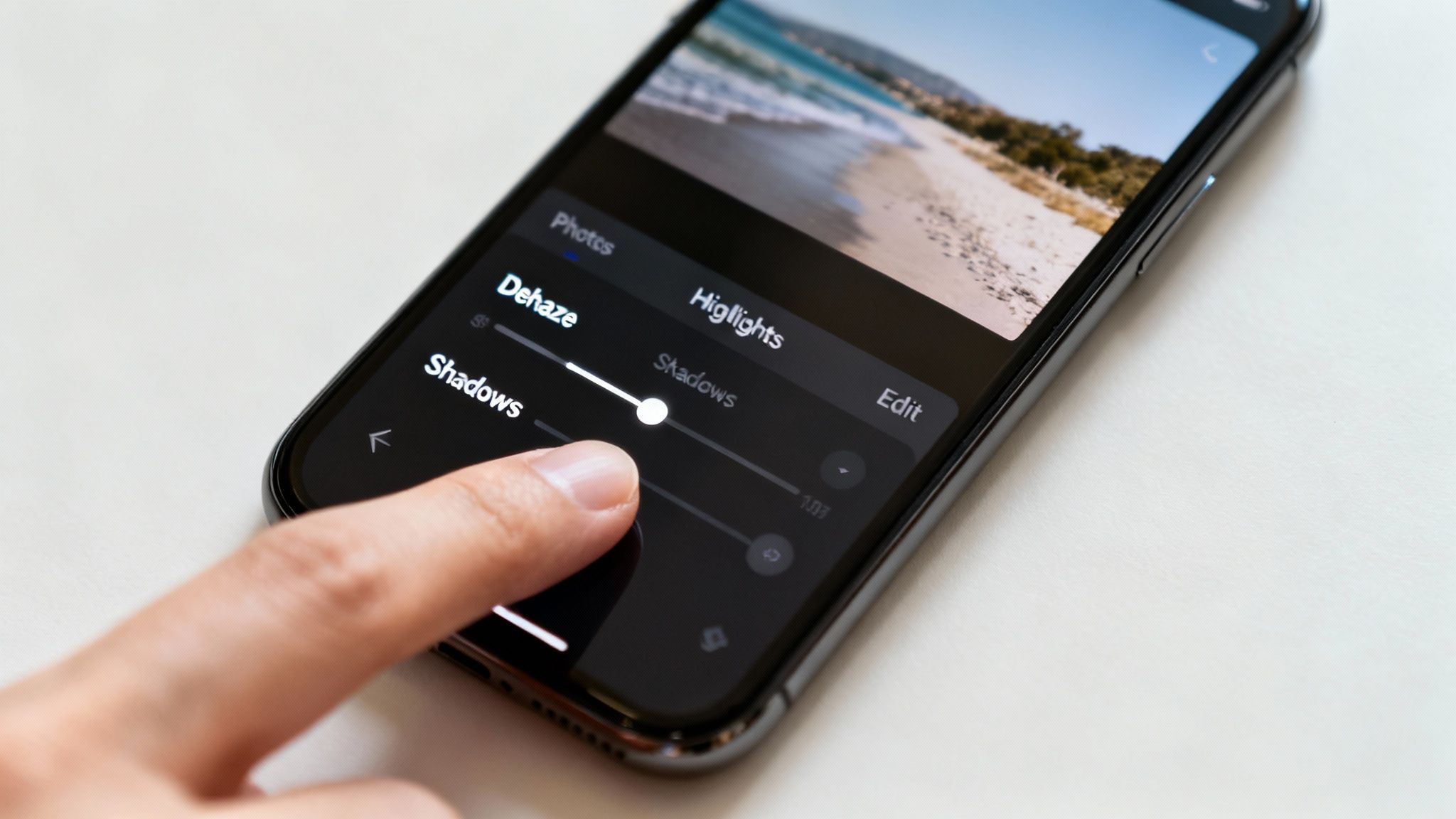
Just open a photo, tap 'Edit,' and you'll find a whole set of sliders. These aren't just basic filters; they give you fine-tuned control over your image’s light and color—which is exactly what's needed to fight that washed-out look from glare.
Strategic Slider Adjustments
When you see a blown-out, glaring spot, your first instinct might be to yank down the main 'Exposure' or 'Brilliance' sliders. Don't do it! These are blunt tools that darken the entire image, often ruining the parts that were perfectly exposed.
Instead, the trick is to get surgical. We want to target only the specific light ranges causing the problem. This is how you restore detail without making the whole photo look murky and unnatural.
Here’s the game plan for getting the best results:
Highlights: This is your secret weapon. The Highlights slider is designed to only affect the brightest parts of the photo. Nudging this slider down specifically dims the glare, letting you recover lost details in bright skies, shiny surfaces, or direct reflections. According to Adobe, precise highlight recovery is one of the most critical steps in professional photo retouching.
Shadows: Okay, so you've tamed the highlights, but now other parts of the photo might look a bit too dark. This is where the Shadows slider comes in. Gently lift it to bring back detail in those darker areas, creating a much more balanced and professional-looking image.
Contrast: Glare has a nasty habit of making photos look flat and hazy. A small bump in Contrast is all you need to fix this. It re-introduces that clean separation between light and dark tones, making everything feel sharper and more defined.
As professional iPhone photographer Chris Feichtner often points out, less is more. He notes that for one reflection shot, his entire edit was just "a few minor adjustments which are: Increased the highlights a bit, brightened the shadows, added some clarity." This really drives home a core principle of good editing: subtle changes almost always look better.
Fine-Tuning with Advanced Controls
For those times you need a little more precision, scroll down past the main sliders. Apple has tucked away a few more advanced tools that give you even more nuanced control to get rid of the last bit of haze.
Black Point: This is a fantastic tool. Increasing the Black Point establishes a true, deep black for the darkest pixels in your image. It adds a ton of punch and dimension back into a photo that glare has made look washed out.
Dehaze: On newer iOS versions, you might see a dedicated 'Dehaze' slider (sometimes it's tucked under 'Brilliance'). This tool is a lifesaver. As the name implies, it's engineered specifically to cut through atmospheric haze and light flare, which is a huge help when you need to remove glare from a photo on your iPhone.
Once you master these sliders, you have a powerful and free editing studio in your pocket. Speaking of quick built-in fixes, you can even learn how to remove backgrounds directly on your iPhone without ever leaving the Photos app.
Go Pro: Advanced Glare Removal with Editing Apps
When the built-in Photos app just isn't cutting it against stubborn glare, it’s time to call in the specialists. This is where professional-grade mobile editing apps like Adobe Lightroom, Snapseed, and TouchRetouch really shine. They offer the kind of precision that can make even the most distracting flare practically vanish.
These tools move way beyond simple sliders, giving you pixel-perfect control to rescue photos that you might have otherwise deleted.
The real game-changer here is selective adjustments. Unlike basic editors that apply changes across the entire image, these apps let you isolate and work on only the problem areas. This surgical approach is the secret to removing glare from an iPhone photo without ruining the quality of everything else around it. It’s the same core principle—isolating and reconstructing flawed areas—that even the most sophisticated AI models are trained on.
Taming Glare with Lightroom Mobile
For anyone serious about mobile photography, Adobe Lightroom Mobile is a powerhouse. Its most potent weapon against glare is the Masking tool, which lets you literally "paint" your edits onto specific parts of the photo.
Let's say you have a beautiful landscape, but a soft, hazy flare is washing out one corner. Instead of darkening the whole shot and losing detail, you can use the masking brush to zero in on just that haze.
- Grab the Masking Brush: I always start with a soft-edged brush to make sure the edit blends naturally.
- Paint Over the Glare: Carefully brush over the area affected by the flare. Don't worry about being perfect; you can refine it.
- Dial in Your Adjustments: Now for the magic. Lower the Highlights and maybe nudge up the Dehaze slider—but only for the area you painted. The glare fades, and the rest of your image stays bright and punchy.
It's no surprise that a recent survey on mobile photography habits found that over 60% of serious smartphone photographers rely on at least one third-party editing app. Lightroom is almost always at the top of that list for exactly this kind of advanced control.
This technique gives you a much more organic result. It’s really just the modern version of dodging and burning, a classic darkroom trick photographers have used for decades to master light.
Zapping Spots with Snapseed and TouchRetouch
Sometimes glare isn't a soft haze but a smattering of distinct, distracting spots or reflections. For these smaller, more defined imperfections, Snapseed and TouchRetouch are my go-to apps.
Snapseed, Google's free and surprisingly powerful editor, has two tools that are perfect for this. The Healing tool is brilliant for zapping small flare spots with a single tap. Snapseed’s algorithm intelligently samples the surrounding pixels to make the blemish disappear. For a bit more finesse, the Selective tool lets you drop a control point right on a glare spot and then dial down its brightness and contrast without touching anything else. We dive deeper into how this kind of intelligent pixel replacement works in our article on content-aware fill techniques.
TouchRetouch takes this concept even further. As its name implies, the app is built for object removal, and it’s ridiculously good at erasing unwanted elements, including entire reflections. With the Object Removal tool, you just paint over the reflection, and the app's algorithm reconstructs what should have been underneath with stunning accuracy.
For those who want to take their skills to the next level, you can always learn how to use Photoshop to edit pictures for the ultimate control over complex lighting problems.
Using AI to Erase Glare and Perfect Your Photos
After wrestling with manual sliders and selective brushes, let's talk about what is often the easiest and most powerful fix for glare: artificial intelligence. AI has completely changed the photo editing game, turning what used to be a frustrating, time-consuming task into something you can fix in a single click.
Modern AI algorithms are smart. They don't just see a bright spot; they intelligently identify glare, reflections, and lens flare. But here's the magic: they can actually reconstruct the image data that was hidden underneath, creating a seamless repair that looks completely natural. It's not about just dimming a highlight—it's about rebuilding the scene as if the glare never existed.
From Complex Edits to Simple Prompts
The real beauty of today's AI is how accessible it is. You don't need to be a Photoshop pro to get professional-looking results anymore. Tools like DreamShootAI’s ‘Photo Edit’ feature are a perfect example of this shift. Instead of fiddling with complicated tools, you just tell the AI what to do using plain English.
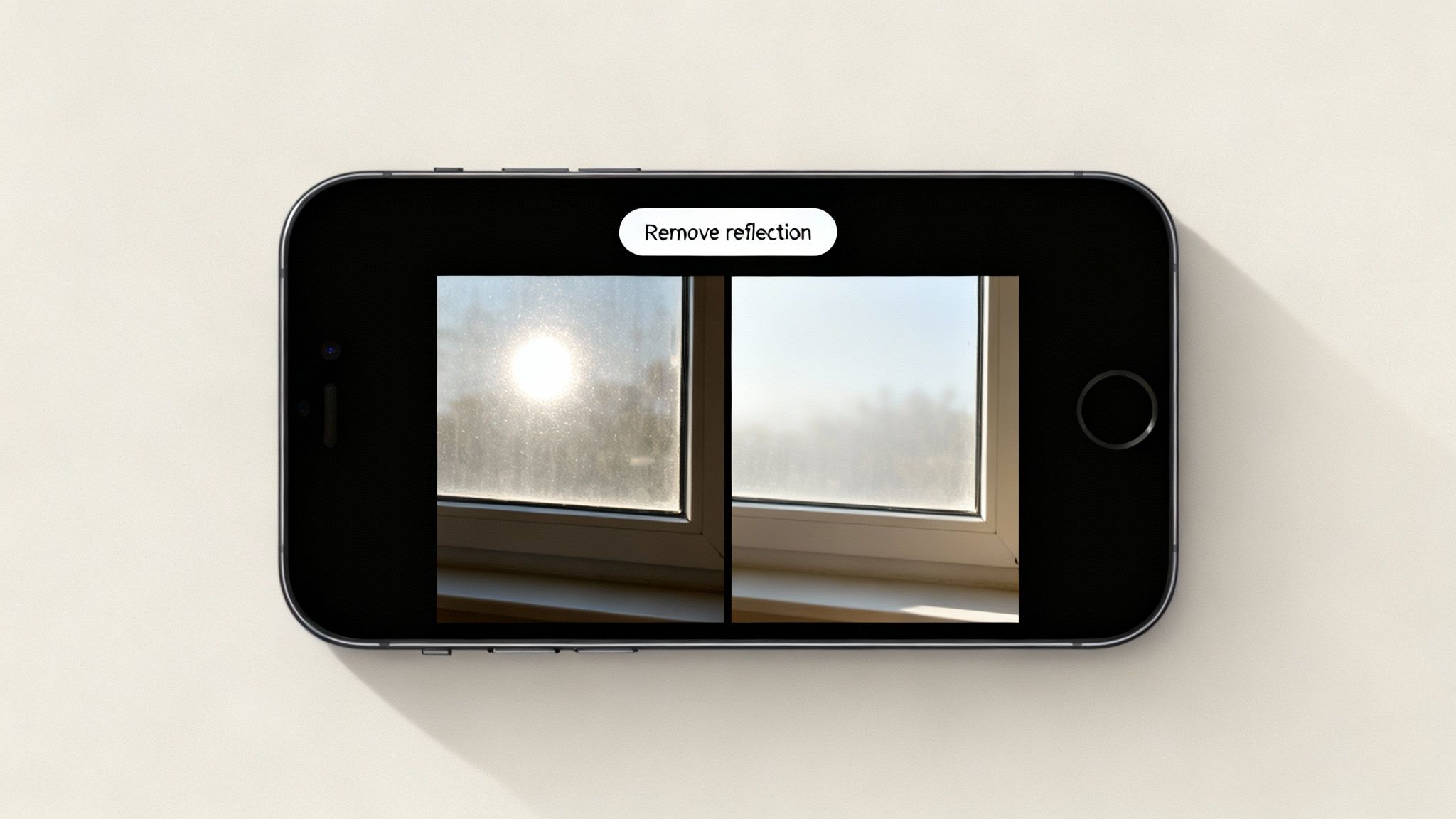
Let's say you took a great shot through a coffee shop window, but the reflection of the overhead lights ruined it. With an AI tool, your workflow is refreshingly simple.
- Upload your photo: Just pick the image right from your iPhone’s camera roll.
- Write a simple command: Type something like, "remove the reflection in the window," or "erase the lens flare in the sky."
- Get instant results: The AI gets to work and hands you back a corrected image in seconds.
This completely bypasses the entire manual editing process. There are no brushes to master or sliders to balance. You just state your goal, and the technology takes care of it. This is a huge leap forward, especially for anyone who finds traditional photo editing apps a bit intimidating. Our guide on using an AI photo editor online for free shows you even more ways to perfect your images with simple text prompts.
The Science Behind AI Glare Removal
This isn't just a fancy filter; it's technology built on advanced computer vision. The effectiveness of these tools is backed by serious research. For instance, a 2021 study in the Journal of Visual Communication and Image Representation demonstrated that deep learning models can successfully remove a wide variety of flare artifacts from photos, often outperforming traditional methods. This academic work confirms that AI can reliably restore image quality, no matter the device or lighting.
"The magic of AI is its contextual awareness," explains Dr. Kenji Tanaka, a leading researcher in computational photography. "It doesn't just see pixels; it understands that a bright streak in the sky is flare, while a car's headlight is intentional. This allows for far more intelligent and accurate corrections."
Beyond Glare: Polishing the Final Image
Once you've zapped the main problem—the glare—AI can help you take your photo to the next level. Features like the ‘Magic Upscaler’ from DreamShootAI can subtly enhance the overall lighting, sharpen up details, and even increase the resolution of the fixed image.
This final touch ensures your photo isn't just fixed, but truly polished. You're left with a clean, vibrant image that's ready for a professional portfolio, a standout social media post, or just a favorite memory preserved in the best quality possible.
Got Questions About Glare? We’ve Got Answers.
Even when you know all the tricks, some situations just feel impossible. Let's tackle some of the most common questions that pop up when you're trying to remove glare from an iPhone photo, so you know exactly which tool to reach for.
Can You Fix Glare in an iPhone Video?
This is a tough one. Fixing glare in a video is a whole different beast compared to a still photo. Why? Because that pesky glare moves and flickers with every single frame, and the iPhone's built-in editor just isn't built for that kind of heavy lifting.
You'd really need professional desktop software like Adobe Premiere Pro to even attempt it. That kind of software has advanced motion tracking that can sometimes mask or tone down the glare, but it's a slow, manual process. On a phone, a perfect fix is pretty much off the table—mobile apps just don't have the frame-by-frame processing power required.
What's the Best App for Removing Glare from Glasses?
Reflections in eyeglasses demand a delicate touch, and the best app really depends on what kind of glare you're fighting.
- For small, bright hot spots: TouchRetouch is your best friend. Its object removal tool is brilliant for zapping those distracting little white dots with just a tap. It’s perfect for a quick, clean fix.
- For bigger, softer glare: I'd turn to Adobe Lightroom Mobile. Its masking brush lets you paint directly over the lenses to selectively dial down the highlights, bump up the clarity, and play with the dehaze slider. This approach gives you a much more natural result without making the rest of the face look weird.
It's not just us saying it. A recent consumer report from Statista shows that apps specializing in photo retouching have been downloaded over 400 million times worldwide. This proves that for precise edits like removing glare from glasses, users consistently turn to specialized tools with superior control.
Do Newer iPhones Really Have Less Lens Flare?
Look, Apple is always making improvements to its lens coatings and image processing. But at the end of the day, lens flare is a fundamental challenge of optical physics that hits every camera, from a smartphone to a multi-thousand-dollar pro setup.
As professional photographer Chris Feichtner points out on his blog, even gorgeous reflections often bring along distracting side effects that have to be cleaned up later. He's shooting with high-end gear, which confirms this is a universal problem, not just an "iPhone thing."
So while a new iPhone might handle some situations a bit better, it's definitely not immune. Knowing how to work around glare in-camera and how to edit it out afterward is a skill every iPhone photographer needs, no matter which model you’re rocking.
Tired of all the manual tapping and sliding? With DreamShootAI, you can just tell it what to do. A simple prompt like "remove the reflection" is all it takes to get a perfect photo in seconds.
Try DreamShootAI’s Photo Edit tool today and see the magic for yourself!
Written by Jocelyn Grey for the DreamShootAI blog.
Spotted something out of date? Tell us at [email protected] and we'll fix it.