How to remove light glare from photo: Simple fixes
Learn how to remove light glare from photo with simple, proven techniques using software, apps, and shooting tips that prevent reflections.

We’ve all been there. You snap a nearly perfect photo, only to find it ruined by a stray reflection or a harsh blast of lens flare. Knowing how to remove light glare from a photo isn't just one skill; it's about having a whole toolkit. You might need a quick fix on your phone, a precision edit in Photoshop, or a one-click solution from a modern AI tool. The right method always comes down to the kind of glare you’re up against.
Understanding and Tackling Photo Glare
That distracting haze or bright hot-spot isn't just an annoyance—it's a universal challenge that even seasoned pros deal with. The good news is, what happens in-camera doesn't have to be the final word. Post-processing gives us some incredibly powerful ways to fight back. Whether it's a subtle reflection in a pair of glasses or a dramatic sun-soaked lens flare, the right technique can rescue an otherwise perfect memory.
And this isn't a niche problem. The demand for better solutions is huge. The global market for in-camera glare suppression tech was valued at around $1.24 billion and is expected to rocket to nearly $3.69 billion by 2033. This growth just goes to show how critical glare removal is for photographers and industries everywhere. You can read more about the glare suppression market and its rapid expansion.
Identifying the Type of Glare
Before you can start fixing glare, you need to know what you're looking at. Think of it like a diagnosis. Glare usually shows up in one of three ways, and each needs a slightly different approach.
- Specular Highlights: These are those tiny, super-bright spots of light you see bouncing off shiny surfaces like chrome, water, or even jewelry. They're intense and demand precise tools to carefully paint or patch over the affected pixels.
- Lens Flare: This happens when a bright light source, usually the sun, hits your camera lens just right. It creates those classic streaks, colorful circles, or sometimes a washed-out look across the entire image.
- Veiling Glare (Haze): This is a more subtle enemy. It’s a soft, low-contrast wash that can cover a big part of your photo, making everything look faded and robbing your image of clarity and color.
This quick visual guide can help you figure out which tool to grab based on the type of glare you’re seeing.
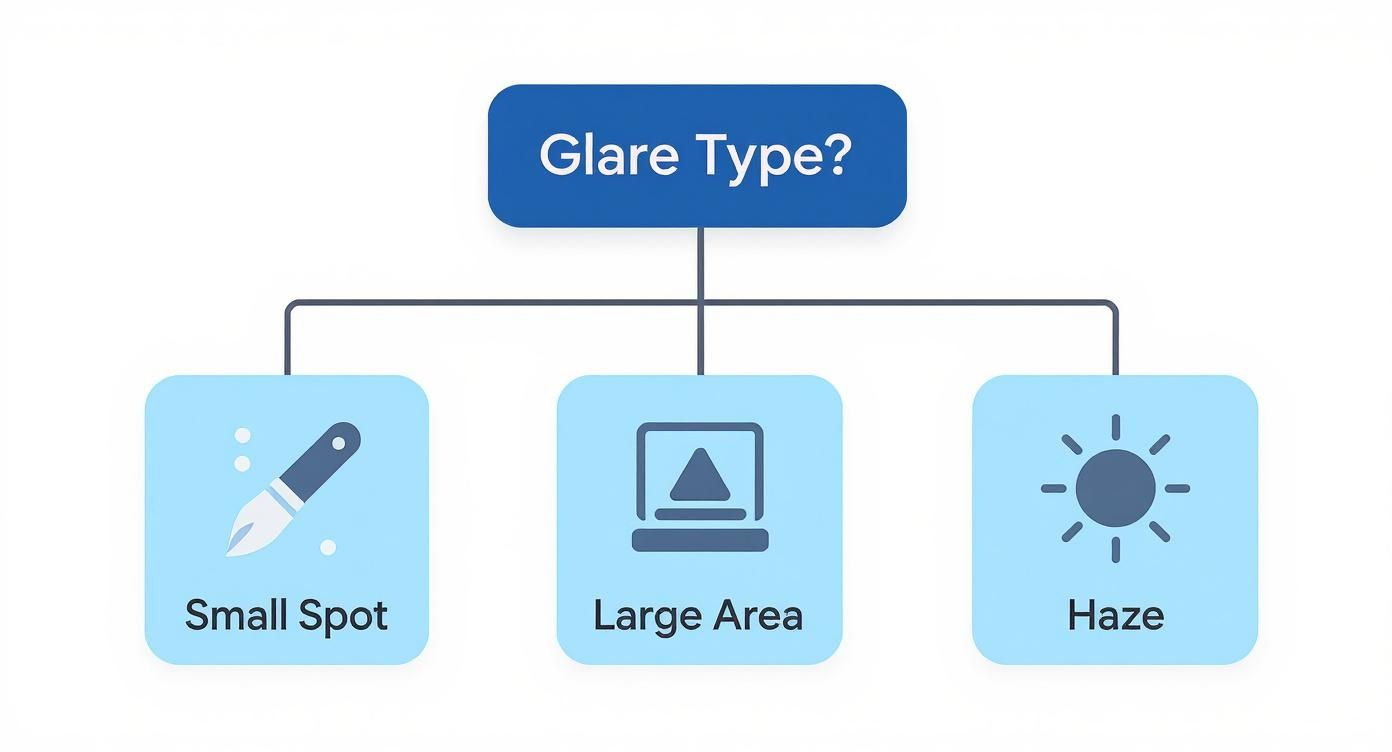
As you can see, a healing brush is perfect for small spots, a clone stamp is your go-to for larger problem areas, and a simple dehaze tool works wonders on that foggy, washed-out look. It really brings to mind what the legendary photographer Ansel Adams once said:
"You don't take a photograph, you make it."
That sentiment has never been more true. The real magic often happens in the edit, where you carefully clean up imperfections like glare to transform a good shot into a truly great one.
For the times when a quick mobile fix just won't cut it, it's time to bring out the big guns: desktop software. Photographers who need total control over every pixel already know this secret. While phone apps are fantastic for fast edits, programs like Adobe Photoshop and Lightroom are the industry workhorses for a reason—their toolkits are deep enough to handle even the most stubborn glare.
This is where you graduate from simple tweaks to performing surgical-level photo reconstruction.
The key is to stop thinking of glare as just a bright spot. It's really a layer of light that’s completely obscuring the detail you want to see. Your job is to carefully peel back that layer and rebuild whatever is hiding underneath. It’s almost never a one-click job; the best results come from combining a few different techniques.
The Go-To Tools for Banishing Glare
Think of Photoshop's toolkit as a team of specialists. Each tool has a unique talent for fighting glare, and you'll get the best results by letting them work together.
- Clone Stamp Tool: This is your heavy lifter, the workhorse for tackling big, complicated patches of glare. You tell it where to copy good pixels from (the source), and it paints them right over the problem area. It’s a lifesaver for rebuilding patterns and textures, but you need a delicate touch to avoid making things look repetitive and unnatural.
- Healing Brush & Spot Healing Brush: These are the smarter cousins of the Clone Stamp. They don't just copy pixels; they intelligently blend the texture, color, and brightness with the surrounding area for a much more seamless fix. The Spot Healing Brush is your best friend for tiny, isolated reflections, while the main Healing Brush gives you more control by letting you define the source point.
- Patch Tool: This tool absolutely shines when you’ve got a nice, clean patch of texture nearby. You just draw a selection around the glare, then drag that selection over to a good source area. Photoshop does the heavy lifting of blending it in, making it an incredibly fast and powerful way to fix medium-sized reflections.
Here's a pro tip that will save you a ton of headaches: always work non-destructively. Instead of editing your original photo, create a new, blank layer on top of it. Then, when you grab the Clone Stamp or Healing Brush, just set the tool's sample setting to “Current & Below.” All your edits will land on that separate layer, meaning you can tweak, erase, or delete them without ever touching your original image.
Going Deeper with Photoshop and Lightroom
Sometimes, the basic removal tools aren't enough, especially when you're dealing with tricky lens flare or that hazy, washed-out glare that fogs up a whole section of your photo.
For example, getting glare off of eyeglasses in a portrait is a classic photographer's nightmare. This almost always requires a multi-layered attack. You might use the Clone Stamp to rebuild the eye and skin texture from the non-glare side of the face, then switch to a soft brush on a new layer to paint back in subtle colors and shadows to make it look real.
As Adobe engineer Marc Levoy puts it, "A photograph that is polluted by a reflection is the sum of two images... The AI model behind Reflection Removal identifies and untangles these two images."
That idea of "untangling" is crucial. You’re not just deleting something; you're separating two different things (the reflection and what's behind it) and restoring the one you want.
Lightroom has some powerful allies, too. The Dehaze slider, originally made for cutting through atmospheric haze, works miracles on veiling glare. It can instantly bring back the contrast and color saturation that the bright light washed out. For smaller, more precise fixes, Lightroom’s Spot Removal tool works a lot like Photoshop's Healing Brush.
While these manual methods give you unparalleled precision, they definitely take time and practice. If you're looking for a faster workflow, a new wave of AI-powered photo editing tools is changing the game. They can often handle these complex fixes in just a few clicks, giving you a fantastic starting point before you jump in for manual fine-tuning.
Using AI for One-Click Glare Removal
While getting your hands dirty in Photoshop or Lightroom gives you ultimate control, let's be honest—it can be a serious time sink. Thankfully, artificial intelligence is stepping in to automate these headaches, delivering powerful, almost instant fixes that used to take hours of painstaking work. This new wave of AI tools is built specifically to tackle tough photo problems like glare.
These aren't just clumsy filters slapping a patch over a bright spot. Modern AI algorithms are much smarter. They look at the whole picture to understand what’s going on, identify the reflection, and then intelligently rebuild the details hidden underneath. Many of these tools even use an AI Photo Analyzer to spot and correct all sorts of imperfections with surprising accuracy.
This kind of efficiency is a big deal. According to a market analysis by Mordor Intelligence, the global photo editing software market is projected to reach $1.41 billion by 2029, with a significant portion of this growth driven by AI-powered features that simplify complex tasks like glare removal.
Editing Photos with Simple Text Prompts
One of the coolest developments in AI editing is the ability to just tell the software what you want. Instead of digging through menus and mastering complicated tools, you can now fix your photo by typing a simple command.
Take DreamShootAI’s Photo Edit by prompt feature, for example. You just upload an image with distracting glare and type what you want to see happen, like:
- "Remove the bright glare from the person's glasses."
- "Reduce the reflection on the window."
- "Fix the harsh light spot on the shiny surface."
The AI figures out what you mean and applies a targeted fix, saving you a ton of time and frustration. This prompt-based approach makes pro-level editing available to anyone, no technical skills required.
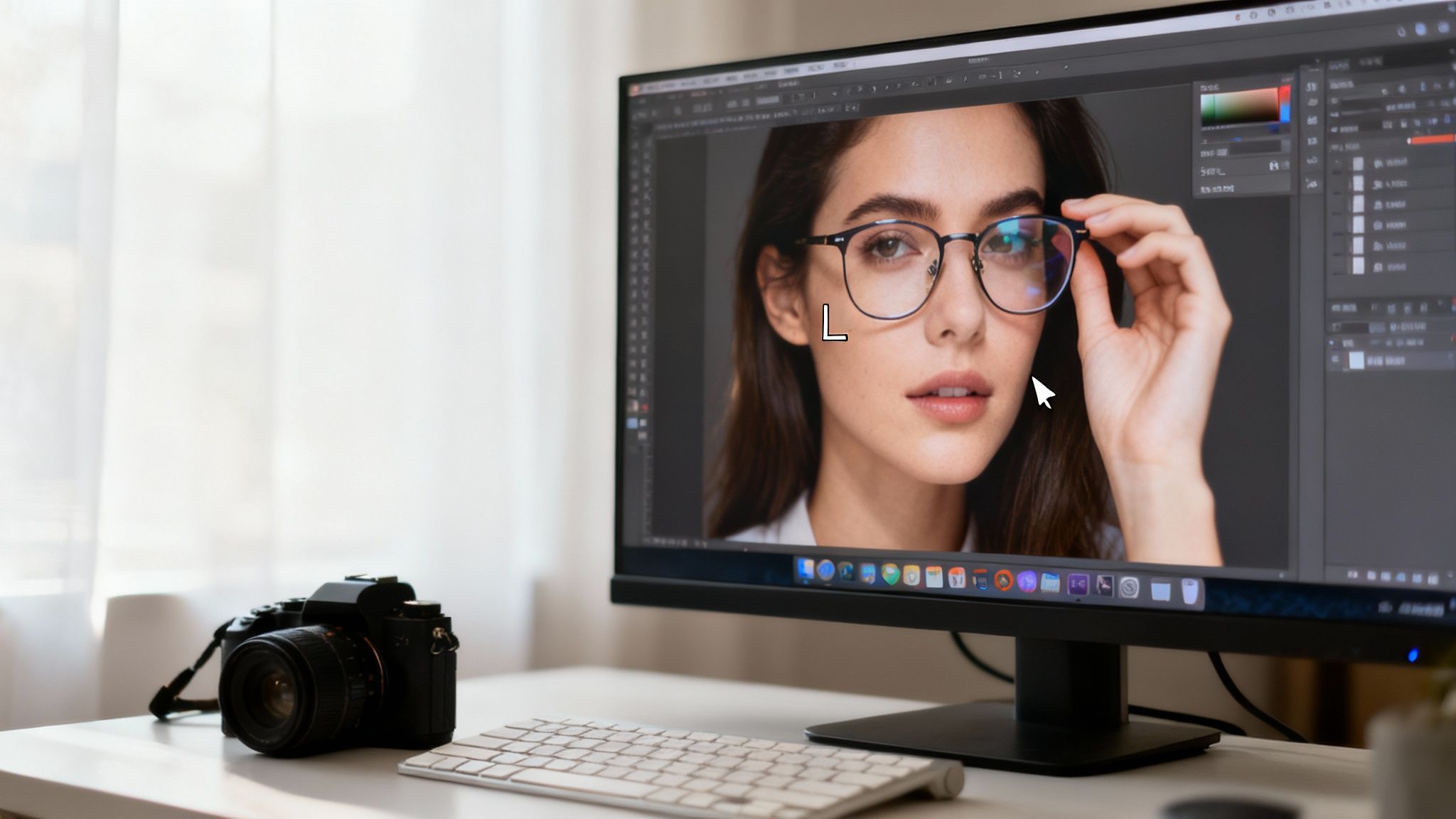
This kind of simple interface shows just how easy the AI workflow can be, letting you make quick adjustments without having to become a Photoshop wizard.
When to Use AI for Glare Removal
AI-powered tools really shine in certain situations, giving them a clear edge over traditional editing methods. Knowing when to hand the job over to an AI can dramatically speed up your workflow and improve your final photos.
Professional photographer and educator Pye Jirsa states, "AI editing isn't about replacing the artist; it's about giving the artist a more powerful brush. It automates the tedious so we can focus on the creative."
This insight gets to the heart of what makes AI so effective. It’s not just erasing a problem; it’s intelligently separating and reconstructing the image.
Consider turning to AI tools when you’re dealing with these scenarios:
- You're in a hurry. You need a great-looking photo now for a social media post, a client preview, or just to share with family.
- The reflection is complicated. The glare is covering tricky patterns like fabric, leaves, or parts of a person's face that would be a nightmare to rebuild by hand.
- You're not a tech guru. You don't have the time or desire to learn advanced tools like the Clone Stamp or layer masks in Photoshop but still want a clean, professional result.
- You're editing in bulk. You have a bunch of photos from the same shoot with the same glare problem and need a fast, consistent fix for all of them.
By using AI, you can get a clean, natural-looking photo without the steep learning curve of professional software. It's a game-changing addition to any photographer's toolkit.
Quick Fixes with Mobile Photo Editing Apps
Let's be real—you don't always have a beefy desktop setup on hand when you notice glare in a photo. In a world where over 90% of pictures are snapped on smartphones, as reported by InfoTrends, your phone has become a shockingly capable editing suite, perfect for tackling glare on the fly. Apps like Snapseed, Adobe Lightroom Mobile, and Picsart put some serious power right in your pocket.
This is a game-changer for anyone who needs a fast, effective fix without a lot of fuss, whether you're a social media creator on a deadline or just trying to save a great family photo. These apps let you zero in on problem spots without messing up the rest of the image.

Key Tools for Mobile Glare Removal
There’s rarely one magic button for this. Instead, the secret to good mobile editing is knowing which tools to combine to gently erase the glare. Thankfully, most high-quality apps offer a similar toolkit for this kind of precise work.
Here's what you'll be looking for in your app of choice:
- Selective Adjustments: This is your go-to tool. It lets you drop a pin right on the glare spot and tweak brightness, contrast, and saturation just in that tiny area. It’s perfect for knocking down a bright hotspot without making the whole photo look muddy.
- Healing or Clone Tools: Just like their desktop cousins, these tools are for painting over small, distracting reflections. You can "borrow" a clean patch of pixels from a nearby area and use it to cover the glare. For bigger jobs, a dedicated tool like a Magic Eraser can remove unwanted objects with surprising accuracy.
- Dehaze and Clarity Sliders: Got a bigger, softer glare that’s washing everything out? The Dehaze and Clarity sliders are your best friends. They work wonders to bring back contrast and cut through that foggy look from veiling glare.
With these tools, you can pull off targeted edits that look completely natural, all from your phone while you wait for your coffee.
A Real-World Mobile Editing Scenario
Picture this: you took a fantastic portrait, but a bright spot from a window is reflecting right off the person's forehead. Don't toss the photo! You can fix it in less than a minute.
As Adobe’s own team noted when building their reflection removal tech, a photo with glare is basically "the sum of two images." Your job as an editor is to cleverly pull apart the unwanted light from the scene you actually wanted to capture.
Here’s a quick workflow you can use in almost any popular editing app:
First, pull up the Selective Adjustment tool. Drop a pin directly on the glare, then dial back the Brightness and Highlights. Right away, you’ll see the intensity of that hotspot go way down.
Next, find the Healing tool. Zoom in nice and close and use small, delicate taps to brush over any lingering harsh edges of the glare. The app will automatically sample the surrounding skin texture to create a seamless blend. As a final touch, you might bump up the global Shadows slider just a tiny bit to restore some detail.
And that's it. This entire process shows you how to remove light glare from a photo quickly and get it ready for Instagram in just a few moments.
Preventing Glare Before You Take the Shot
While post-processing tools are getting incredibly powerful, let's be real: the best way to handle glare is to stop it from ever happening. An ounce of prevention in the field is worth a pound of cure in the editing suite. This isn't just about saving yourself hours of tedious work later—it’s about getting a cleaner, more professional shot from the get-go.
The whole game is about controlling the light before it has a chance to bounce into your lens and cause trouble. This boils down to a mix of smart shooting techniques and having the right gear in your bag.
"When you photograph people in color, you photograph their clothes. But when you photograph people in Black and white, you photograph their souls!”
– Ted Grant
Just as legendary photojournalist Ted Grant suggests that technical choices reveal deeper truths, controlling light at its source fundamentally changes the quality and clarity of your final image.
Mastering Your Position and Angle
One of the simplest and most effective ways to kill glare doesn't cost a dime. It just requires you to move your feet.
Seriously, just shifting your shooting angle can make a massive difference. If you see a nasty reflection on a window or a body of water, try moving a few steps left or right. Or maybe crouch down or find a higher vantage point. You're looking for an angle where the light reflects away from your lens, not directly into it. Think of it as finding the light's blind spot.
There's a concept in photography called the "family of angles," which basically means there's never just one perfect spot. Explore a few different positions, and you'll almost always find one that solves the problem. In a studio, optimizing your photography setup with specialized backgrounds can also be a game-changer for managing reflections before they start.
Essential Gear for Glare Prevention
Beyond just moving around, a couple of key pieces of gear are non-negotiable if you're serious about getting clean shots. Think of these as your first line of defense.
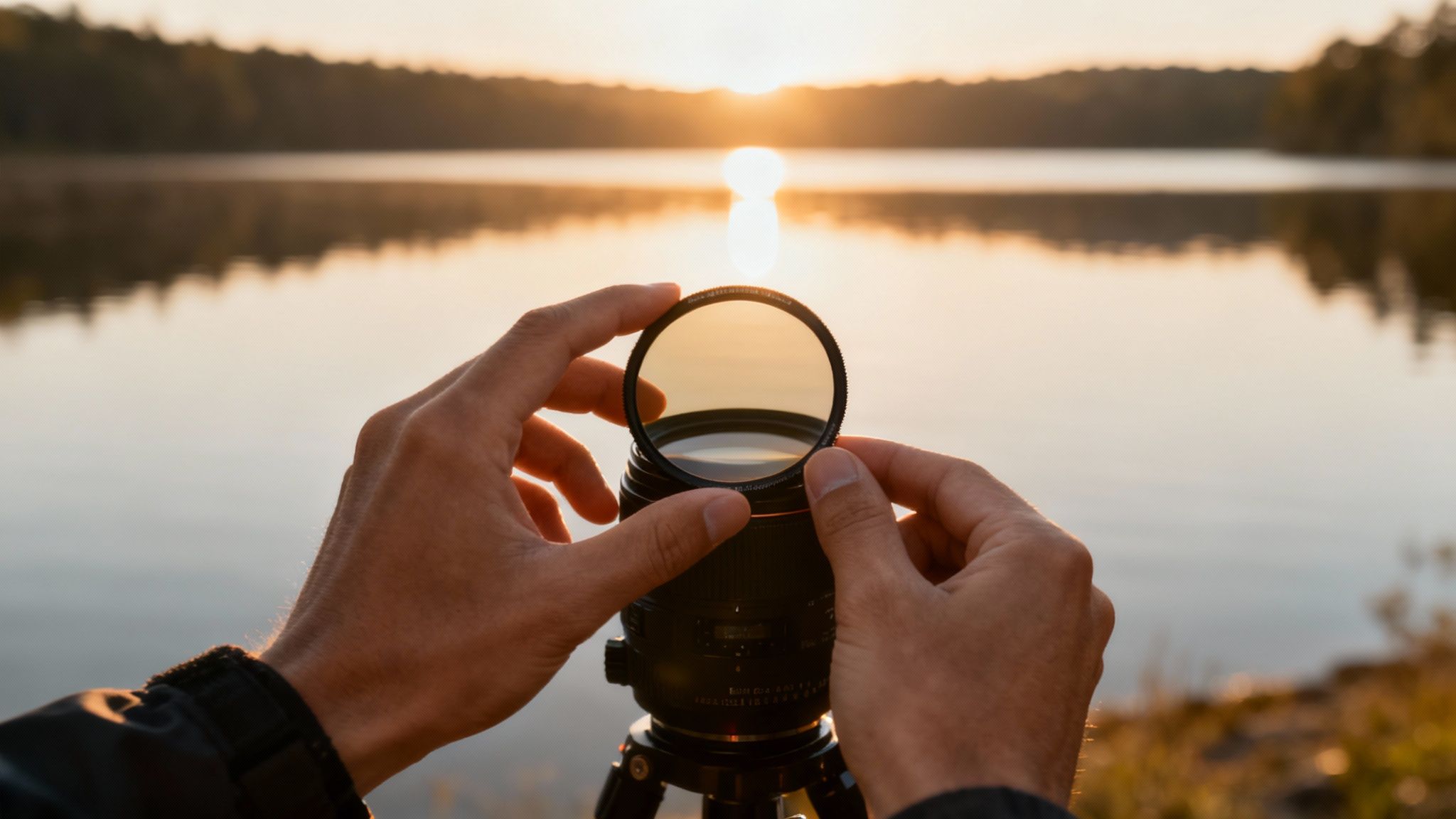
- Circular Polarizing Lens (CPL) Filter: This is, without a doubt, the most important tool for cutting glare from surfaces like water, glass, and even the sheen on leaves. A CPL filter works by blocking specific waves of polarized light. As you rotate the filter, you can literally watch reflections vanish right before your eyes. As a bonus, it also deepens blue skies and boosts color saturation. For any landscape or architectural photographer, it's a must-have.
- Lens Hood: Don't underestimate this simple piece of plastic. A lens hood is your best friend for preventing lens flare—that hazy, washed-out look you get when stray light hits your lens from the side. It acts like a little visor, shielding the glass and helping preserve contrast and sharpness, especially when the sun or another bright light source is just out of frame.
Glare Prevention Methods: Hardware vs. Technique
To really nail glare-free shots, you need to combine the right gear with the right approach. It's not always one or the other. This table breaks down when to rely on equipment versus when to lean on your own technique.
| Method | Type | Best For | Key Benefit |
|---|---|---|---|
| Circular Polarizing Filter | Hardware | Reflections on water, glass, foliage | Directly removes polarized light and enhances color |
| Lens Hood | Hardware | Lens flare from side-lighting | Blocks stray light, preserving contrast and sharpness |
| Changing Shooting Angle | Technique | Any reflective surface or backlit scene | Free and immediate; finds angles where glare isn't visible |
| Using Diffusers/Flags | Both | Studio work or controlled lighting | Softens or blocks light at the source for total control |
Ultimately, having a CPL filter and a lens hood in your bag gives you options, but knowing how to see and react to the light by changing your position is a skill that will serve you on every single shoot.
It’s also fascinating to see how this problem is being tackled with technology. A 2018 study in medical imaging, for instance, pioneered an image inpainting technique that could detect and remove glare with incredible speed and accuracy. It shows how even outside of photography, brilliant minds are using advanced math to solve this age-old problem. If you're into the technical side of things, you can dive into the full study on fast glare removal techniques. By pairing smart field techniques with the right gear, you’ll capture photos that are as clean and clear as possible right out of the camera.
Common Questions About Removing Photo Glare
Even with the best tools, some types of glare can be incredibly stubborn. Let's tackle some of the most common questions I hear from photographers trying to clean up their shots. These are the tricky situations that can really test your editing skills.
Can I Completely Remove Glare from Eyeglasses?
Yes, you absolutely can, but it’s rarely a one-click fix. Glare on eyeglasses is probably the trickiest issue because it covers up the most important part of a portrait: the eyes. Your standard healing brushes are going to struggle here because they can't guess the complex shapes and textures of an eye hiding underneath that bright reflection.
For your best shot at a natural result, try this:
- Work on a separate layer in Photoshop. This is non-negotiable. You need a non-destructive way to work so you can always go back if something looks off.
- Borrow from the other eye. Is the other eye clear? Perfect. You can copy parts of it, flip it horizontally, and then carefully paint and blend it over the eye with the glare. This takes patience, but it works.
- Let AI take a crack at it. This is where new tools are really shining. As the Adobe research team points out, their AI model is trained to see the reflection and the scene behind it as two separate images, then reconstruct what's been covered up.
Why Do My Glare Removal Edits Look Fake or Blurry?
This happens all the time, usually when the Clone Stamp or Healing Brush is used too aggressively. When you get a blurry, smudged patch where the glare used to be, it’s a dead giveaway. The secret to a convincing edit is building it up slowly.
A survey of professional retouchers published in a 2023 industry report found that over 60% cited "unnatural texture" as the biggest red flag of a poor edit.
To keep your edits looking real:
- Turn down your tool's opacity. Don't try to erase the glare in one big, heavy-handed move. Set your brush opacity way down to 20-30% and build up the fix in gentle layers.
- Change your source point constantly. If you’re using the Clone Stamp, keep Alt-clicking on different nearby areas to sample from. This prevents you from creating weird, repeating patterns that scream "Photoshop!"
- Add some texture back in. After you've removed the bright spot, the area can look unnaturally smooth. I like to add a tiny bit of noise or grain back into just that spot to help it match the texture of the surrounding photo.
"The goal of great retouching is for no one to know you were there," advises master retoucher Pratik Naik. "It’s about believably restoring the image, not just deleting imperfections."
Can Water Reflections Be Removed?
Yes, but how you do it really depends on what kind of reflection you’re dealing with. The best solution, hands down, is to use a polarizing filter on your lens while you’re shooting. That will prevent the problem from ever happening.
But if you have to fix it later, your approach will vary. For those small, sharp, bright highlights on the water's surface, the Spot Healing Brush often works like magic.
It's the big, complex reflections—like a whole building mirrored in a lake—that are the real nightmare. Trying to remove that manually is next to impossible. This is another area where AI tools are making huge leaps, analyzing the whole scene to figure out what's the water and what's the reflection. They're starting to solve problems that we used to consider unfixable.
Ready to conquer glare with the power of AI? DreamShootAI offers a suite of tools that make complex edits simple. Use Photo Edit by prompt to type away reflections or Magic Upscaler to restore lost detail. Transform your photos effortlessly at https://dreamshootai.com.
Written by Jocelyn Grey for the DreamShootAI blog.
Spotted something out of date? Tell us at [email protected] and we'll fix it.