How to Edit Hair in Pictures: A Professional's Guide
Learn how to edit hair in pictures with pro techniques. Master flyaway removal, color correction, and AI tools in Photoshop, Lightroom, and mobile apps.
Editing hair in pictures isn’t a single magic trick. It's a series of careful steps that build on each other, starting with a solid, high-resolution photo and some foundational tweaks. Whether you're using the Healing Brush, the Clone Stamp, or slick AI tools, the secret is to build corrections gradually on separate layers. This approach is key to keeping the natural texture and making the final result look real.
Your Foundation for Flawless Hair Edits
Every pro knows that a killer edit starts way before you zoom in on a single stray hair. The single most important factor? The quality of the image you start with. A high-resolution photo gives you all the pixel data you need to make clean, precise adjustments without everything turning into a blurry, pixelated mess.
Think of it like building a house—you wouldn't start without a solid foundation. In photo editing, your foundation is a well-prepped image file. That low-res JPEG you pulled from social media just isn't going to hold up when you start doing detailed work. The initial quality check is what separates a seamless edit from one that screams "this has been Photoshopped."
Prepping Your Canvas for Success
Before you even think about tackling flyaways or changing color, your first move should be making global adjustments. Fire up Lightroom or Photoshop’s Camera Raw filter and get the whole image looking right. A few small tweaks here can save you a mountain of tedious cleanup work later.
Here's what to focus on first:
- Exposure and Contrast: Make sure the hair is properly lit. Lifting the shadows just a touch can bring out hidden details in dark hair, which makes selecting and editing it way easier.
- Clarity and Texture: A subtle bump in clarity can make individual strands pop, giving your editing tools a much clearer road map. Just be gentle—overdo it, and you'll end up with a harsh, crunchy look that nobody wants.
As noted by professional retoucher Dani Diamond, "The real difference between an amateur and a pro edit is the prep work. Spending five minutes balancing the light and enhancing texture can easily save you thirty minutes of frustrating, pixel-level cleanup.”
This whole prep stage is designed to make everything that comes next easier and more effective. It's been shown that our eyes are incredibly sensitive to weird inconsistencies in texture and lighting, so getting these foundational edits right is critical for a believable result.
And if you’re looking to try a completely new style, you can always explore different AI-driven hairstyles for inspiration before you even start the manual work. By locking in a strong, well-adjusted base image, you’re setting the stage for every edit—from simple flyaway fixes to dramatic color changes—to blend in perfectly and look completely authentic.
Taking Control with Pro-Level Manual Edits in Photoshop
When you need absolutely flawless results for a professional headshot or a once-in-a-lifetime wedding photo, automated tools just won't give you the precision you need. This is where you roll up your sleeves and dive into Adobe Photoshop. Its manual tools offer complete control over every single strand of hair. We're moving beyond the one-click fixes and getting into the specific techniques that define high-end, professional hair retouching.
This isn't just about deleting flyaways; it's about reshaping, smoothing, and perfecting hair without leaving a trace. For a professional retoucher, the goal is always an edit that feels completely invisible. Achieving that level of subtlety requires a solid grasp of Photoshop's core tools and, most importantly, a non-destructive workflow.
Mastering the Art of Removing Flyaways
The number one request when editing hair is dealing with flyaways. They might seem like a small problem, but the way you fix them is what separates amateur work from a truly professional result. Your two best friends for this task are the Clone Stamp and the Healing Brush.
- Healing Brush: This tool is an absolute dream for flyaways that are over a simple background, like a studio backdrop or a clear blue sky. It cleverly samples the texture and color from a source area but then blends the brightness and tone with its new home, making for a super seamless patch.
- Clone Stamp: Now, when a pesky flyaway crosses over a busy, detailed background (think tree leaves or a patterned shirt), the Healing Brush can get confused and create a smudgy mess. This is where the Clone Stamp shines. It gives you direct, pixel-for-pixel control. The real trick is to use it on a brand-new layer with a low opacity—I usually start around 20-30%—and build up the correction gradually.
And please, work non-destructively. It's a non-negotiable habit for pros. Always do these kinds of edits on a new, blank layer with the "Sample All Layers" option checked. This keeps your original image safe and sound, giving you the freedom to tweak, undo, or completely rethink your edits at any point.
The demand for these skills is huge. The global paid user base for video editing software alone hit around 43 million in 2023 and is expected to jump to over 63 million by 2030. That explosion in visual content creation means more people than ever need high-quality photo and video editing, and tools like Photoshop are at the heart of it all. You can find more data on the widespread use of professional-grade software solutions online.
This diagram lays out the basic professional workflow. You start with a great source image, make your foundational adjustments, and then move on to the detailed manual edits.
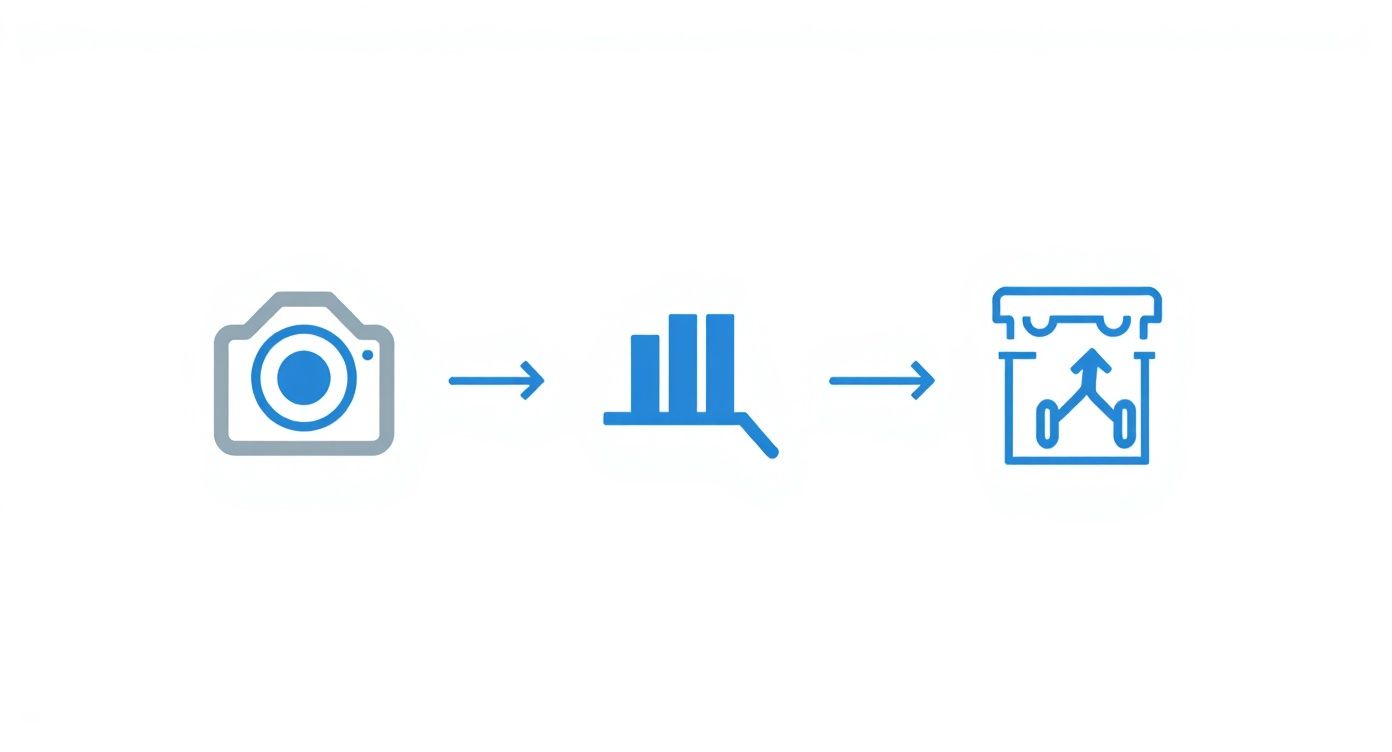
Following this sequence is key. It ensures your detailed hair edits are built on a solid, well-adjusted base, which makes getting a natural-looking final result so much easier.
Advanced Texture Control with Frequency Separation
Ever see hair that’s been so over-edited it looks like a plastic helmet? That’s what we want to avoid. For tackling widespread frizz without destroying texture, frequency separation is the industry-standard technique. It sounds way more complicated than it is.
Basically, you're just splitting your image into two separate layers:
- A Low-Frequency Layer: This one holds all the color and general tones.
- A High-Frequency Layer: This layer is just for the fine details and texture—think individual hair strands and skin pores.
Once they're separated, you can work on the low-frequency (color) layer with a tool like the Mixer Brush to gently smooth out any blotchy tones or discoloration caused by frizz. The magic is that because you aren't touching the high-frequency (texture) layer, every single strand of hair stays perfectly sharp.
This is the secret sauce for achieving that silky-smooth, magazine-quality look while keeping the hair's natural texture totally intact. It’s a true hallmark of a professional retoucher.
Mastering frequency separation gives you an incredible amount of control, allowing you to fix color and frizz issues completely independently from the hair's texture. This is how you create edits that not only look good but stand up to the closest inspection.
Quick Hair Fixes with Mobile Editing Apps
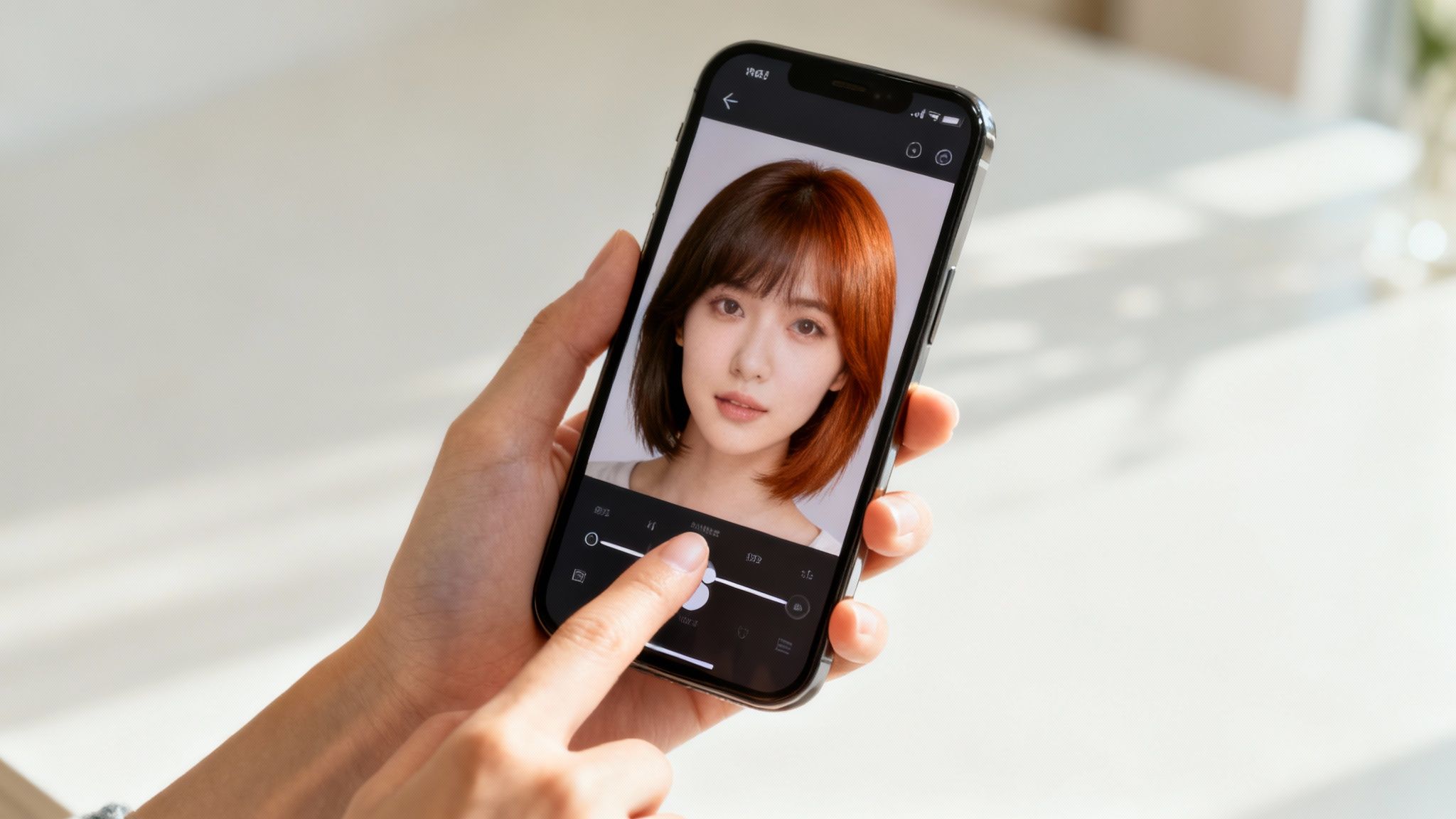
Let's be honest, not every photo needs a deep dive into Photoshop. Sometimes you just need a quick fix before posting to Instagram, and that's where your phone becomes an unexpectedly powerful editing tool. The mobile app market is exploding for a reason—revenue in the photo and video app segment is projected to reach US$9.63 billion in 2024, driven by millions of us who rely on these pocket-sized studios for fast, effective edits.
This is exactly why knowing how to edit hair in pictures on your phone is such a game-changer. Apps like Facetune, YouCam Perfect, and Picsart have become the go-to solutions for instant improvements, whether it's taming a few flyaways or trying out a wild new hair color on a whim.
One-Tap Fixes for Common Hair Problems
Where mobile apps truly shine is their speed. They often use clever AI to turn what would be a complicated task on a desktop into a simple tap or swipe. This is a lifesaver for anyone who doesn't have the time (or patience) for manual editing software.
Picture this common scenario: you snap a great outdoor selfie, but a gust of wind has created a halo of flyaways around your head. Instead of painstakingly cloning each one out, an app like Facune gives you a "Smooth" tool that can instantly blend those stray hairs away. Problem solved in seconds.
According to Forbes, "The accessibility of mobile editing apps has democratized photo retouching. What once required specialized training is now achievable with a few taps, empowering everyone to present their best selves online."
Likewise, if your hair is looking a little limp in a photo, YouCam Perfect has features that can intelligently detect the hair and add a bit of volume right where it's needed. These automated tools are built for instant gratification, making them perfect for social media posts where you need to move fast.
Creative Transformations for Social Media
Beyond just fixing things, mobile apps are a fantastic playground for creativity. They make it ridiculously easy to experiment with bold changes that would take serious effort in more traditional programs.
Just look at how some of the top apps stack up. To get a clearer picture, I've put together a quick comparison of some of the most popular hair editing tools available right on your phone.
Comparing Popular Hair Editing Tools
| Tool | Best For | Key Features | Skill Level |
|---|---|---|---|
| Facetune | Subtle smoothing and touch-ups | Smooth/Patch tools for flyaways, Reshape for volume | Beginner |
| YouCam Perfect | Hair color changes and styles | Wide range of preset colors, AI hairstyle try-ons | Beginner |
| Picsart | Artistic and dramatic effects | Layer-based editing, creative color replacement tools | Beginner to Intermediate |
| Lightroom Mobile | Precise, color-focused adjustments | Healing brush for flyaways, selective color masks | Intermediate |
| Photoshop Express | Quick, powerful retouching | Spot healing, clarity & texture adjustments | Beginner to Intermediate |
This table gives you a good sense of where to turn depending on your goal. Each app has its own strengths, whether you need a quick touch-up or a full creative overhaul.
For example, ever wondered if you could pull off pink hair? YouCam Perfect lets you "try on" different shades in real time. It’s not just for fun, either—it can be a genuinely useful way to visualize a new look before you commit.
If you’re aiming for something more artistic, like adding a galaxy effect to your hair for a themed post, Picsart’s layering and blending modes give you far more creative control.
Sure, these apps don't offer the pixel-level precision of Photoshop. But their speed and user-friendliness make them an indispensable part of any modern content creator's toolkit. They offer a fast, effective way to solve common hair problems and push your creative limits, all from the palm of your hand.
The New Era of AI Hair Editing
Not long ago, editing hair in a photo was a soul-crushing task. I'm talking hours spent meticulously selecting every single strand, tracing frizz, and fighting with complex backgrounds. It was the kind of tedious work that made you question your life choices.
But that era is over. Artificial intelligence has stepped in, and it's completely changing the game.
AI algorithms, trained on millions of images, can now instantly tell the difference between a person's hair and whatever is behind them. That job that used to take hours? It now takes seconds. This isn't just about saving time; it's about freeing up your creative energy to focus on what really matters—the final look of your photo.
Talking to Your Tools: The Power of Smart Prompts
What's really exciting is how we interact with these new tools. Instead of fumbling through a maze of confusing sliders and adjustment layers, we can now just tell the software what we want using plain English.
Think about it. Rather than manually painting in highlights, you can just type:
- "Add subtle auburn highlights to her hair."
- "Tame the frizz but keep the natural curl pattern."
- "Make the hair look thicker with more volume at the roots."
The AI takes these instructions and performs all the complex edits behind the scenes. This prompt-based approach is at the heart of tools like our AI Hairstyle Changer, which lets you experiment with new looks just by describing them. The better your prompt, the better your results. It's that simple.
Tech visionary Chris Dixon states, “Prompting is the new user interface.” In photo editing, this completely flips the script on how we approach creative work. The question is no longer "How do I use this tool?" but "What do I want to create?"
Why AI is Taking Over Creative Software
This isn't just a niche trend; it's a major force driving the entire creative software market. According to a 2023 Grand View Research report, the global digital content creation market was valued at USD 27.93 billion and is projected to expand at a compound annual growth rate (CAGR) of 13.0% from 2023 to 2030. A huge reason for this boom is that AI features are making professional-grade results accessible to everyone.
Tools powered by AI let you change hairstyles, adjust colors, and add volume just by typing a few words or uploading a reference photo. It dramatically speeds up the whole process. If you're curious about the tech making this all possible, you can dive into some of the top AI image models that are leading the charge.
Essentially, the technology is now smart enough to handle the boring, repetitive parts of photo editing. By taking over tasks like masking and selection, AI lets you be the creative director. It’s an amazing time to learn how to edit hair in pictures, because the power to create stunning images is literally at your fingertips.
Achieving Natural and Realistic Edits
An impressive hair edit is one you don't even notice. The whole point is to achieve a level of realism where every change—from a bit of added volume to a completely new color—blends so perfectly it looks like it was captured in-camera. This final touch is what separates a good edit from a truly professional one, and it all comes down to the subtle details.
The most common mistake I see is an edit that looks pasted on. When you add volume or change a hairstyle, it must interact with the existing light in the photo. If the light source is coming from the left, any new hair you add needs to have its highlights on the left and shadows on the right. Paying meticulous attention to light and shadow is non-negotiable for a believable result.
Avoiding the Overly Processed Look
Nothing screams "edited" louder than hair that looks like a plastic helmet. This usually happens when you get a little too aggressive with smoothing tools to kill frizz or flyaways, completely destroying the hair's natural texture in the process.
To keep those fine, realistic details, always work with low-opacity brushes. It's better to build up your edits gradually. This allows you to maintain the tiny imperfections that make hair look like, well, hair. A great pro tip is to add a subtle layer of digital "grain" or "noise" over the edited area to help it match the texture of the original photograph.
This drive for realism isn't new. Long before digital tools, retouchers would manually alter photographic prints to enhance hair texture, often to reflect popular styles of the era, like the bob in the 1920s which symbolized new social freedoms.
Mastering the Art of Blending
The final piece of the puzzle is blending. The transition where the hair meets the skin or a complex background is often where an otherwise great edit falls apart.
Photography educator Scott Kelby emphasizes this point: "The smallest details make the biggest impact. The soft, slightly blurred edge where hair meets the forehead or cheek is what sells the entire illusion. A hard, perfectly crisp line is an immediate giveaway."
Use a soft-edged brush with a low flow setting to gently paint along these edges, helping the hair blend seamlessly into its surroundings. When you're changing color, precision is everything. Our guide on AI-powered photo color correction can help you nail those accurate, natural-looking tones. These are the finishing touches that elevate your work, making your edits indistinguishable from reality.
Frequently Asked Questions About Hair Editing
Editing hair can be one of the trickiest parts of retouching a photo. Whether you're a seasoned pro or just getting started, you've probably run into some frustrating challenges. Let's tackle some of the most common questions that pop up.
How Do I Remove Flyaways Without Making It Look Fake?
The secret is to be selective. You never want to erase every single stray hair—that’s what creates that weirdly artificial, "helmet hair" look. The goal is to just clean up the most distracting strands that pull focus away from your subject.
Your go-to tools in Photoshop for this are the Healing Brush and the Clone Stamp. Here’s my approach:
- Healing Brush: I use this for flyaways against a simple, clean background like a studio backdrop or a clear sky. It does an amazing job of blending texture and color seamlessly.
- Clone Stamp: When a stray hair crosses over a detailed background—like a patterned shirt or foliage—I switch to the Clone Stamp. The key is to set it to a low opacity, usually around 20-30%, and build up the fix gradually on a new layer. This gives you way more control and helps you avoid those obvious smudges.
Is It Possible to Realistically Change Black Hair to Blonde?
Yes, you absolutely can, but it’s an advanced technique that requires patience and a multi-layered approach. You can't just slap on a single adjustment layer and call it a day; it'll look flat and totally unbelievable.
To pull this off in Photoshop, you need to build the color change in stages.
First, create a super precise mask around the hair. Then, start stacking your adjustment layers. I usually begin with a Hue/Saturation layer to pull out the color, followed by a Curves layer to brighten it up significantly. Finally, I'll add another Hue/Saturation or Color Balance layer, check the "Colorize" option, and start painting in the blonde tones. Tackling it in careful steps like this is the only way to get a believable result.
Are AI Photo Editors a Good Replacement for Manual Edits?
AI editors are fantastic for speed, especially for bulk edits or getting a quick first pass done. If you're churning out social media content or need to send fast proofs to a client, they're a total game-changer. But for high-end commercial work or fine art portraits where every tiny detail matters, manual editing in Photoshop still gives you the best control.
"AI is an incredible assistant, not a replacement," argues professional photographer Pye Jirsa. "It handles the 80% of tedious work in seconds, freeing up the artist to focus on the final 20% of detailed refinements that define a truly professional image."
A lot of pros I know, myself included, are using a hybrid workflow now. We let AI do the heavy lifting—like creating initial masks or basic color corrections—and then we jump in to manually fine-tune the results for that perfect, polished look.
Ready to skip the manual labor and see what AI can do for your photos? With DreamShootAI, you can generate professional-quality headshots, wedding photos, and creative portraits in minutes. Try out new hairstyles, fix imperfections with a simple text prompt, and create stunning images without the hassle. Transform your photos today at https://dreamshootai.com.
Written by Jocelyn Grey for the DreamShootAI blog.
Spotted something out of date? Tell us at [email protected] and we'll fix it.