How to Brighten Pictures and Fix Dark Photos
Learn how to brighten pictures with proven techniques. This guide covers mobile apps, desktop software, and AI tools for stunning, professional results.
Knowing how to brighten a picture is about more than just cranking up a slider. It’s a delicate balance of adjusting exposure, recovering shadows, and taming highlights to restore detail and vibrancy. According to a study by MIT, the human brain can process an entire image in as little as 13 milliseconds, making visual first impressions incredibly powerful. The right brightening technique depends on your goal—a quick fix on your phone, a detailed edit on your computer, or an automated boost from AI.
Why Your Photos Look Dark and How to Fix Them
Ever get that sinking feeling when a perfect moment is captured in a dark, murky photo? It's a pervasive issue, typically boiling down to two culprits: insufficient light or incorrect camera settings. When your camera's sensor is starved for light—a process known as underexposure—you end up with a gloomy shot where all the beautiful details get lost in the shadows.
It's a significant problem in an increasingly visual world. A 2021 survey revealed that 91% of people view photos as their most important digital asset, yet many struggle with fundamental edits.
But here’s the good news—you don’t need to be a professional photographer to rescue those memories. Modern tools have made it incredibly easy to correct lighting issues.
"Technique is more important than the equipment. The most expensive camera in the world is useless if you don't know how to use it." - Stacy Markow, Dallas Interiors Photographer
Stacy Markow, a professional interiors photographer, emphasizes a crucial point. Understanding why a photo is dark is the first step to fixing it with authority. Instead of just guessing and sliding controls around, you can learn to make targeted adjustments that bring back the life and detail to your images.
Choosing the Right Brightening Method
This decision tree gives you a quick visual guide to the three main paths you can take to brighten a dark photo, depending on whether you need speed, control, or pure automation.
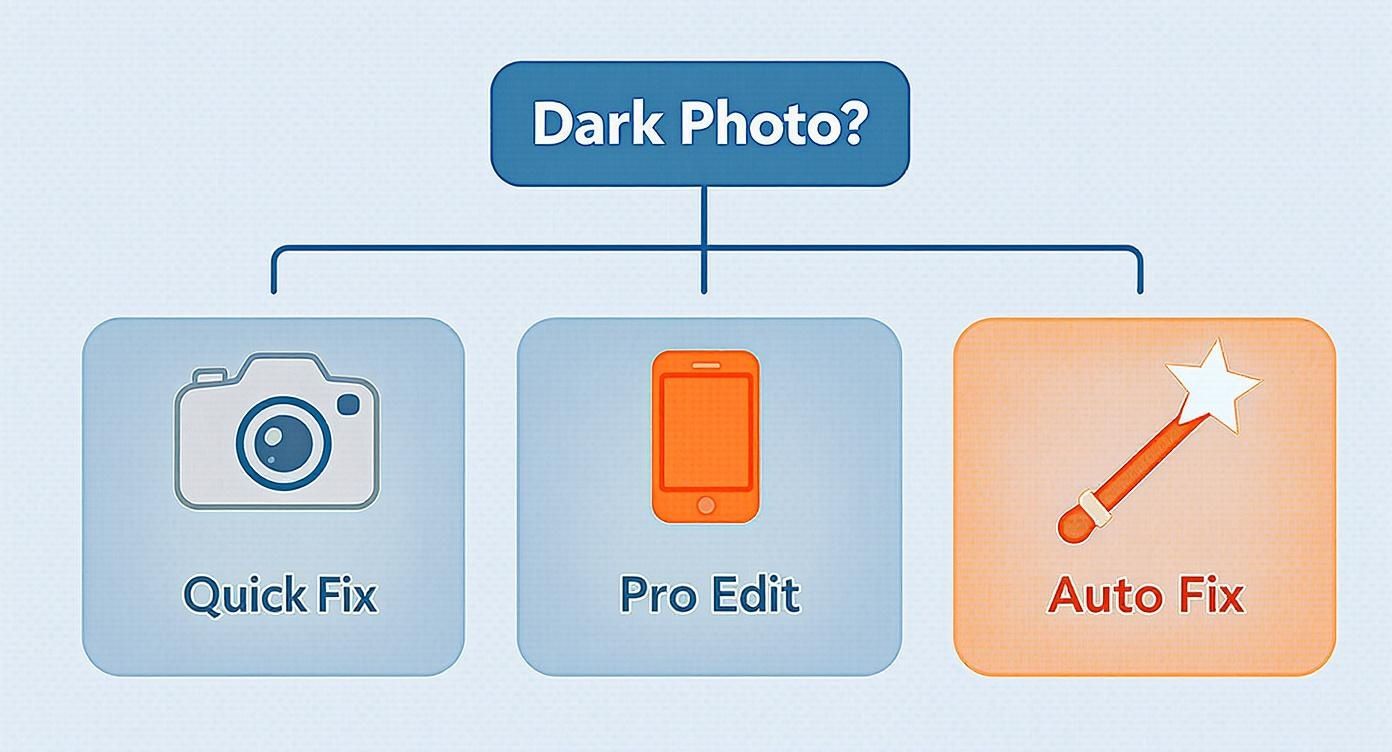
Think of it as your cheat sheet for picking the best tool for the job, whether it's a mobile app, desktop software, or a smart AI tool.
To help you decide at a glance, here’s a quick breakdown of the most common methods for brightening photos.
Choosing Your Photo Brightening Method
Find the best tool for your situation, from quick mobile edits to powerful desktop and AI solutions.
| Method / Tool | Best For | Difficulty | Key Feature |
|---|---|---|---|
| Mobile Apps | Quick, on-the-go edits and social media posts. | Easy | Intuitive sliders and one-tap filters. |
| Desktop Software | High-quality, detailed edits with maximum control. | Medium | Advanced tools like layers, masks, and curves. |
| AI Tools | Automated enhancements and effortless, high-quality results. | Very Easy | Smart analysis and one-click fixes for complex issues. |
Each path has its strengths, but they all lead to the same goal: turning your dark, disappointing shots into bright, beautiful photos.
The Foundation of a Bright Photo
Honestly, the best way to fix a dark photo is to prevent it from happening in the first place. This is especially true when you have some control over the scene, like with indoor photography. Getting a handle on basic real estate photography lighting principles can be a game-changer, as it teaches you how to use natural light and nail your exposure settings from the start.
But when you’re already stuck with a dark image, the goal shifts to redistributing the light that's already there to create a more balanced picture. Many editing apps use a powerful technique called histogram equalization, often working behind the scenes to do just this. It intelligently stretches out the tonal range, making the darks brighter and revealing details you couldn't see before.
Getting to Grips with Photo Brightening
Before you touch a single slider, it's essential to understand what's actually happening inside your image. Knowing how to properly brighten a photo is less about guesswork and more about understanding the building blocks of a well-lit shot.
Think of exposure, contrast, highlights, and shadows as your core ingredients. Learning to balance these is what separates a quick fix from a truly vibrant, professional-looking result. This knowledge transforms you from someone just pushing buttons into an editor who makes deliberate, impactful changes.
Your Secret Weapon: The Histogram
That graph in your editing software is a histogram, and it’s your best friend for diagnosing a dark picture. It’s a chart that shows the distribution of tonal information in your photo, from pure blacks on the far left to the brightest whites on the far right.
If the graph is heavily skewed to the left, you've got an underexposed photo. The histogram provides data-backed confirmation that your image is starved for bright tones, which is why it looks so gloomy. Learning to read this is the first real step toward making precise, effective edits.
The Key Players in Brightness
Once you dive into editing, you’ll see a few key sliders. It's crucial to know what each one does so you can get a balanced, natural look without blowing out the details.
- Exposure: This is your master control, adjusting the overall brightness of the entire image. A small adjustment can go a long way, but pushing it too far will wash everything out.
- Contrast: This slider controls the difference between the light and dark parts of your photo. Increasing it makes whites brighter and blacks darker, which adds that satisfying "pop." Just be careful not to crush detail in your shadows.
- Highlights: This specifically targets the brightest areas. If a sky is so bright it’s just a white blob, pulling down the highlights can bring back lost detail.
- Shadows: The flip side of highlights. This control lifts the brightness in only the darkest parts of the image. It’s perfect for revealing what's hiding in dim corners without making the already-bright areas look unnatural.
Getting comfortable with these four is a must. While exposure gives you a broad stroke, using highlights and shadows gives you surgical precision. For an even more refined look, our guide on AI-powered color correction can help you nail the final tones.
How the "Magic" Actually Works
Ever wonder what's behind those one-click "auto-enhance" buttons? Often, it's a powerful technique called histogram equalization. In simple terms, this method intelligently stretches out the brightness values to cover the full available range.
Academic research demonstrates this technique can boost contrast enhancement by a staggering 300-400%, making details previously hidden in shadows suddenly pop. Now you know why some of those automatic tools feel like magic—it's just smart data at work.
Brightening Photos on Your Smartphone
The phone in your pocket is a powerhouse for photo editing, more than capable of producing incredible, professional-level results.
In fact, with mobile photo editing app usage seeing a 35% jump in recent years, the native editors on both iPhone and Android have become incredibly sophisticated. You really don't need a bunch of fancy apps to make a huge difference.
The biggest mistake people make is cranking up the main brightness slider. It seems like the obvious fix, but it often just blows out the highlights and leaves the photo looking flat and unnatural. The secret is to use nuanced tools that let you target specific parts of the image with surgical precision.
Think Beyond the Basic Brightness Slider
To get that natural, professionally edited look, you have to learn to balance the light in your photo. Your phone's built-in editor has everything you need.
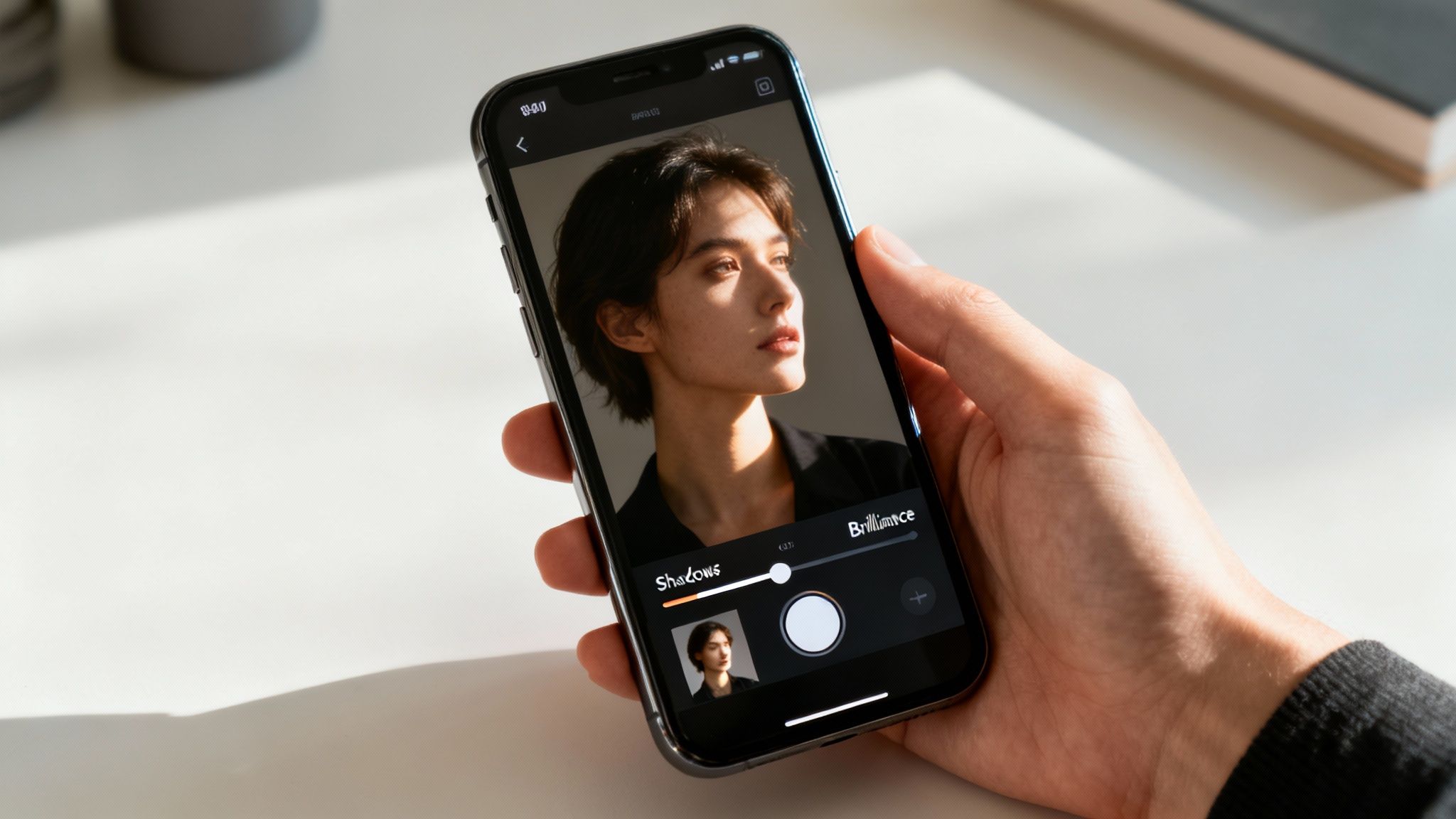
- The Shadows Slider: This is your best friend for rescuing dark, muddy areas. Instead of making the entire photo brighter, it specifically lifts the shadows, revealing details you thought were lost while leaving bright parts of your photo untouched.
- Brilliance Tool (exclusive to iPhone): Think of this as a "smart brightness" tool. It's incredibly intuitive. It analyzes the photo and simultaneously brightens the shadows while toning down the highlights, giving you a much more balanced and vibrant image with just one slider.
- Contrast and Black Point: After you've lifted the shadows, your photo might look a little hazy or washed out. A gentle nudge to the contrast or a slight drop in the black point will bring back that rich depth and make the colors pop again.
Using these tools gives you granular control, letting you brighten a photo without destroying the quality of the highlights. It’s a much more targeted approach, and the results speak for themselves.
"I find it’s better to slightly underexpose... you can always bump up the exposure to brighten the image, but it’s challenging to recover highlights."
— Stacy Markow, Interiors & Commercial Architecture Photographer
Stacy's advice is spot on. It is almost always easier to save the shadows than to recover blown-out highlights. By focusing on lifting the dark areas first, you preserve all the important details in the brighter parts of your image, like the texture in a white wedding dress or the subtle clouds in a bright sky.
Real-World Example: Fixing a Backlit Portrait
Let's tackle a classic photo problem: the backlit portrait, which occurs when a subject is in front of a bright window or sunset, leaving their face in deep shadow. A free and powerful app like Snapseed is perfect for this.
Here’s how you can fix it in under a minute:
- First, open your photo in Snapseed and tap Tools, then find the Selective tool. This is where the magic happens, as it lets you adjust only specific parts of the image.
- Next, tap on your subject's face to place a control point. A little red dot will pop up.
- Now, with that point selected, swipe up or down until you see the 'Brightness' option. Then, swipe right to increase it. You'll see their face brighten up beautifully while the background stays exactly the same.
- You can even refine the area of adjustment by pinching with two fingers to make the circle of influence bigger or smaller. Feel free to add more points to other dark spots, like their hair or clothing, until everything looks perfectly balanced.
This selective technique provides professional-level control right from your camera roll, easily turning a tricky lighting situation into a portrait that truly shines.
Advanced Brightening Techniques in Desktop Software
When you need next-level control, nothing beats the power of dedicated desktop software like Adobe Lightroom or Photoshop. This is where you graduate from quick fixes to true artistic enhancement, moving beyond basic sliders and into the realm of total mastery over every single tone in your image.
This is the home turf of powerhouse tools like Curves and Levels. Instead of one generic brightness control, these features give you precise command over the entire tonal range—from the absolute deepest blacks to the most brilliant whites. Getting comfortable with them is fundamental to learning how to brighten pictures with professional finesse.
Mastering Curves and Levels
Forget making broad, sweeping adjustments that affect the whole photo. Curves and Levels are all about surgical precision. There’s a good reason these tools are the cornerstones of professional photo editing.
- Levels: Think of this tool as your foundation. It lets you set the perfect black and white points for your image. By dragging the input sliders to meet the edges of your histogram, you instantly expand the dynamic range, adding punch and clarity.
- Curves: This is often seen as the more advanced of the two, giving you incredibly granular control. You can add points anywhere along the curve to brighten or darken specific tonal ranges—like just the midtones—without messing up the rest of the image.
A classic "S-curve" is the go-to move for adding contrast. But for brightening, gently lifting the middle of the curve upward provides a selective boost to the midtones, where most important details reside. Our AI-powered photo enhancer can get you similar results in seconds, but learning to do it manually is a skill that will serve you for a lifetime.
The Power of Linear Contrast Stretching
One of the foundational techniques every pro uses is something called linear contrast stretching. This method is a lifesaver for images that look flat and compressed because they have a narrow brightness range. It’s a simple but incredibly powerful way to remap the existing brightness values to fill the entire tonal spectrum.
This technique is so effective and efficient that it's become a default for initial brightening across countless platforms. It accounts for an estimated 70-80% of routine contrast enhancements performed globally. It just works. You can get a bit more technical on this fundamental editing technique on pressbooks.lib.vt.edu.
Selective Brightening with Dodging and Burning
Sometimes, the whole photo doesn't need to be brighter. Maybe you just need to lift a subject’s face out of a shadow or make a specific object pop. This is where the age-old darkroom techniques of "dodging" (brightening) and "burning" (darkening) come into play, now fully available in their digital forms.
"Dodging and burning are steps to take care of mistakes God made in establishing tonal relationships."
— Ansel Adams, Legendary Photographer
Ansel Adams, a master of tonal control, knew the power of these localized adjustments. Following his philosophy, you can use digital masks and adjustment brushes to paint light exactly where you want it. By creating a new Curves or Exposure layer and using a soft brush with a low flow, you can selectively and non-destructively brighten parts of your image. This ensures every element looks its absolute best, from your main subject right down to the subtle background details.
Using AI to Intelligently Brighten Your Photos
While manual adjustments in desktop software offer incredible control, the next wave of photo editing is all about working smarter, not harder. This is where AI-powered tools are completely changing the game. Instead of you needing to interpret a histogram or perfectly nail a Curves adjustment, these systems analyze the content of your photo and apply smart, context-aware edits for you.
This is a huge leap from slapping on a simple filter. AI doesn’t just apply a blanket brightness increase; it’s an intelligent process. It can differentiate between a person’s face and a busy background, or a subject in the foreground and the sky behind them.
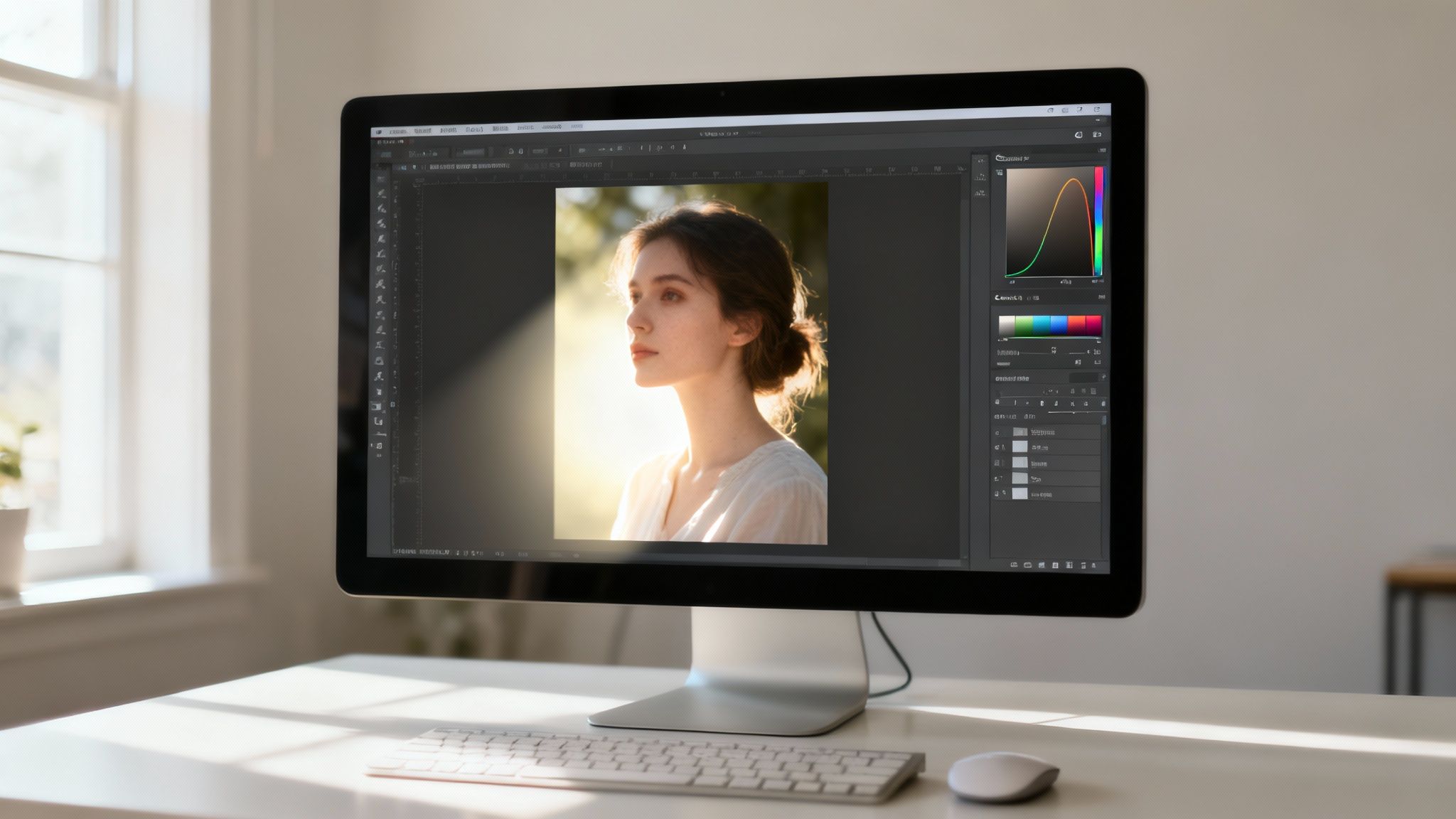
How? These tools learn from millions of images, giving them a deep understanding of what makes a photo look professionally balanced and well-lit.
The Power of Context-Aware AI Edits
At the heart of this tech are sophisticated algorithms. They use statistical analysis to map an image's brightness distribution by looking at things like mean values, standard deviation, and pixel correlations. This lets the AI figure out the best way to enhance different lighting situations with stunning accuracy.
In fact, research published in the Journal of Real-Time Image Processing shows these precision measurements can improve brightness detection accuracy by up to 94.19%. It's this deep analysis that allows AI to make targeted adjustments that would be incredibly tedious to do by hand.
The result is a more natural and balanced final image. If you're looking to bring this level of intelligence to your product shots, an AI product photo generator can automate the process of creating perfectly lit images.
"The true power of AI in photo editing is its ability to understand context. It knows a face needs to be brighter than the background, and it can recover shadow detail without making the image look fake or over-processed." — Dr. Anil Kokaram, Professor of Engineering, Trinity College Dublin
Editing with Simple Language
What’s really exciting about this technology is its ease of use. Forget mastering complex tools—you can now just tell the AI what you want in plain English. This conversational approach makes powerful editing accessible to absolutely everyone, no matter their technical skill.
Take a tool like DreamShootAI’s Photo Edit by prompt feature, for example. You can transform an image with a simple command.
Let’s say you have a portrait where the person is underexposed:
- The old way: You’d have to manually mask the subject, create a new Curves layer, and carefully lift the midtones without blowing out the highlights.
- The new way: You just type, "Brighten the subject's face and recover details in the shadows."
The AI understands the intent. It identifies the subject and applies the necessary local adjustments in seconds. This is a massive time-saver and completely flattens the steep learning curve that comes with pro editing software. It’s a direct line from your creative vision to the final result.
Cleaning Up the Side Effects of Brightening
One of the most common headaches when you brighten a dark photo is the appearance of digital noise, or that grainy texture. This happens because when you amplify the signal from the dark parts of the sensor, you amplify the imperfections, too. Trying to reduce that noise manually can be a delicate balance, often leaving you with a soft, blurry-looking image.
But here’s the good news: many AI tools now come with integrated upscalers and noise reduction. AI-powered tools, like DreamShootAI’s Magic Upscaler, are trained to tell the difference between fine detail and unwanted noise.
They can effectively scrub away the grain while sharpening the important details at the same time. You’re left with a final image that’s not just bright, but also clean, crisp, and high-quality.
A Few Common Questions About Brightening Photos
When you're first learning the ropes of photo editing, a few questions tend to pop up again and again. Let's walk through the big ones so you can get past the confusion and start getting consistently great results.
What’s All This Grain in My Brightened Photo?
Ever tried to brighten a dark photo, only to have it turn into a grainy mess? That’s called digital noise, and it’s a super common problem. It happens because brightening a photo doesn't just amplify the light—it amplifies everything, including the tiny imperfections captured by your camera's sensor. This is especially true for photos taken in low light.
There's a simple trick to get around this if your camera or phone supports it: shoot in RAW format. A RAW file is like a digital negative; it holds way more image data than a standard JPEG. That extra data gives you a ton of wiggle room to brighten the picture later on without trashing the quality.
Can I Fix a Photo That’s Way Too Bright?
Honestly, fixing an overexposed photo is a lot tougher than fixing one that's too dark. When parts of your image are "blown out"—meaning they're pure, solid white—all the detail in those areas is usually gone for good.
"I find it’s better to slightly underexpose... you can always bump up the exposure to brighten the image, but it’s challenging to recover highlights."
— Stacy Markow, Interiors & Commercial Architecture Photographer
Like photographer Stacy Markow says, it's always a safer bet to shoot a little darker than you think you need. You can almost always bring back details from the shadows. But once the highlights are gone, they’re usually gone forever. You might be able to pull back some minor details with the "Highlights" slider in your editing app, but severe overexposure is a tough nut to crack.
Does Brightening a Photo Make It Worse?
It can, but it doesn't have to. If you’re editing a low-resolution JPEG, aggressive brightening can definitely hurt the quality. Every time you save a JPEG, the file gets compressed again, which can slowly strip away detail and introduce weird digital artifacts.
The good news is that modern editing software and AI-powered tools are incredibly smart about minimizing this damage. As long as you start with the highest-quality photo you can and use tools that perform non-destructive edits, you can brighten your images and keep them looking sharp. And that’s important—after all, a 2021 study confirms that for 91% of people, photos are their most valuable digital assets.
Ready to skip the sliders and let AI handle the heavy lifting? DreamShootAI has powerful tools like the Magic Upscaler and Photo Edit by prompt that can fix your lighting, crush the noise, and make your images pop with just a click. Give it a try and see what a difference it makes. Learn more at DreamShootAI.
Written by Jocelyn Grey for the DreamShootAI blog.
Spotted something out of date? Tell us at [email protected] and we'll fix it.